Invite a Workspace Member
Invite a member and review their HRM profile.
Open HRM > Members to manage people and invitations. The current list uses Invite member for adding workspace access.
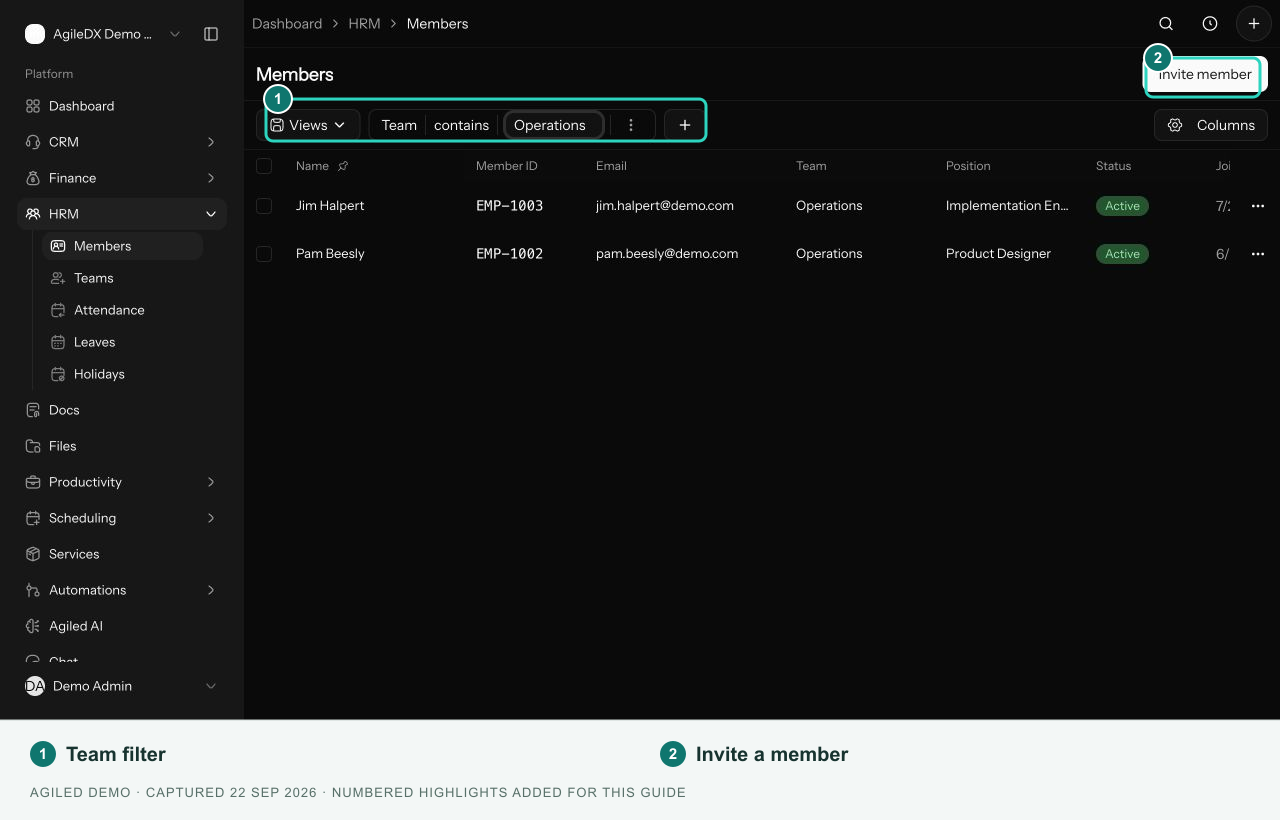
Send an invitation
- Select Invite member.
- Enter the intended email address.
- Choose Admin, Manager, or Member as appropriate.
- Select Send invite.
- Review the invitation in the list and have the recipient accept it using the same email.
Sending an invitation sends an actual email and grants the selected role when accepted. Check the address and role before sending. Invitation controls are shown only when your access permits them.
Review the HR profile
Find the member's existing record before editing HR information. Use its available profile or edit action to review employment details, department, position, manager, and linked account.
Keep the account and HR record aligned before relying on attendance, leave, compensation, documents, or self-service. Do not create another identity to resolve an invitation problem.
Pending invitations
Use the available resend or cancel action for a pending invitation. If the recipient cannot enter the workspace, check the invitation email, acceptance status, and sign-in account.