Inbox
See everything that needs you in one place, from approvals and tasks coming due to updates from your team and clients.
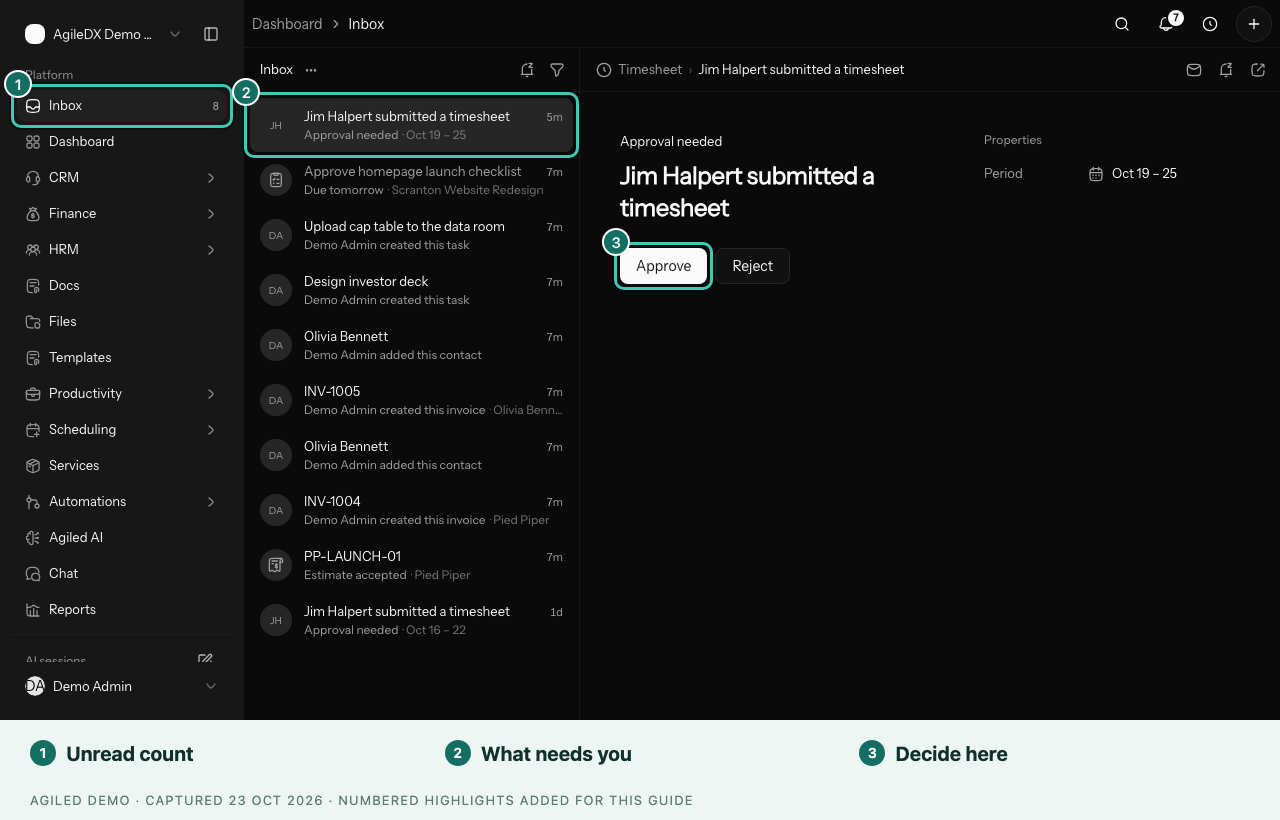
The Inbox collects what is waiting on you, so you don't have to check each module to find it. It is the first item in the sidebar, above Dashboard.
What Shows Up in Your Inbox
Your Inbox has two kinds of items.
Things that need your action:
- workflow and AI approvals
- expense, leave, attendance correction and timesheet approvals
- your open tasks that are overdue or due by tomorrow
- documents waiting for your signature
- AI work that is ready for you to review
Updates: your notifications, such as a task assigned to you, a mention, a comment, a new invoice or contact, or a client accepting an estimate.
Everything about one record shares a single row. If a teammate assigns you a task and then mentions you on it, you see one row for that task, not two. The row is titled with the record itself, and the line underneath says why it is there, for example "Due tomorrow", "Approval needed" or "Michael Scott assigned you this task".
You only see what you are allowed to act on. For example, expense approvals appear for people who manage finance, and timesheet approvals appear for owners, admins and managers who manage time tracking.
Open an Item
- Select Inbox in the sidebar.
- Select a row. The detail pane opens on the right and the row is marked as read.
- Act on it in the detail pane, or select Open to go to the record.
The detail pane shows the record, not just the notification text:
- The title and description of the task, invoice, deal or other record.
- Actions that fit the item. Approvals have Approve and Reject. Open tasks have Mark complete and Open task. Documents to sign have Review and sign. Other records have a button such as Open invoice, Open contact or Open deal.
- Activity, a timeline of comments and changes on the record.
- Properties, the live details of the record, such as status, priority, assignees, due date, client and amounts.
When you reject a request, Agiled asks you to confirm and lets you add an optional reason. After you decide, archive or snooze an item, the next row is selected for you.
Find What Matters
Use Filter at the top of the list to narrow it:
- Everything shows all items.
- Needs my action shows approvals, tasks coming due, signatures and AI work to review.
- Updates shows your notifications.
- Unread only hides what you have already read.
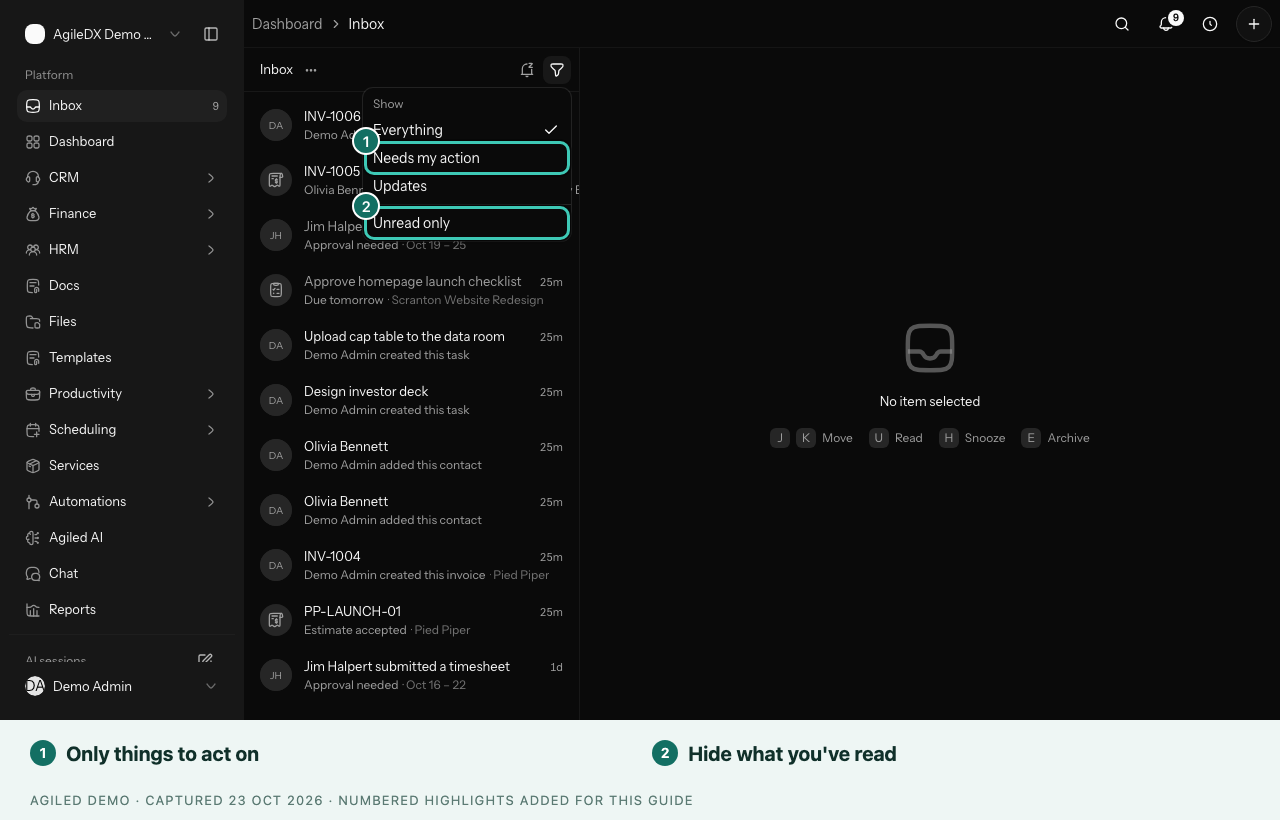
Active filters appear as small chips above the list. Select a chip to clear it.
The ... menu next to the Inbox title has Mark all as read, Archive all read and a link to Notification settings. The first two only apply to the rows you can see, so they follow your current filter.
Your Unread Count
The sidebar shows how many unread items you have next to Inbox. When the sidebar is collapsed, a small dot on the Inbox icon tells you something is new. The count refreshes about once a minute while Agiled is open.
Reading an update in the Inbox also marks it read in the notification bell, and the other way round.
On a Phone or Small Screen
On narrow screens the Inbox shows one pane at a time. Select a row to open it, then use the back arrow to return to the list.
Good to Know
- The Inbox is in the web app. The desktop and mobile apps keep using the notification bell for now.
- Mentions show up as part of the record they belong to. There is no separate list of mentions yet.
- To choose which events notify you, open Notification settings from the ... menu, or see My Notifications.