Snooze, Archive and Shortcuts
Keep your Inbox short by snoozing items until later, archiving what is done and moving with the keyboard.
Your Inbox works best when it only holds what still needs you. Snooze items you can't deal with yet, archive the ones you have finished with, and use the keyboard to move quickly.
Here's a quick look at moving through the Inbox with the keyboard, opening items and snoozing a task:
Snooze an Item
Snoozing hides an item until the time you pick, then puts it back in your Inbox.
- Open the item.
- Select the snooze button at the top of the detail pane.
- Choose when it should come back:
- Later today, three hours from now (only offered while it is still today)
- Tomorrow, at 9:00 AM
- Next week, on Monday at 9:00 AM
- In a week, seven days from now at 9:00 AM
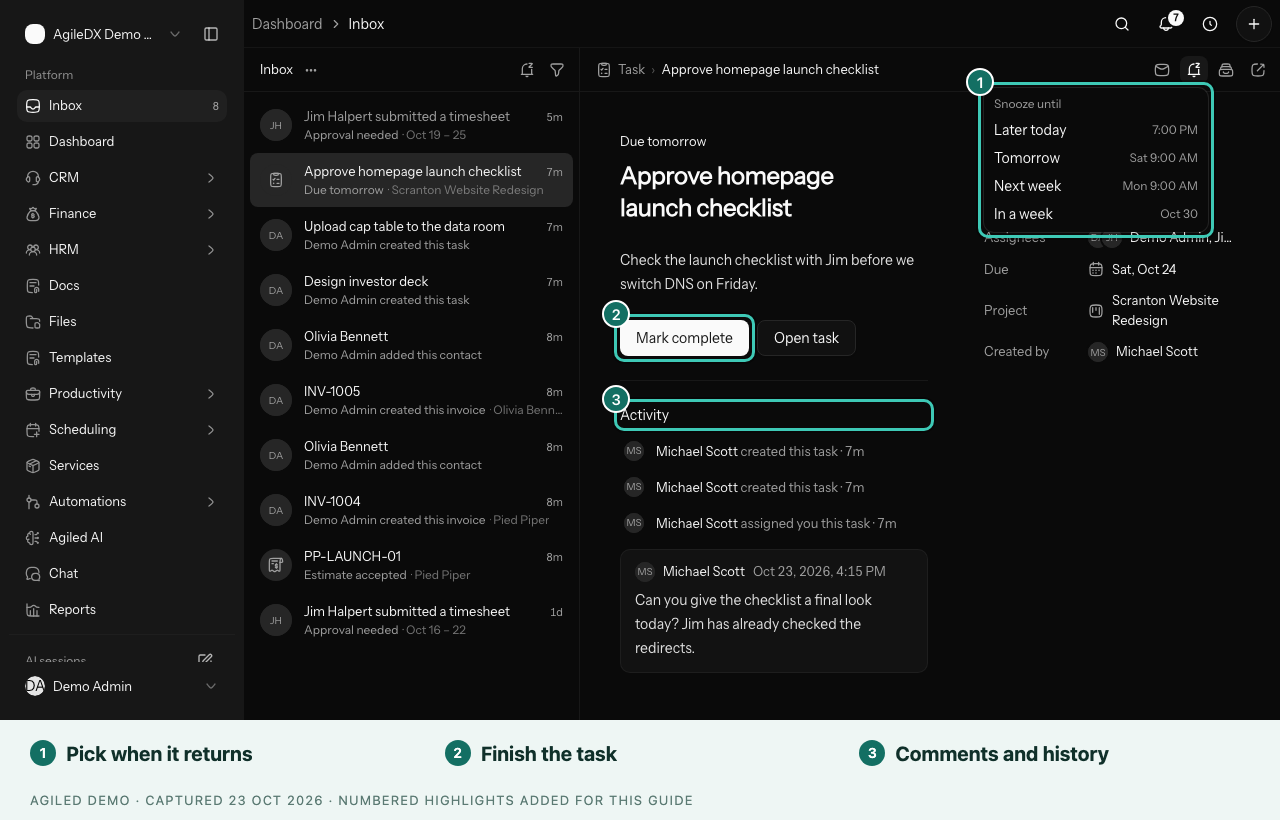
You can also right-click any row and choose Snooze.
To see what you have snoozed, select Snoozed at the top of the list. Each snoozed row shows when it will return. Right-click a row and choose Unsnooze to bring it back now. Select Back to inbox to return.
Archive What You Are Done With
Archiving removes an item from your Inbox. Use it for updates you have read and tasks you don't need reminding about.
- Hover a row and select the archive icon, or right-click it and choose Archive.
- Open the ... menu and choose Archive all read to clear every read item you can see.
Approvals, timesheets, leave and attendance requests, signatures and AI work need a decision, so they can be snoozed but not archived. They leave your Inbox once they are approved, rejected, signed or reviewed.
An archived task comes back if its due date changes, so you won't miss a new deadline.
Read and Unread
Opening an item marks it as read. To mark it unread again, use the read button at the top of the detail pane, right-click the row, or press U. Choose Mark all as read in the ... menu to clear everything you can see.
Keyboard Shortcuts
| Key | What it does |
|---|---|
| J or Down arrow | Next item |
| K or Up arrow | Previous item |
| U | Mark as read or unread |
| H | Snooze until tomorrow at 9:00 AM |
| E | Archive, when the item can be archived |
| Esc | Close the selected item |
Shortcuts don't run while you are typing in a field or have a menu or dialog open. When nothing is selected, the detail pane shows a reminder of the main keys.
A Simple Daily Routine
- Filter to Needs my action and work through approvals and tasks due soon.
- Snooze anything that has to wait for someone else.
- Switch to Updates, read what is new, then choose Archive all read.