Inbox
Notification Bell
Check your latest notifications from the bell in the top bar and jump to your Inbox.
The bell in the top bar gives you a quick look at your newest notifications without leaving the page you are on.
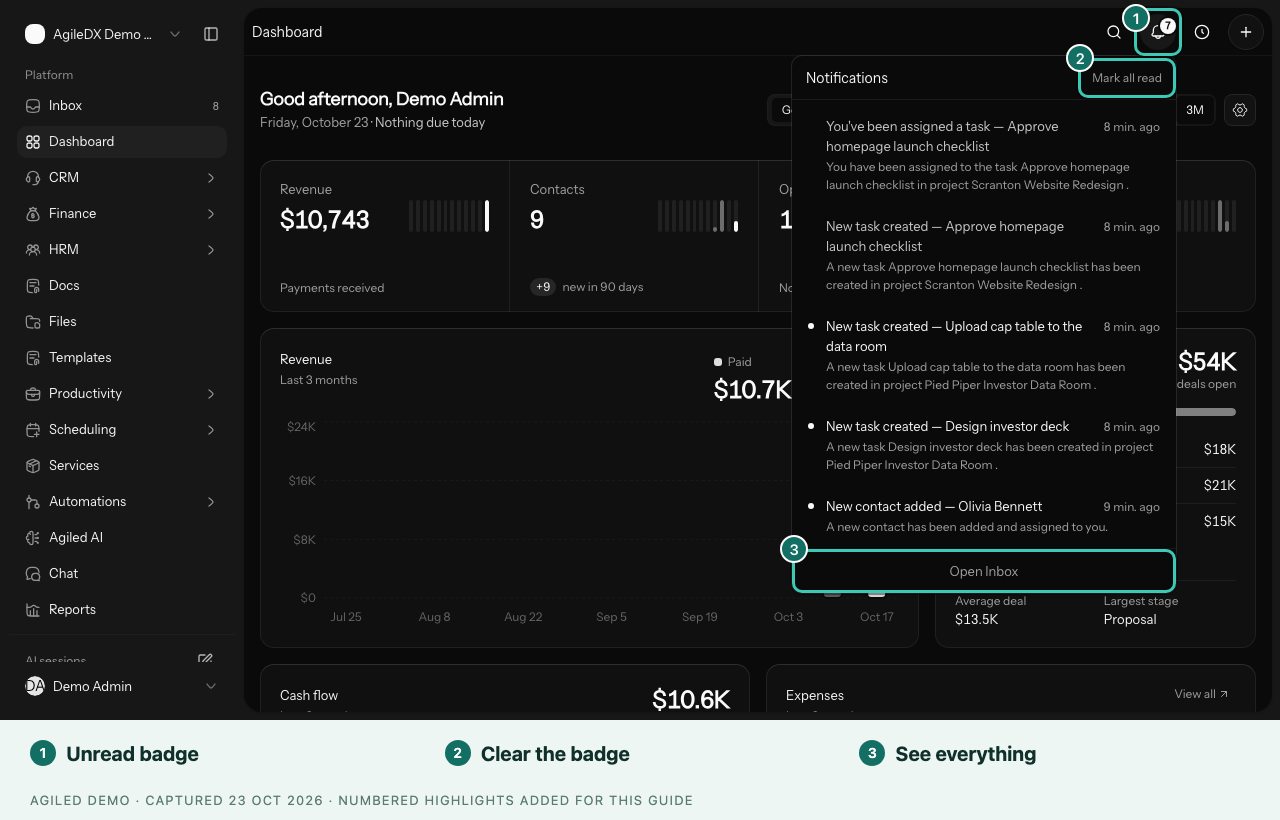
Check Your Notifications
- Look for the number on the bell. It shows how many notifications you haven't read yet, up to 9+.
- Select the bell. A short list of your latest notifications opens, newest first, with a dot next to each unread one.
- Select a notification to open the record it is about. It is marked as read and the list closes.
Select Mark all read to clear the badge. Select Open Inbox at the bottom of the list to see everything, including approvals and tasks coming due.
How the Bell and Inbox Work Together
- The bell shows notifications only. Approvals, tasks coming due and documents to sign are in your Inbox.
- Reading a notification in one place marks it read in the other.
- The bell refreshes about once a minute while the tab is open, and again each time you open it.
If Notifications Don't Load
If the list can't load, the bell says so and nothing is changed. Select Try again. If it keeps happening, refresh the page and check your internet connection.
Choose What Notifies You
The events that reach your bell and Inbox are set in your notification settings. See My Notifications, or ask an owner about workspace-wide choices in Notification Settings.