The client portal
What your clients see when they sign in to your portal, and the calm notices they get if their access changes.
The client portal is your clients' own space with your business. When they sign in, they see your logo and welcome message, their open invoices, and anything waiting on them, such as a document to sign or a Smart Flow step to finish.
How your client gets in
- You invite them from Client Portal › Clients with Invite a client, from their contact, or when you send them a Smart Flow.
- They open the invitation, which names your business and says Set up your client portal.
- They type their name and select Open my portal. Adding a password is optional. If they already have an account, they sign in to accept instead.
If the invitation link has expired, they can select Email me a new link.
You're done when your client lands on their portal home. After that they sign in on a page with your name, logo and colours, using a code we email them. If you switched on Google or Password in Client Portal › Settings, they can use those too.
The portal home
The portal home opens with your welcome note, shown as a note from your business. Below it, clients see:
- anything waiting on them under Things to do, such as an invoice to pay, an estimate to reply to, a document to sign or a Smart Flow step to finish
- their open invoices and the amount outstanding
- recent invoices, tasks and projects
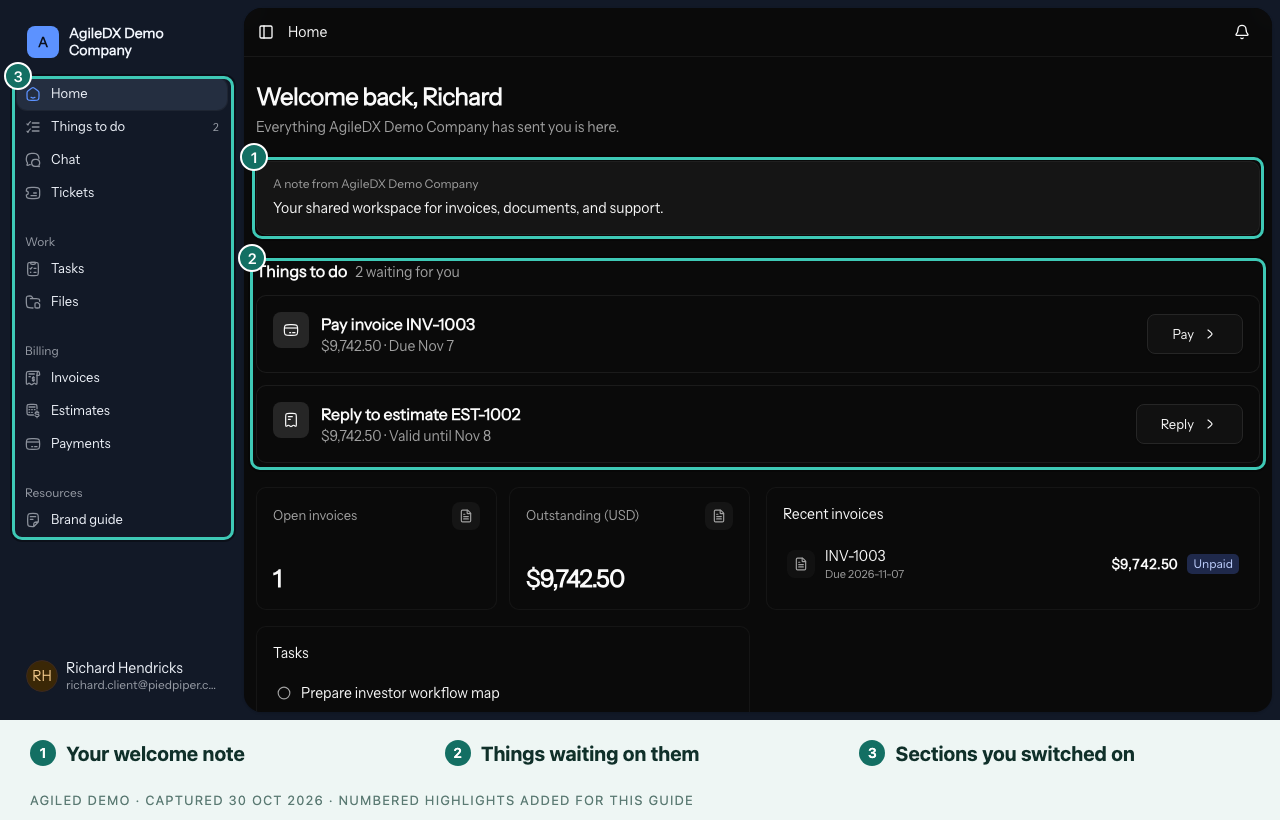
The sections down the side are the ones you switched on in Client Portal › Settings, grouped under Work, Billing and Resources. On a phone, a bar along the bottom holds the places clients use most. See Customize the client portal.
To see the portal exactly as one client does, open Client Portal and select Preview as a client.
Sharing access to their accounts
If you need access to a client's website, social or ad accounts, add an Account access page to a Smart Flow. Your client either invites your business as a user, which is safest, or shares a login, which is stored encrypted. See Collect logins with Account access.
When something changes
- You turn off their portal access: next time they sign in, they see Your access to [your business] has ended. It says nothing in their own account has changed and offers a button to email you. Turn access back on from their contact if it was a mistake.
- Your subscription or trial has ended: the portal shows This portal is temporarily unavailable, says their information is safe and asks them to contact you. Payment links you already sent keep working. The portal returns when you choose a plan in Settings › Billing.
- You stop sharing an item: if they open an old link to it, the portal says it is no longer shared and links back to their portal home.