Onboard Clients
Welcome new clients with intake questions, file uploads, tasks, shared files, and a kickoff call.
An onboarding Smart Flow welcomes a client who has signed and collects what you need to start: intake answers, files, their first tasks and a kickoff call. It is a Smart Flow with the purpose Onboard a client.
Onboarding Flows are now part of Smart Flows. There is no separate Onboarding Flows area any more: if you followed an older link, everything you set up is here, under Automations > Smart Flows with the Onboard a client filter.
How onboarding works
- Start from an onboarding template or create your own with Onboard a client, then publish it.
- Send it to the client yourself, or let it start on its own when they sign and pay.
- The client gets an email with a sign-in link. Onboarding Smart Flows start as Signed-in client only, so the client signs in and finds it under Things to do in your client portal. You can switch it to Anyone with the email link in the settings. See Choose who can open a Smart Flow.
- You follow their progress on the Sent tab, filtered to Onboard a client.
Start onboarding when they sign and pay
The smoothest way to onboard is to have it start by itself as soon as a client wins.
- Publish your onboarding Smart Flow.
- Open the Win a client Smart Flow that ends with the contract and payment.
- In its settings, open When the client finishes and turn on Send the next Smart Flow.
- Choose your onboarding Smart Flow. Onboarding Smart Flows are listed first.
The summary then names it, for example "Then: Brand Design Onboarding starts automatically." When the client finishes, they get it by email, and in their portal if they have access. If the list is empty, publish an onboarding Smart Flow first.
To make sure they can find everything in one place, also turn on Give the client portal access on either Smart Flow. It emails the client an invitation to your client portal. It is on by default for Onboard a client templates.
The Get it ready to send checklist reminds you of this with Start onboarding when they pay.
Send onboarding yourself
Select Send a Smart Flow and choose the client and the onboarding Smart Flow. From a contact's Portal tab, Send onboarding opens the same dialog with onboarding Smart Flows first. When a client has finished a Win a client Smart Flow but has no onboarding yet, Agiled suggests onboarding for them.
Also give Jane access to your client portal (with your client's name) is ticked for you when you send onboarding. The client gets one email with their link and a Set up your portal button. See Send and share.
What onboarding usually includes
| Page | What the client does |
|---|---|
| Welcome | Reads what to expect and how long it takes |
| Intake questionnaire | Answers questions about their business or project |
| File upload | Uploads the documents, brand files or photos you need |
| Task checklist | Ticks off preparation tasks |
| Account access | Invites you to their tools or shares a login, stored encrypted |
| Resource library | Opens the files and links you share, such as a welcome pack |
| Kickoff booking | Picks a time on your booking page |
| What happens next | Reads the plan for the first weeks |
See Pages and blocks for how each one works.
Task checklist
Add each task and choose whether the client or your team owns it, then set the Completion rule. Required tasks must be ones your client can tick off: if a required task belongs to your team, publishing asks you to make it optional or assign it to the client.
Files
- File upload: list the files you need and mark the required ones. Set allowed types, size limit, maximum number of files and the destination folder. Explain what you need in the page's instructions.
- Resource library: add the files and links the client should have, with clear labels.
- Grant access: share chosen files or folders with the client.
If the client already uploaded a file in an earlier Smart Flow, a follow-up onboarding shows it as Already received instead of asking again. Progress only counts the pages that apply to that client.
Use files uploaded to Agiled for anything private. A file that is public elsewhere doesn't become private because it appears in a Smart Flow.
Task checklist, Resource library, Grant access and Account access need a known client. Send onboarding to the client rather than sharing a public link; people who start from a public link don't see these pages.
Ask for access to their tools
Add an Account access page to ask for the logins you need, such as Google Analytics, their website or ad accounts. Clients invite you as a user or share a login that Agiled stores encrypted, and your team checks each one. See Collect client logins with Account access.
Hold a step for your team
Under When this step opens, choose When you or an automation releases it when your team must finish an approval or setup before the next step opens, for example creating the client's accounts before asking them to log in. Release it yourself with Make available on the client's sent Smart Flow, or add a Workflow with Make next Flow step available. See Connect Workflows and Smart Flows.
Wrap up with offboarding
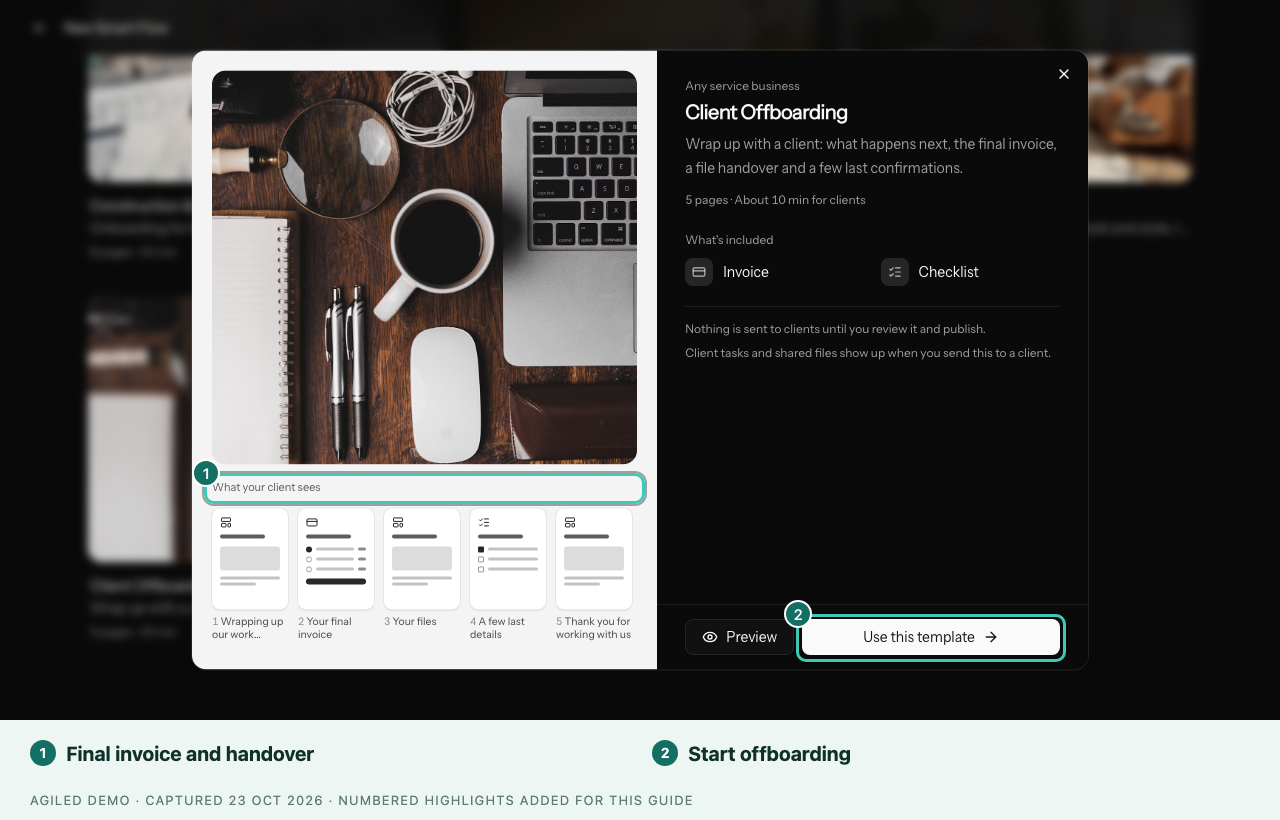
When the work is done, send the Client Offboarding template. It is listed with the onboarding templates and works for any service business:
| Page | What the client does |
|---|---|
| What happens next | Reads how the handover works, and that you'll close their portal access once everything is done |
| Final invoice | Pays the remaining balance. It starts as one Final project balance line, so set the amount before sending |
| Your files | Downloads everything already shared in their portal, plus any files you add |
| A few last details | Confirms they downloaded their files, changed passwords for accounts you managed, and removed your team from tools they no longer need |
| Thank you | Reads your closing note |
When you then remove the client's portal access, they see a clear page saying their access to your business has ended, instead of an error.
Test before you send
Use Preview to check the pages. Switch the frame to Client portal to see how it looks inside the portal. Use Send yourself a test to receive the email link and complete it as a client would.
Submitting forms, booking times and uploading files from a real send are real actions. A preview doesn't check them.