Customize the client portal
Add your brand, choose how clients sign in and which portal sections they see, and write a welcome note.
Your client portal is where clients sign in to see their invoices, documents, projects, files, and anything waiting on them. Client Portal in the sidebar lets you make it feel like yours: add your brand, choose how clients sign in, greet them with a short welcome note and show only the sections that fit how you work.
You can customize the portal during your trial.
Open the settings
- In the sidebar, under Sell, open Client Portal.
- Select Settings at the top of the page.
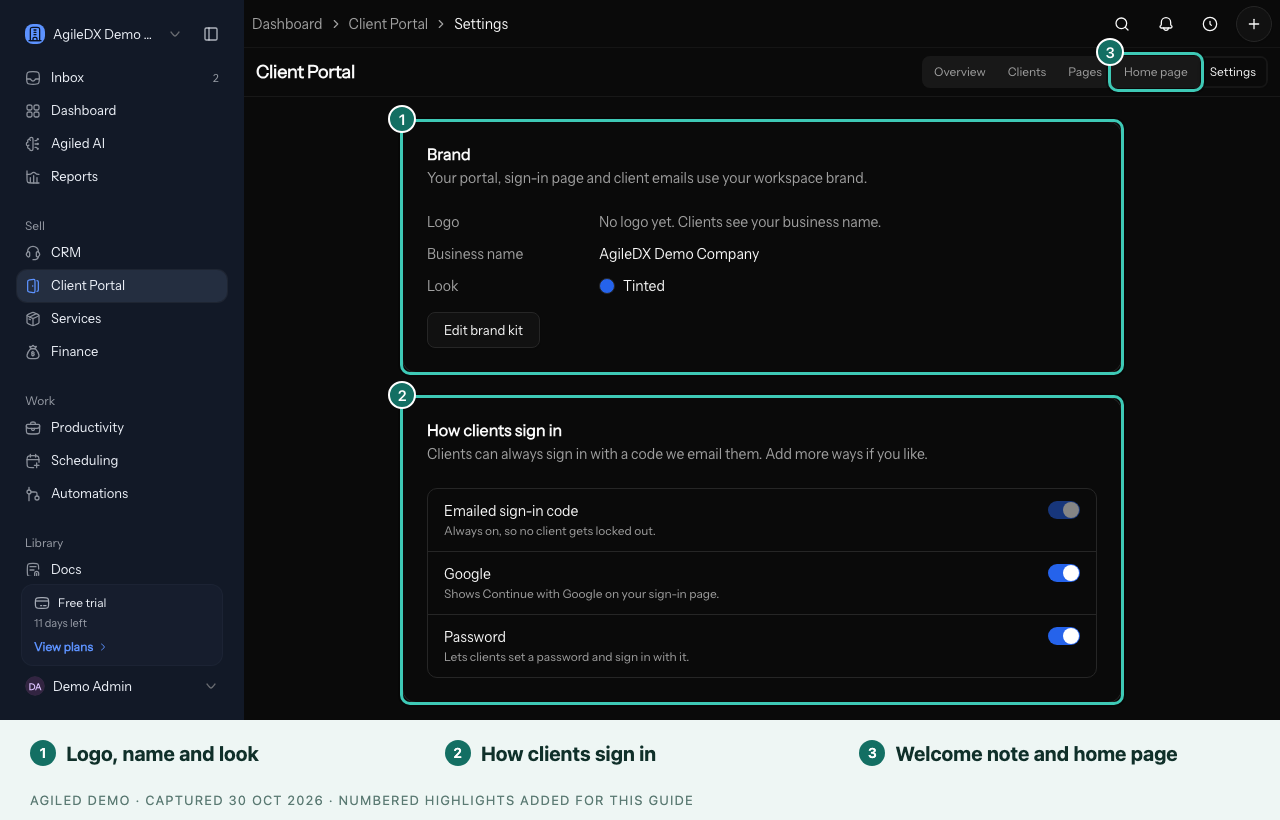
The other pages sit beside it: Overview, Clients, Pages and Home page. Old links to Settings › Client Portal bring you here.
Add your brand
The Brand card shows the logo, business name and look your clients see on their portal, the sign-in page and client emails. Select Edit brand kit to change them.
Choose how clients sign in
Under How clients sign in, clients can always sign in with a code we email them, so no one gets locked out. Switch on Google or Password if you want to offer those too.
Choose what clients see
Under What clients see, switch off any section you do not use with clients, such as Subscriptions or Chat. The sections are:
- Things to do
- Invoices, Payments, Estimates, and Subscriptions
- Projects and Tasks
- Support tickets
- Documents and Files
- Chat
Turning a section off hides it from every client. To hide more for one client only, open their contact and use the Portal access tab. A client's own settings can hide more sections, but cannot show a section you switched off here.
Select Save changes when you are done.
Write a welcome note
The welcome note appears at the top of your clients' portal home, as a note from your business. Open Home page and find Welcome note. Keep it short and friendly, for example:
Thanks for working with us. Your invoices, files and next steps are all here.
It is plain text, up to 500 characters. Select Save. Clients see the new note the next time they open their portal.
You're done when your clients see your brand, your welcome note and only the sections you left on the next time they open their portal.
Check it as a client
Select Preview as a client and choose a client to open their portal just as they see it. Nothing you do in a preview is saved or sent. Select Exit preview to come back.
Use your own domain
The Custom domain card shows whether your portal runs on your own web
address, such as portal.yourstudio.com. Select Manage domains to set one
up. See Use your own domain.
If your plan does not include customization
If your plan does not include portal customization, the page says so at the top. Your portal keeps working as it is. Upgrade to Premium, or add the Branded Client Portal add-on in Settings › Billing, to change what clients see.
What your clients see
For what the portal looks like from your client's side, including what they see if their access ends, see The client portal.