Connect AI assistants like ChatGPT and Claude
Let ChatGPT, Claude, or another AI assistant look up your Agiled records and prepare invoice and estimate drafts for you to review.
You can connect AI assistants like ChatGPT and Claude to your Agiled workspace. Once connected, you can ask the assistant things like "Which invoices are overdue?" or "Draft an invoice for Northwind for 10 hours of design work", and it works with your real Agiled data.
The assistant works with your permissions. It sees only what you can see in Agiled, and it never sends anything to your clients on its own.
What an assistant can do
- Find records, such as contacts, accounts, deals, projects, tasks, invoices, and estimates.
- Prepare invoice and estimate drafts. The assistant saves the draft in Agiled and gives you a link to review it.
- Log time on your projects and tasks, using a duration in minutes.
- Record a payment you received against an invoice.
Links the assistant gives you open the right page in Agiled.
What stays with you
Sending an invoice or estimate to a client, and marking an invoice as paid, always stay with you. When an assistant prepares an invoice or estimate, it is saved as a Draft. Open the link, check the client, items, and totals, then send it yourself from Agiled.
The same rule applies to Agiled's own assistant, Agiled AI.
Connect an assistant
You need a ChatGPT, Claude, or other assistant plan that supports custom connectors.
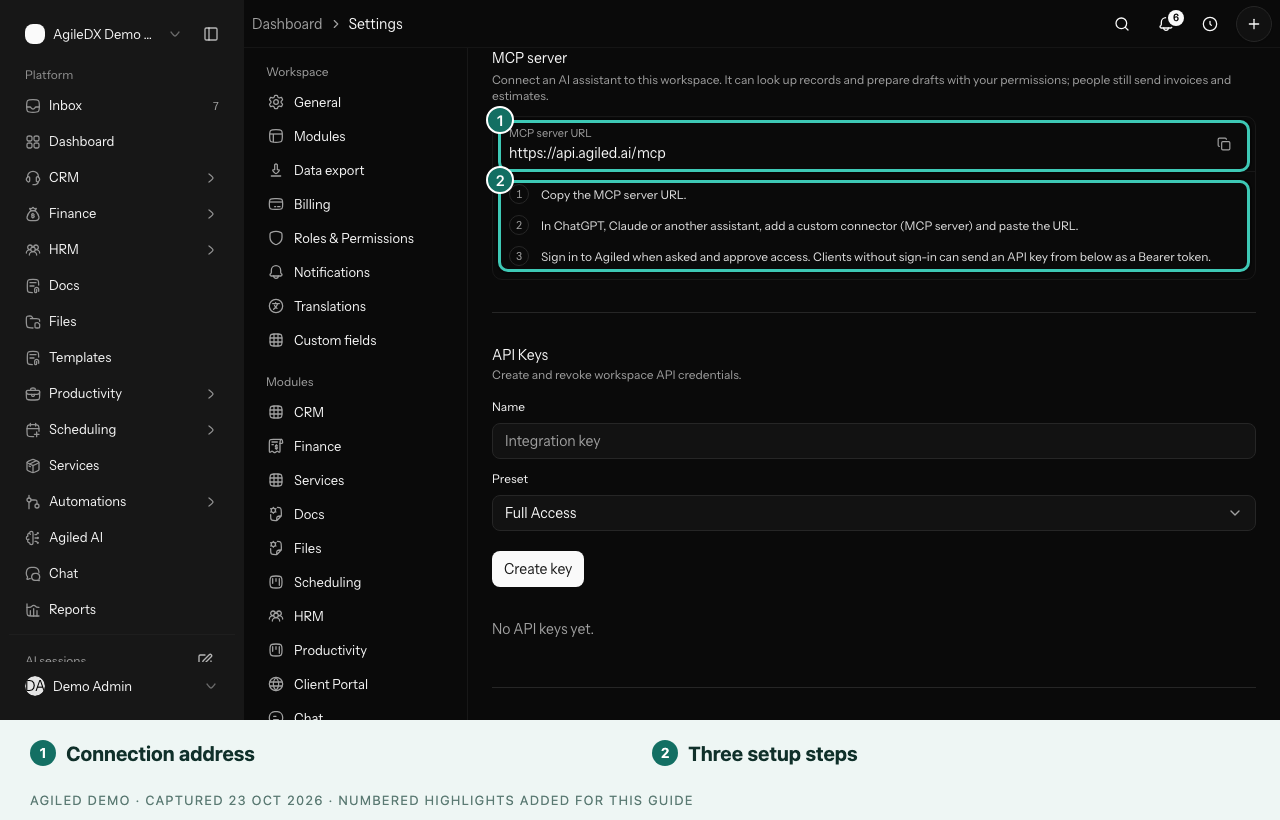
- In Agiled, open Settings › API.
- Find the MCP server section. This is the connection address for AI assistants.
- Copy the MCP server URL.
- In your assistant's settings, add a custom connector and paste the URL.
- When the assistant asks you to sign in, sign in to Agiled and approve access.
The approval screen shows the assistant and the access it is asking for. Make sure you are signed in to the right organization before you select Allow access. See Approve access for a connected app.
You're done when the assistant answers questions about your real Agiled records, and the drafts it prepares appear in Agiled for you to review.
Some assistants cannot sign in this way and ask for a key instead. Create one in the API Keys section of the same page and give it the Read Only preset unless the assistant needs to prepare drafts. See API settings.
Review a draft from an assistant
- Select the link the assistant gives you, or open Finance › Invoices or Finance › Estimates and find the draft.
- Check the client, line items, dates, and totals.
- Edit anything that needs changing.
- Send it when you are happy with it.
Disconnect an assistant
Remove the connector in your assistant's settings. If you gave it an API key, revoke the key in Settings › API as well.