Client Devices and Logins
Keep a client's computers, routers and website logins in one place, with passwords stored securely and every reveal recorded.
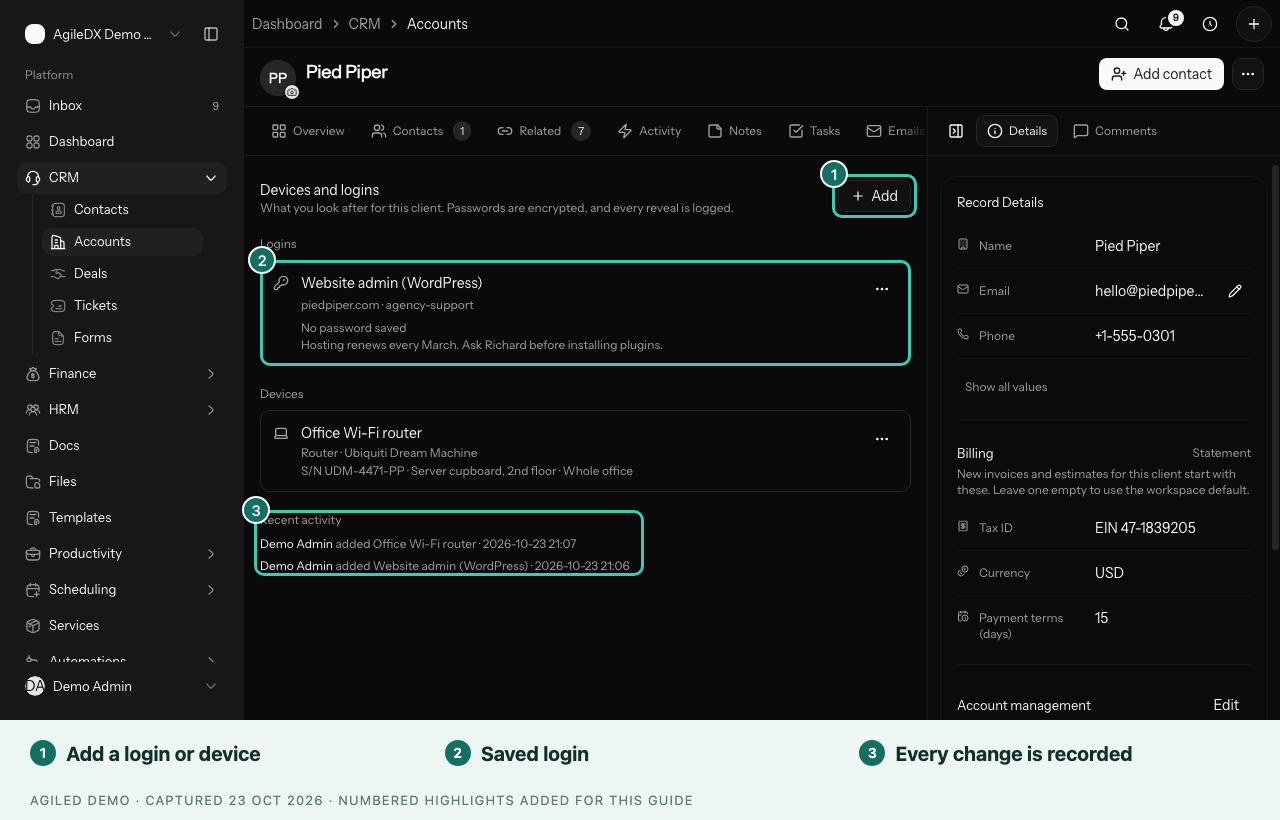
If you look after technology for your clients, your team needs a reliable place for the logins you use on their behalf and the hardware you support. Each client account has a Devices & logins tab for exactly that, so anyone on the team can help the client without hunting through emails or spreadsheets.
Saved passwords stay hidden until someone with permission chooses to reveal one, and every reveal is recorded.
What to Store
- Logins: a name, the web address you sign in at, the username and the password. For example "Website admin (WordPress)" or "Domain registrar".
- Devices: a name, the type (laptop, router, printer and so on), make and model, serial number, where it is and who uses it. For example "Office Wi-Fi router".
- Notes on either, such as when hosting renews or who to call for support. Don't put passwords in notes. Only the password field is kept hidden.
Add a Login or Device
- Open CRM > Accounts and select the client.
- Open the Devices & logins tab.
- Choose Add, then Add a login or Add a device.
- Fill in the details and choose Save.
To change a password, edit the login and enter the new one. Leave the password empty when you edit other details and the saved password stays as it is.
Reveal a Password
Choose Reveal password on a login to show it, or Copy password to copy it without showing it on screen. The password hides again after about 30 seconds.
Each reveal is recorded with who did it and when. Adding, editing, changing a password and deleting are recorded too. You can see this history under Recent activity on the tab. It never includes the passwords themselves.
Who Can See What
Three permissions control this. Find them in your roles under Settings > Roles & Permissions:
| Permission | What it allows | Given by default to |
|---|---|---|
| See client devices and logins | See the list, usernames and web addresses, but not passwords | Admins, managers and members |
| Add and edit client devices and logins | Add, edit and delete items, set passwords, and see the history | Admins and managers |
| Reveal saved passwords | Show or copy a saved password | Admins and managers |
Workspace owners can always do all three. Members only see devices and logins for client accounts they own or are assigned to, and they can't reveal passwords. Contractors and clients get none of these.
Devices and logins never appear in the client portal, in search, in exports or to the AI assistant.
Logins Your Clients Share With You
Clients can also share a login with you themselves, from the Account access step of a Smart Flow. Those logins appear on the client's contact record under the Smart Flows tab, in Account access. From there your team can choose Show login, mark it It works, or Ask the client to fix it. Viewing a shared login is recorded too.
Good to Know
If you can't save a password and see a message that saving passwords isn't set up on your workspace, contact Agiled support. You can still save the login's other details, and devices, in the meantime.
Deleted devices and logins are removed from the list straight away. Their history stays in the record of changes.