Work on a deal
Keep notes, tasks and emails on a deal, send the client a proposal from it, and start the project when it's won.
Each deal has its own page with its history, notes, tasks, emails and files. Use it to follow up, send the proposal, and start the work once the client says yes.

Open a deal
Open CRM › Deals and select a deal from the table or board.
- The header shows the deal's stage, such as Qualified · 2 of 5 stages, with Send proposal, Won, Lost and Edit.
- Proposal lists what you've sent the client, and the project and invoices that came from it.
- Products and services lists what the deal is for.
- The tabs hold the activity, emails, notes, comments, tasks and files.
- The details panel holds the value, dates, people, your custom fields and Related Contacts. Click a value to change it.
Add products and services
List what the deal is for, so the value adds up and every proposal starts with the right lines.
- Under Products and services, select Add products.
- Pick a product or service, or type a description.
- Set the Qty, Price and Disc. %. Select Add line for more.
- Select Save.
You're done when the lines show with their totals and Deal value. The deal's value is now their total, before tax. Select Edit to change them.
Send a proposal
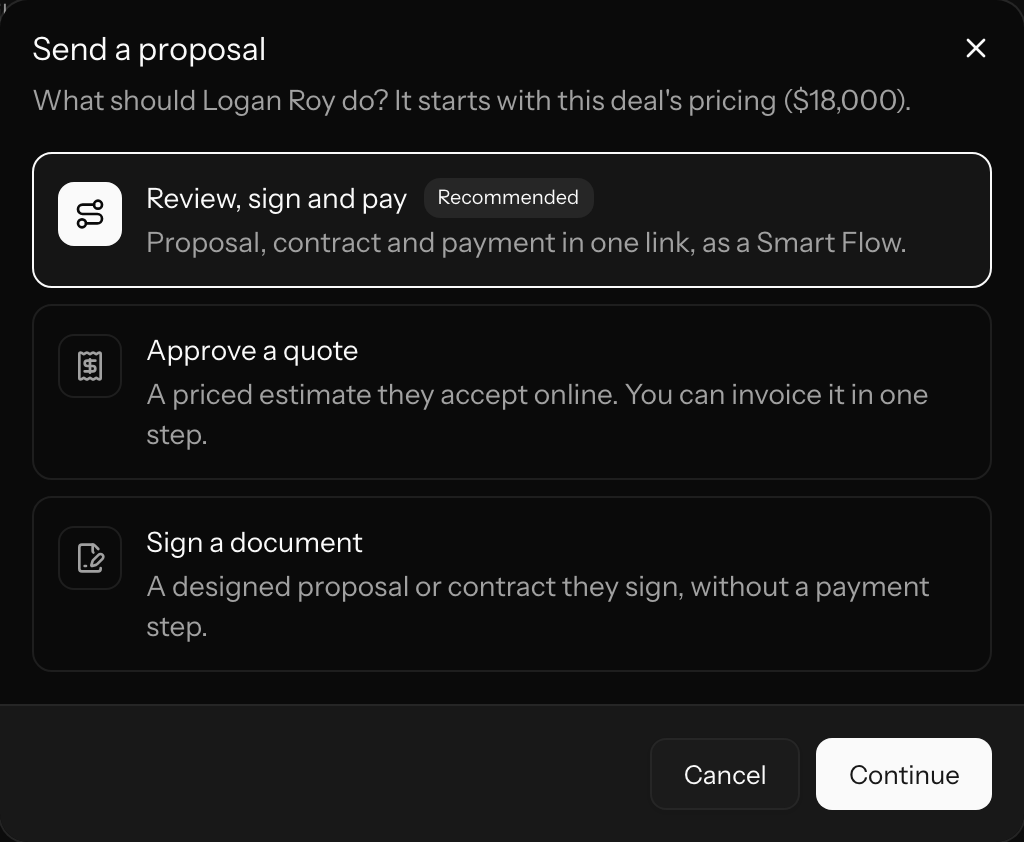
- Open the deal and select Send proposal.
- Choose what the client should do:
- Review, sign and pay: a Smart Flow with the proposal, contract and payment in one link. This is the recommended choice.
- Approve a quote: an estimate they accept online.
- Sign a document: a proposal or contract from Docs, blank or from a template, with no payment step.
- Select Continue. For a document, choose a starting point, then Create and edit.
- Check what was filled in, then send it as usual.
Whatever you create starts with the deal's client, contact, currency and products and services. A deal without products gets one line for its value. You can change everything before you send it.
You're done when the proposal shows under Proposal on the deal with its status.
If the deal has no contact yet, Agiled asks you to add one first, so there's someone to send the proposal to.
When the client answers
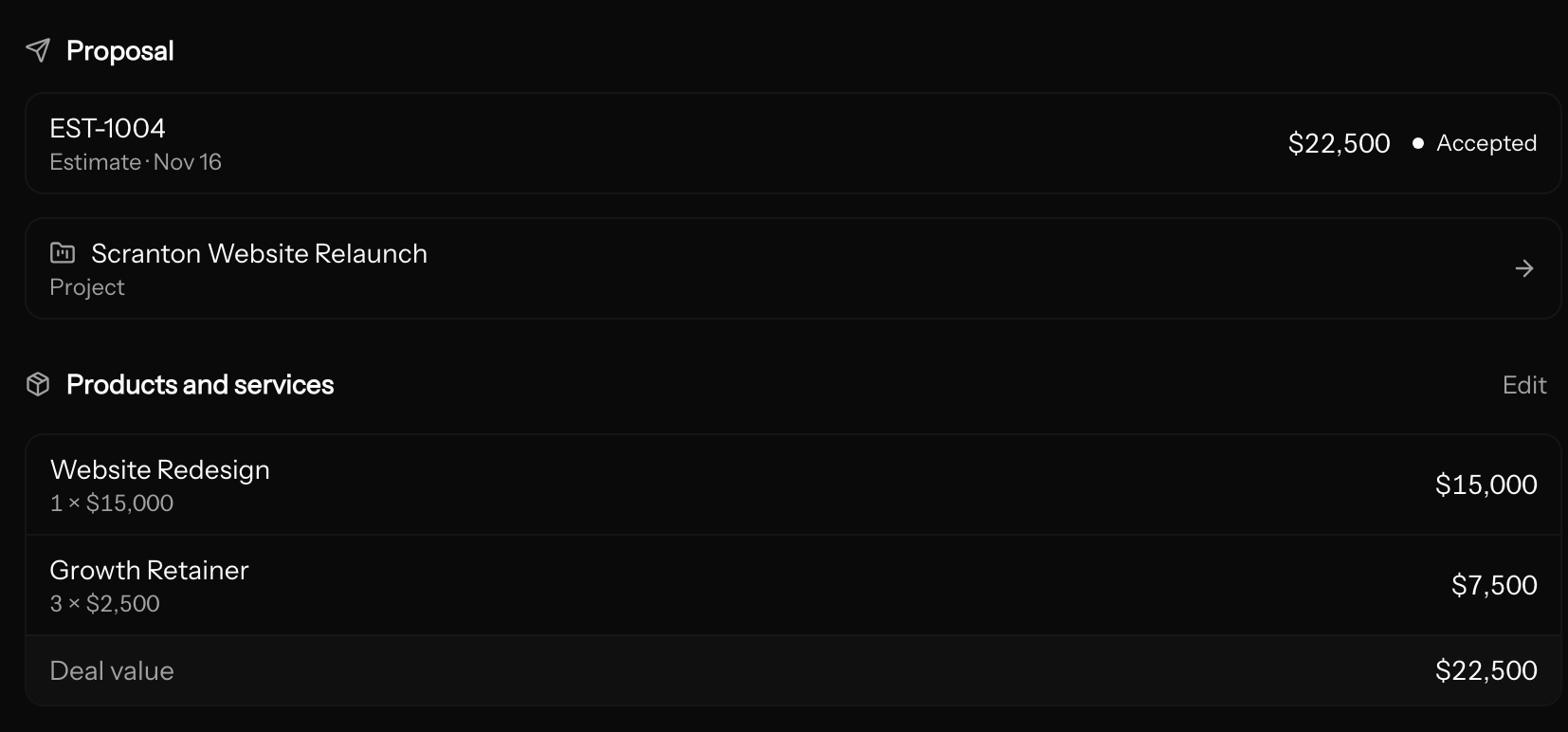
- When you send the proposal, an open deal takes its lines and value, so the pipeline shows what you actually proposed. A proposal in a different currency leaves the value as it is, and the activity says why.
- When the client accepts, the deal is marked won. That means an estimate is accepted, a document is signed by everyone, or a Smart Flow is paid or finished. Stage, won date, activity and automations work just as if you'd chosen Won yourself.
- A deal that's already won or lost isn't moved. The acceptance is added to its activity.
Start the project
When a deal is won, Proposal shows Next: start the project.
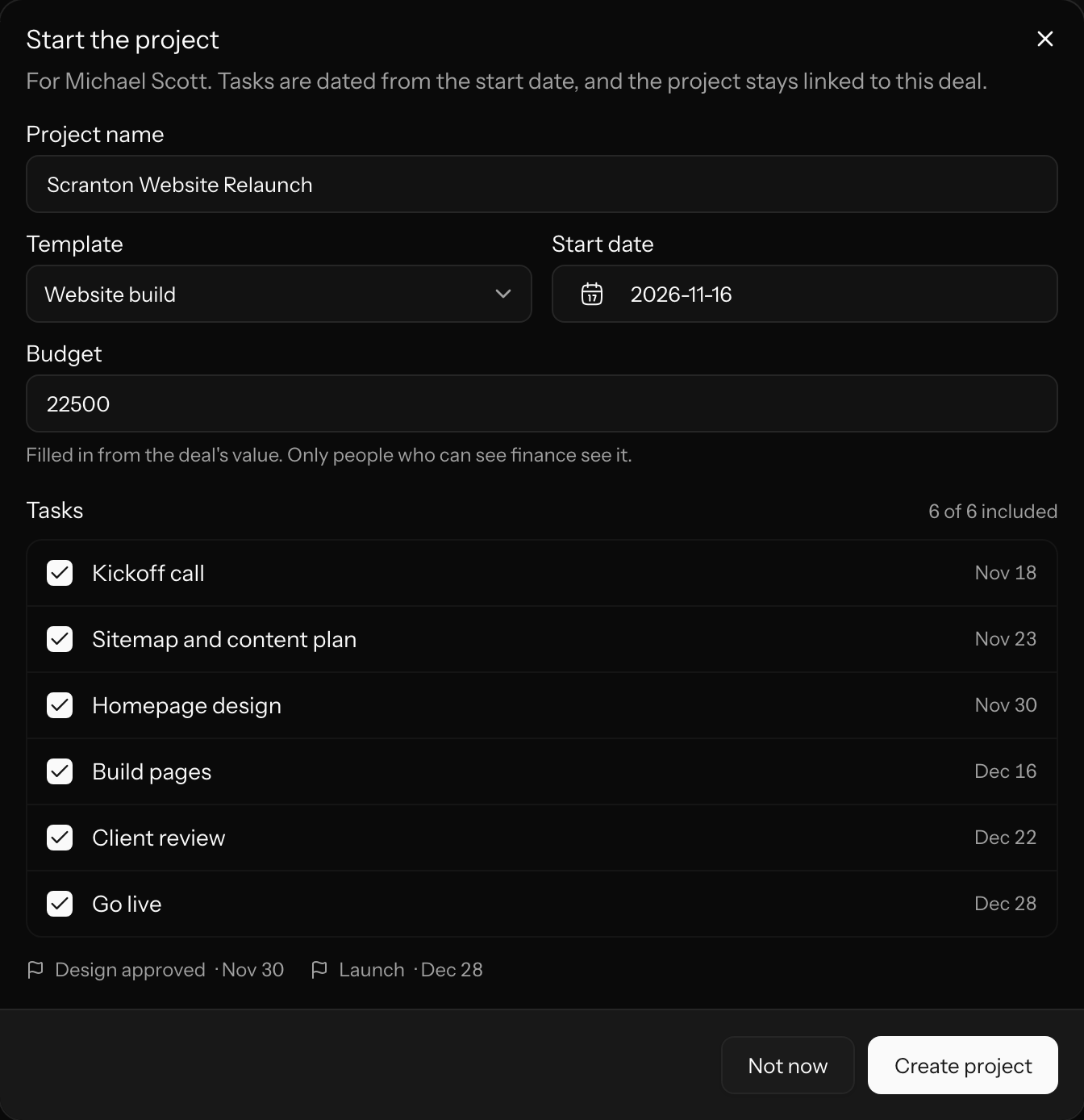
- Select Start project at the top of the deal.
- Check the Project name.
- Choose a Template, or Blank project.
- Set the Start date. The template's tasks show with their real due dates, counted from this date.
- Clear any task you don't need.
- Check the Budget. It's filled in from the deal's value, and only people who can see finance see it.
- Select Create project.
You're done when the project opens. It's linked to the deal, and the deal's estimates and invoices are linked to it. Its Overview shows where the work came from. See Create a project.
Choosing Won yourself opens Start the project straight away. Select Not now to do it later.
Mark a deal won or lost
- Open the deal.
- Choose Won or Lost.
- For a lost deal, pick a reason under Why was it lost?: Budget, Went with competitor, No response, Timing or Other. Add a note if it helps.
- Confirm with Mark as won or Mark as lost.
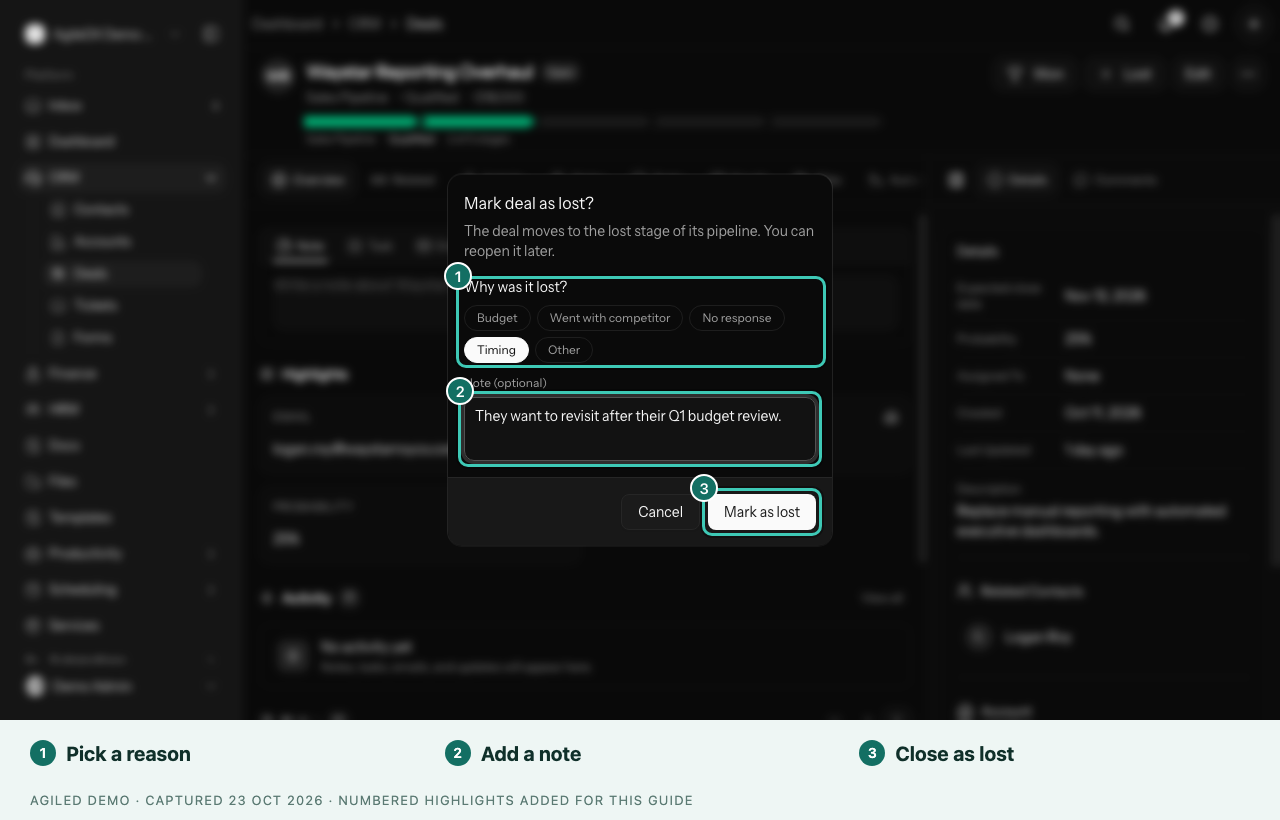
You're done when the deal moves to the pipeline's Won or Lost stage. A lost deal shows its Lost reason at the top of the page.
If the client comes back, choose Reopen. The deal moves to the first open stage of its pipeline.
Bookings on a deal
When a contact books through one of your booking pages, the booking is added to their most recently updated open deal, with the answers they gave. An event type can also move that deal to a stage you choose with Move their open deal to. Deals only move forward, and no new deal is created. See Event types.
Good to know
- Deal values don't include tax. A $22,500 deal with 20% tax becomes a $27,000 estimate for the client.
- A deal with products and services takes its value from them. To change the value, edit the lines.
- A Smart Flow set to create a project starts it on its own when the client finishes, with the agreed amount as its budget.
- Dragging a deal onto a Lost stage doesn't ask for a reason. Choose Edit to add the Lost reason afterwards.
- Winning a deal makes its leads customers. Contacts on the deal marked Lead or Prospect move to Customer. A customer is never moved back.
- Add a task for the next step after every call, so the deal doesn't go quiet.