Ticket settings
Set how quickly tickets should be answered, and give every new ticket an owner automatically.
Two settings keep your ticket queue moving: reply and resolution targets show everyone when a ticket needs an answer, and auto-assign gives each new ticket an owner straight away. Both are off until you turn them on, in Settings › CRM on the Tickets tab.
Set reply and resolution targets
- Open Settings › CRM and select the Tickets tab.
- Under Reply and resolution targets, turn on Track targets on new tickets.
- Set your Business hours: the working days, when you Open and Close, and the Time zone.
- Under Targets by priority, in business hours, set First reply within and Resolved within for each priority.
- Select Save.
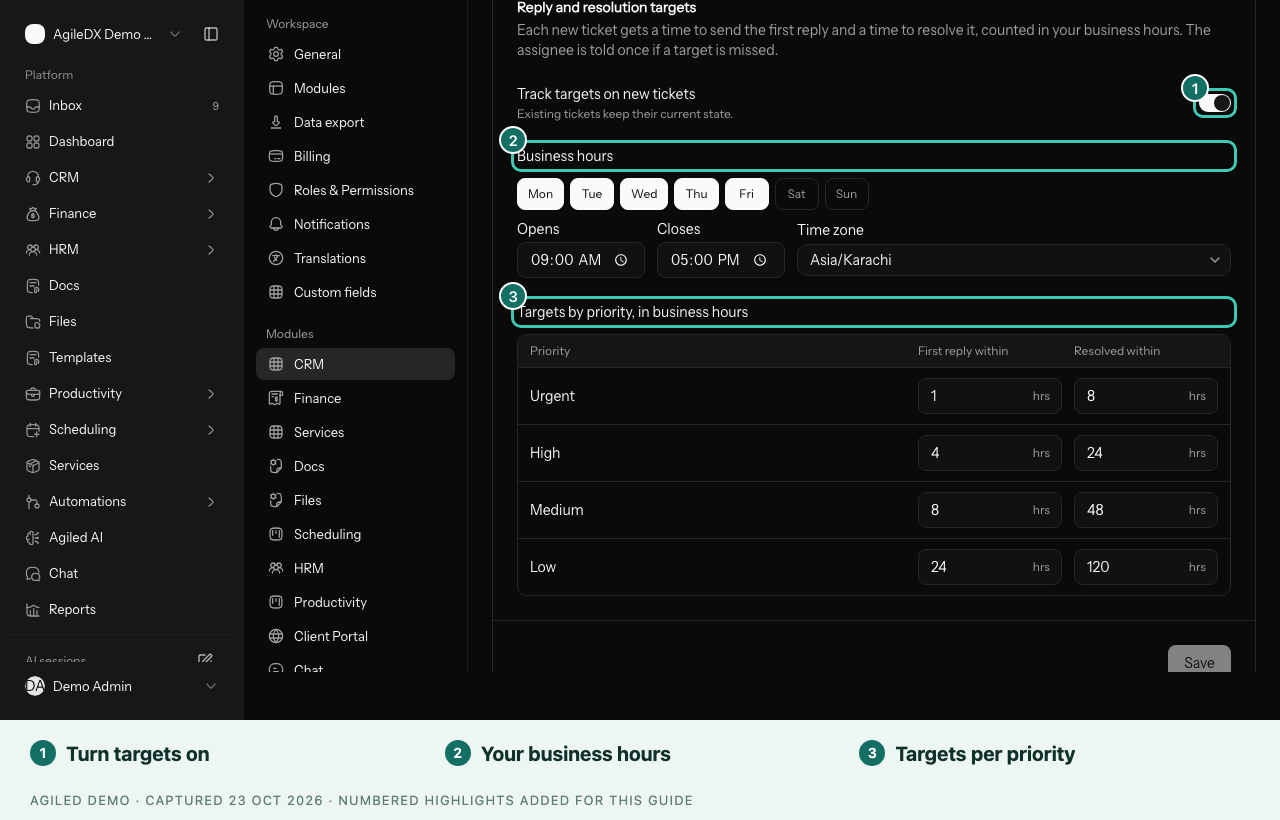
You're done when new tickets show Reply by and a time in their header. After the first reply it changes to Resolve by. A passed target shows in red, such as Reply was due, and the assignee and ticket owner get one email.
Targets start with these suggestions, Monday to Friday, 9:00 AM to 5:00 PM:
| Priority | First reply within | Resolved within |
|---|---|---|
| Urgent | 1 hour | 8 hours |
| High | 4 hours | 24 hours |
| Medium | 8 hours | 48 hours |
| Low | 24 hours | 120 hours |
Assign new tickets automatically
- Open Settings › CRM and select the Tickets tab.
- Under Assign new tickets, set New tickets go to to Whoever has the fewest open tickets.
- Under Choose from, tick the teammates who should get tickets.
- Select Save.
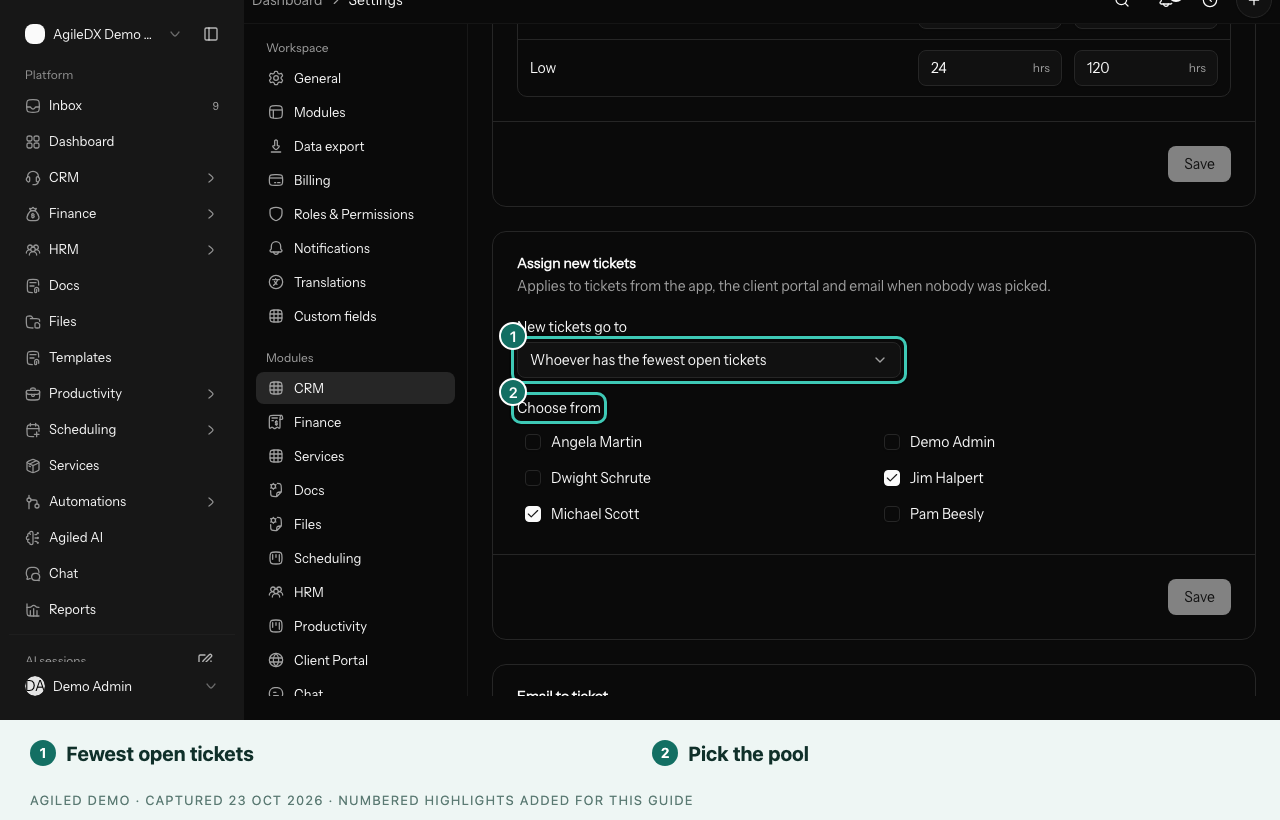
You're done when a new ticket created with nobody assigned goes to the teammate in your group with the fewest open tickets, and they are notified. To stop, choose Nobody — leave unassigned and save.
Good to know
- Only business hours count, and the clock keeps running while a ticket is Pending. Resolved and Closed stop it.
- Targets apply to tickets created after you turn them on. Changing a ticket's priority recalculates them.
- Auto-assign counts open tickets that aren't Resolved or Closed, skips inactive people, and never moves tickets that already have an owner.
- If someone is away for a while, untick them so tickets go to the rest of the group.