Import Invoices and Expenses from Files
Upload financial documents, review extracted details, and import the records you approve.
Import files when you already have sales invoices, receipts, or supplier invoices. Agiled extracts proposed records for you to review before importing them.
Open the Import Workspace
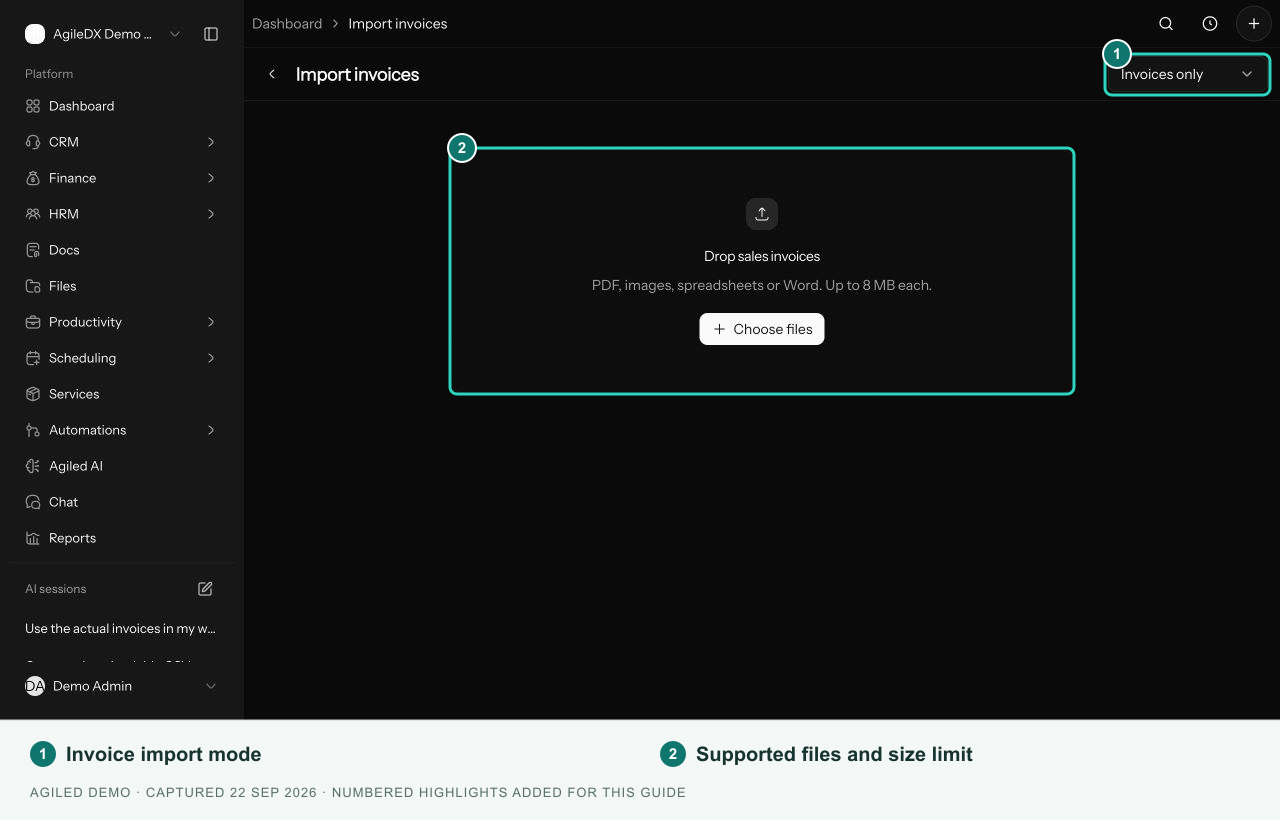
- For sales invoices, open Finance > Invoices and select Import files.
- For receipts and supplier invoices, open Finance > Expenses, then Import > Import documents.
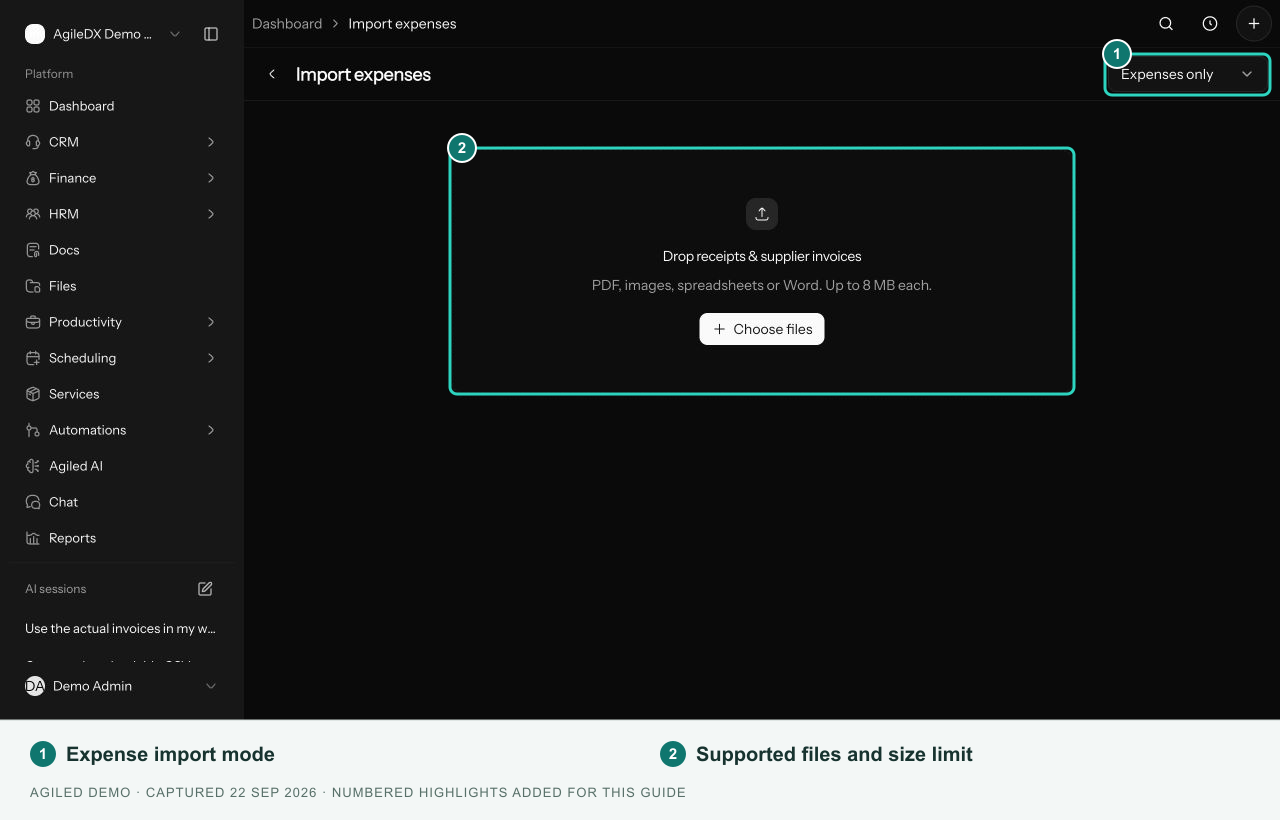
- Before starting a batch, use Import type to choose Invoices only, Expenses only, or All documents.
Use invoices for sales to your customers. Use expenses for receipts and supplier costs. An expense-only or invoice-only batch accepts that record type; start another batch if a document belongs to the other type.
Choose Files
Select Choose files, or drag files into the workspace. Supported formats are PDF, PNG, JPG/JPEG, WebP, CSV, XLS, XLSX, and DOCX.
Each file can be up to 8 MB. A batch can contain up to 20 files and 50 MB in total. Use Add files to add sources to an existing batch. Processing continues while the workspace shows its progress.
A file can produce several proposed records. Uploading and extraction do not create the final invoices or expenses.
Compare the Source and Details
Select a proposed record from the file list. Compare Review details with the source preview. On a smaller screen, use View source and Show details to switch between them.
The source can show PDF pages, an image, spreadsheet rows, or document text. Page and row references help you find the material used for each record.
For an invoice, review customer, invoice number, issue and due dates, currency, line items, discounts, tax, and total. Match the customer to an existing account; if needed, create the correct account in CRM first.
Review the invoice's Status. Choose Paid only when the source supports it, and confirm the Payment date. Importing a historical status does not send an invoice email.
For an expense, review vendor, reference, date, category, currency, description, tax, and total. Check the source even when the extracted fields look complete.
Resolve Review Items
Correct the highlighted fields. If Agiled asks you to confirm source details, compare them with the original, then select I checked the source and confirmed these details. Select Save & next to save the review.
Use Skip for material you do not want to import. Resolve every review item before the record can be selected as ready. Saving a review does not yet create the final finance record.
Import Ready Records
- Select individual ready records or use Select ready.
- Review the selection count. You can import up to 50 ready records at once.
- Select Import selected.
- Open imported records and check the result.
Successful records are marked Imported and link to their invoice or expense. The original source is attached to the created record. Imported expenses start pending; review them through your normal expense process.
If only part of a batch imports, keep the completed records and resolve the errors on the remaining ones. Do not upload the entire source again as a substitute for reviewing a partial result.
Reopen, Retry, and Handle Duplicates
Use Recent imports to return to an earlier batch. New import starts a separate batch.
If a file fails and Retry is available, retry that file. Otherwise correct the source and upload it again. Daily usage or workspace limits may require waiting or reviewing your plan.
An already processed file can be flagged as a duplicate. Record checks also look for existing references and receipts imported from the same source. Open the earlier import or existing finance record before creating another copy. These checks do not replace reviewing your own data for duplicates.