Finance
Client Statements
Print a statement of a client's invoices, payments and credits, with their balance.
A client statement lists everything you have billed a client and everything they have paid, with a running balance. Send one when a client asks what they owe, at month-end, or before you chase an overdue balance.
Each statement shows:
- your business details and the client you are billing;
- the Amount due today;
- one line per invoice, payment, credit note, refund or write-off, with its date;
- Charges, Credits and a running Balance;
- the opening and closing balance for the period you choose.
Open a Client's Statement
- Open CRM > Accounts and select the client.
- In the Billing section of the side panel, select Statement.
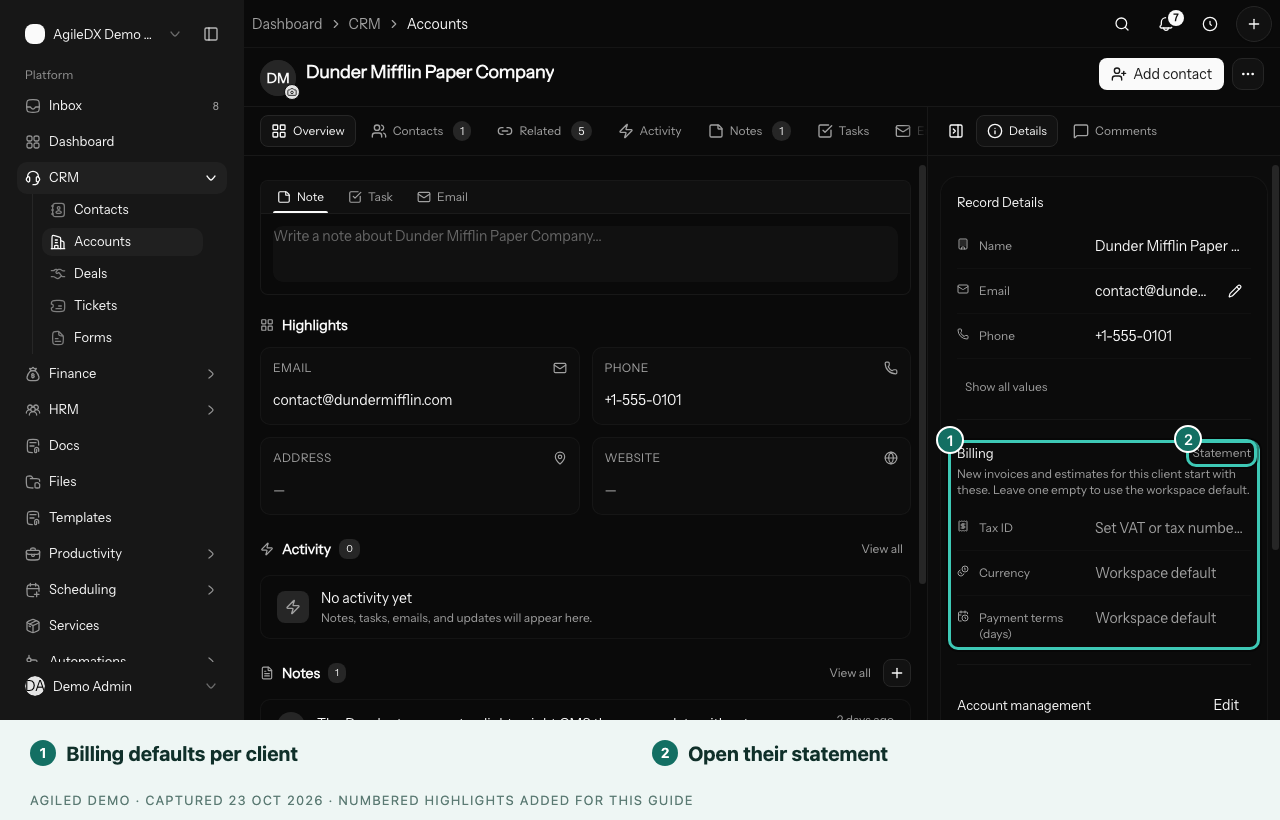
The statement opens under Finance > Statements with the client's name.
Choose a Period and Print
- To show only part of the history, enter a From and To date and select Show period. Leave both empty to show everything to date.
- Select Print or save as PDF.
- In your browser's print window, print the statement or save it as a PDF to send to your client.
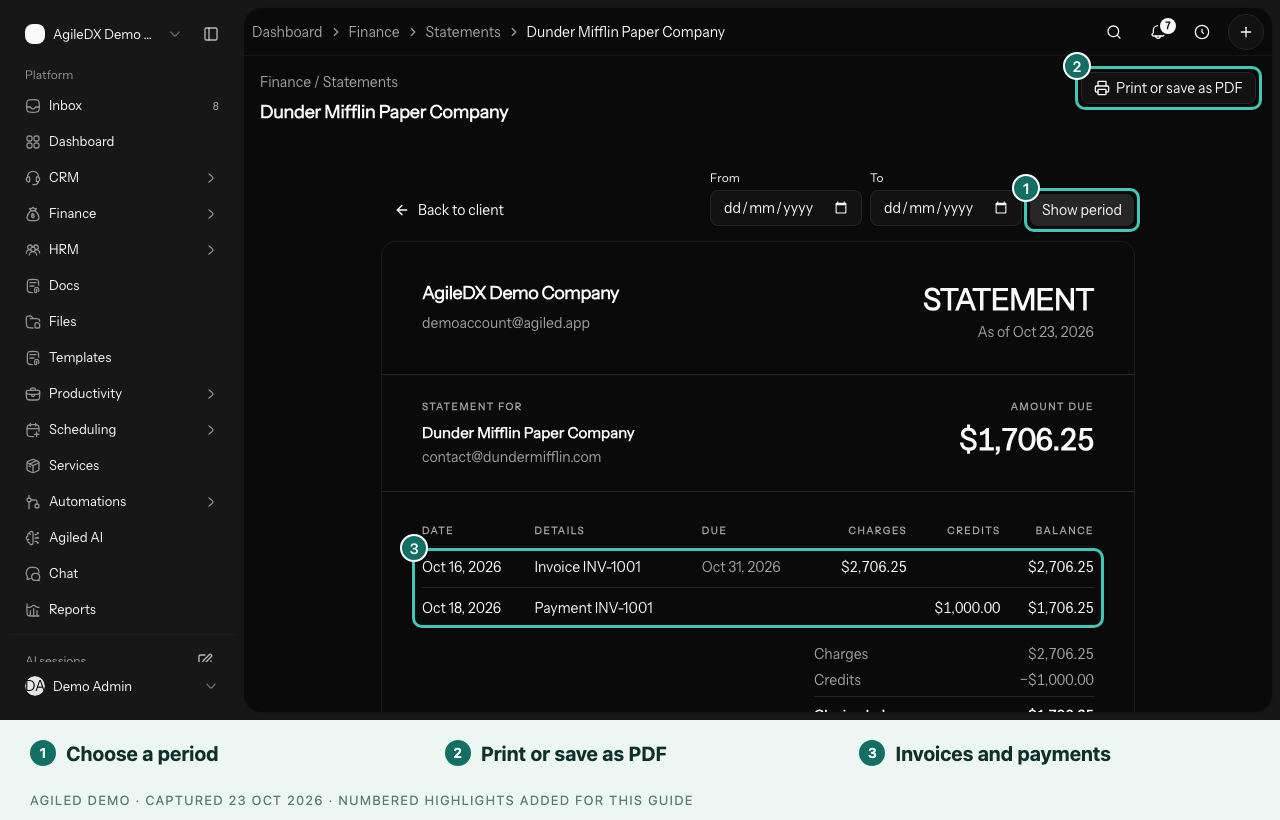
When you pick a period, the statement starts from an Opening balance so the closing balance still matches what the client owes.
Select Back to client to return to the account.
Good to Know
- Statements are read-only. To change a line, fix the invoice, payment or credit note it comes from.
- A client-reported bank transfer appears only after you confirm it. See Get Paid by Bank Transfer.
- If your role only lets you see the invoices you created or sold, the statement covers only those invoices and the payments and credits linked to them. A note at the top tells you when this applies.