Get Paid by Bank Transfer
Let clients pay without online payments, and confirm their payments when the money arrives.
You don't need Stripe or another payment provider to get paid through Agiled. Add your bank details as an offline payment method, and your clients can pay any invoice by bank transfer, then tell you they've paid.
Offline methods also work next to online payments. Clients who prefer a bank transfer can choose it on the same invoice.
What Clients See When Online Payment Is Off
If your workspace has no payment provider connected and no offline method, a client who opens an invoice is never left at a dead end. The payment panel tells them that online payment isn't set up yet, gives your email address so they can arrange payment, and confirms that nothing has been charged.
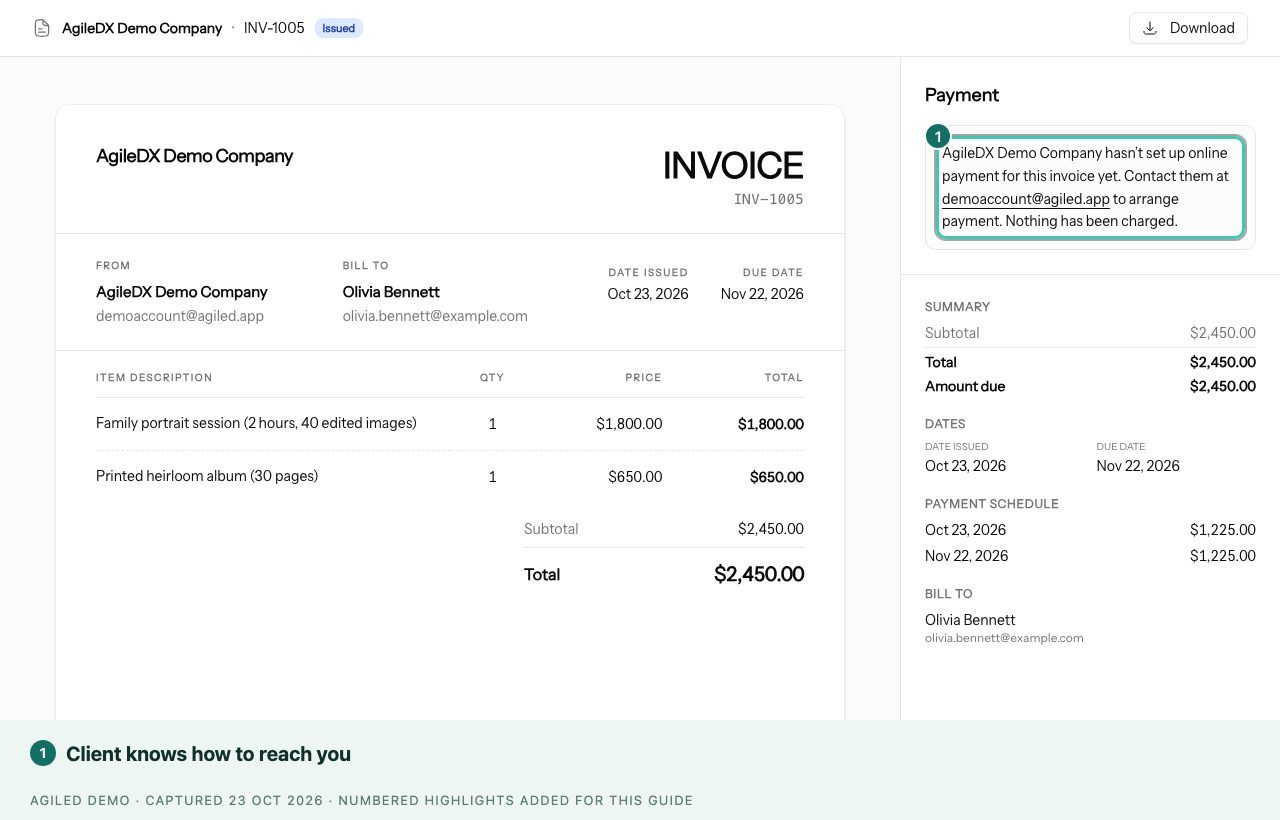
Your team also gets a heads-up before this happens. When you send a Smart Flow that has a payment step, the send dialog warns "Clients can't pay yet" and links to your payment settings. You can still send it. See Send and share Smart Flows.
Add Bank Transfer
- Open Settings > Finance and select the Payments tab.
- Under Offline Payment Methods, select Add bank transfer.
- Keep the name Bank transfer, or change it to what your clients expect.
- In Payment Instructions, add your account name, account number or IBAN, and what to use as the payment reference.
- Leave Active on and select Create.
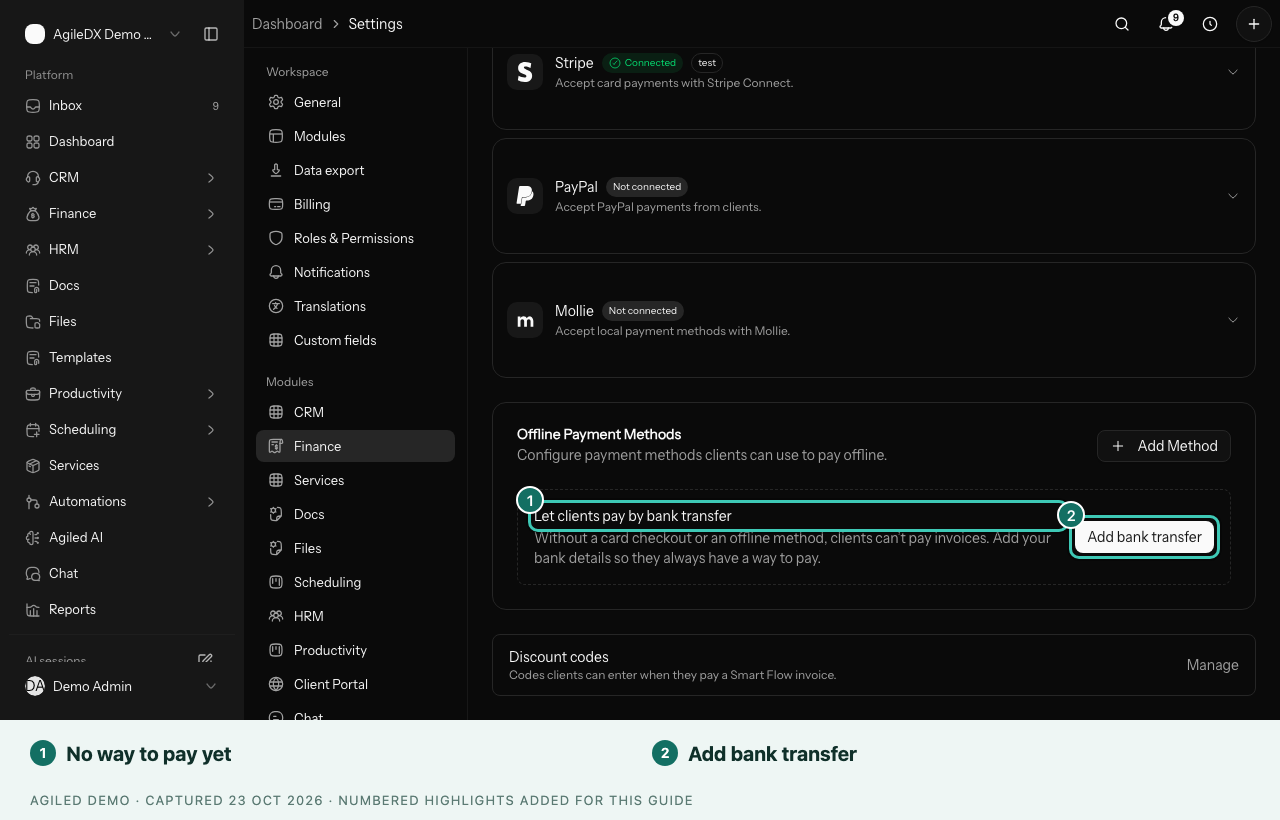
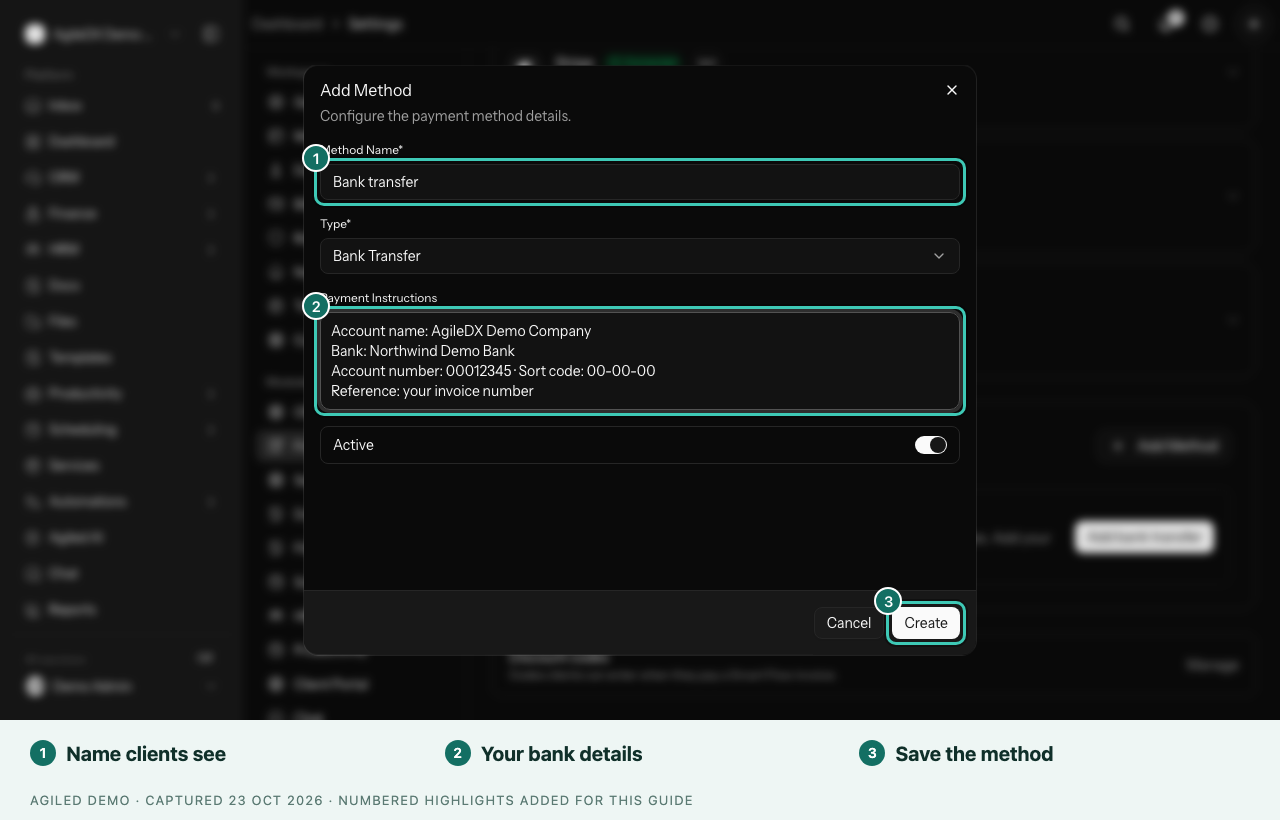
You can also select Add Method to add cash, cheque or another offline method. For more options, see offline payment methods.
Tip: ask clients to use the invoice number as the payment reference. It makes each transfer easy to match when you check your bank.
How Clients Pay by Bank Transfer
On the public invoice, the client:
- Selects Bank transfer.
- Sees your payment instructions and a Payment reference they can copy.
- Makes the transfer from their bank.
- Selects I've sent this payment.
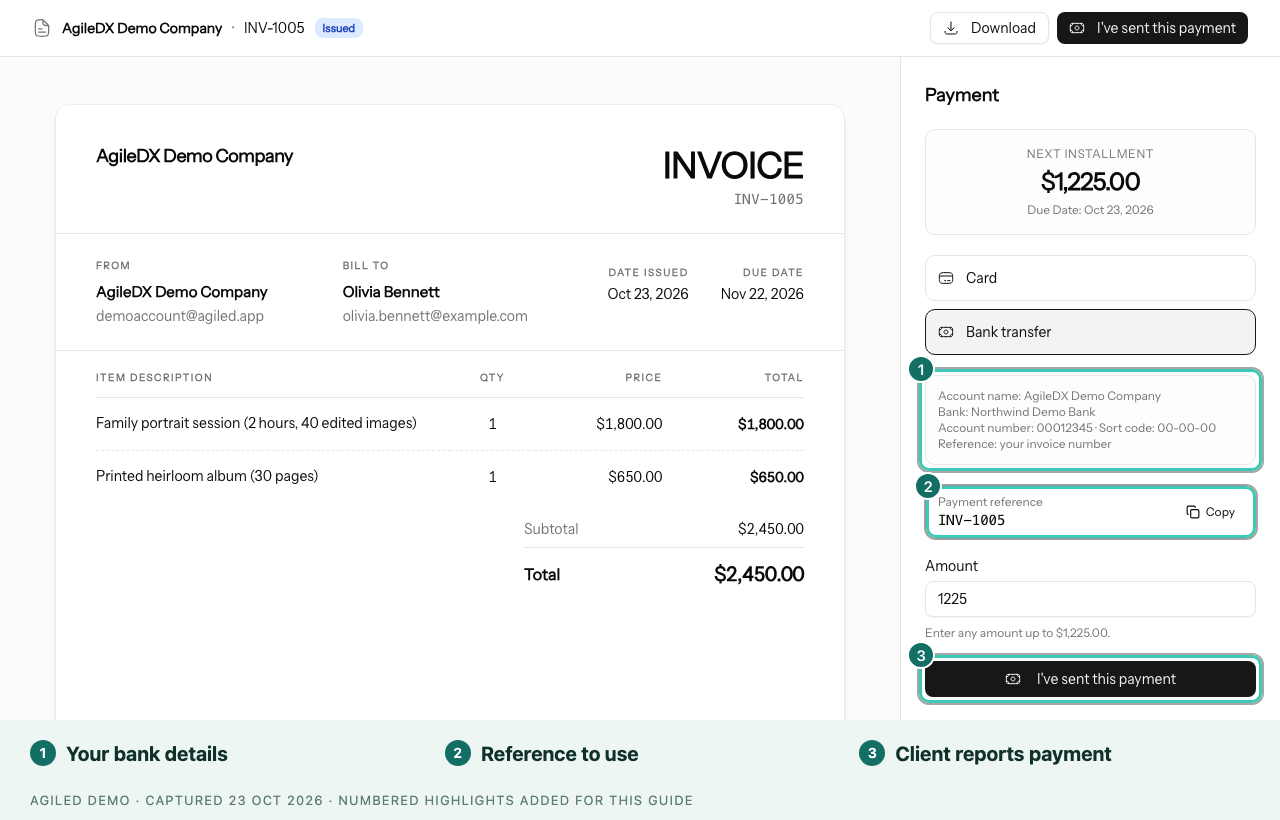
The client then sees a thank-you message saying their balance will update once you confirm the payment. Your team gets a notification that the client reported a payment.
Confirm a Reported Payment
A reported payment isn't counted until you confirm it. This keeps your balances and revenue accurate if a transfer is late or never arrives.
- Open the invoice from Finance > Invoices or from the notification.
- At the top, find Client says they've paid — confirm when it arrives. It shows the amount, the method and the date the client reported it.
- Check your bank account for the transfer.
- Choose one:
- Confirm received records the payment and updates what the client owes. You can add the bank reference. If a Smart Flow is waiting on this payment, it moves on.
- Not received keeps the report in your records without counting it. The invoice asks the client for payment again, so they can pay another way.
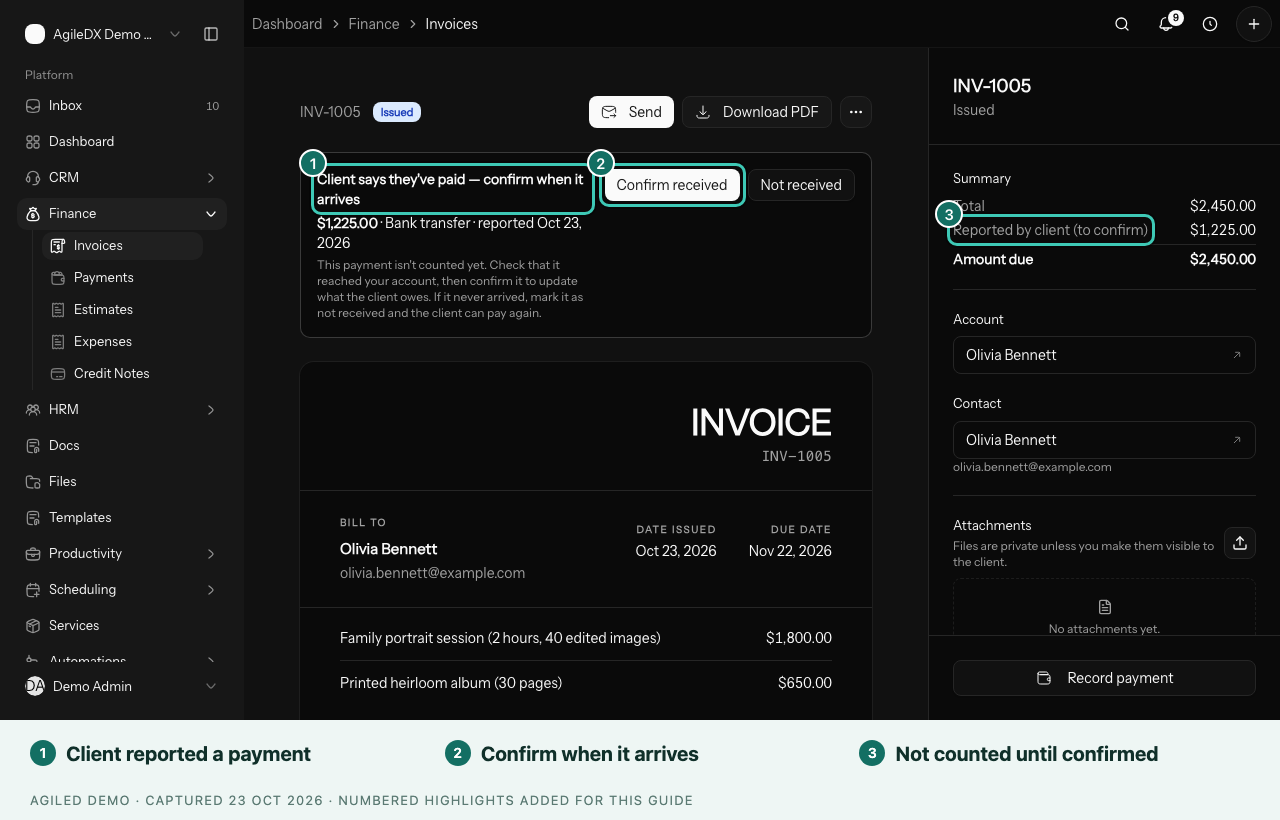
While a report is waiting, the invoice summary shows it as Reported by client (to confirm).
If you open Record payment while a report is waiting, Agiled reminds you about the client's report so the same payment isn't counted twice. Choose Confirm the reported payment, or record a different payment as well.