Deposits and Payment Schedules
Ask for a deposit and split an estimate or invoice into payments your client pays over time.
A payment schedule splits one price into smaller payments. Use it when you take a deposit before work starts, bill in stages, or collect the balance before an event.
Your client sees every payment, how much it is and when it is due. They pay one payment at a time, and Agiled keeps track of what is left.
You can add a schedule in two places:
- Estimates have a Deposit and schedule section. The client sees the schedule before they accept, and the invoice created from the estimate follows it.
- Invoices have a Payment schedule section. Use it when you bill without an estimate.
Add a Deposit and Schedule to an Estimate
- Open Finance > Estimates and create or edit an estimate.
- Add your line items so the estimate has a total.
- Open Deposit and schedule and select Add a deposit.
- Agiled adds two payments to start: a Deposit of 30% due On acceptance, and a Final payment for the Remaining balance.
- Change the deposit amount. Choose % of total or a fixed amount.
- Select Add payment for each extra payment in between.
- For each payment, choose when it is due.
- Save or send the estimate.
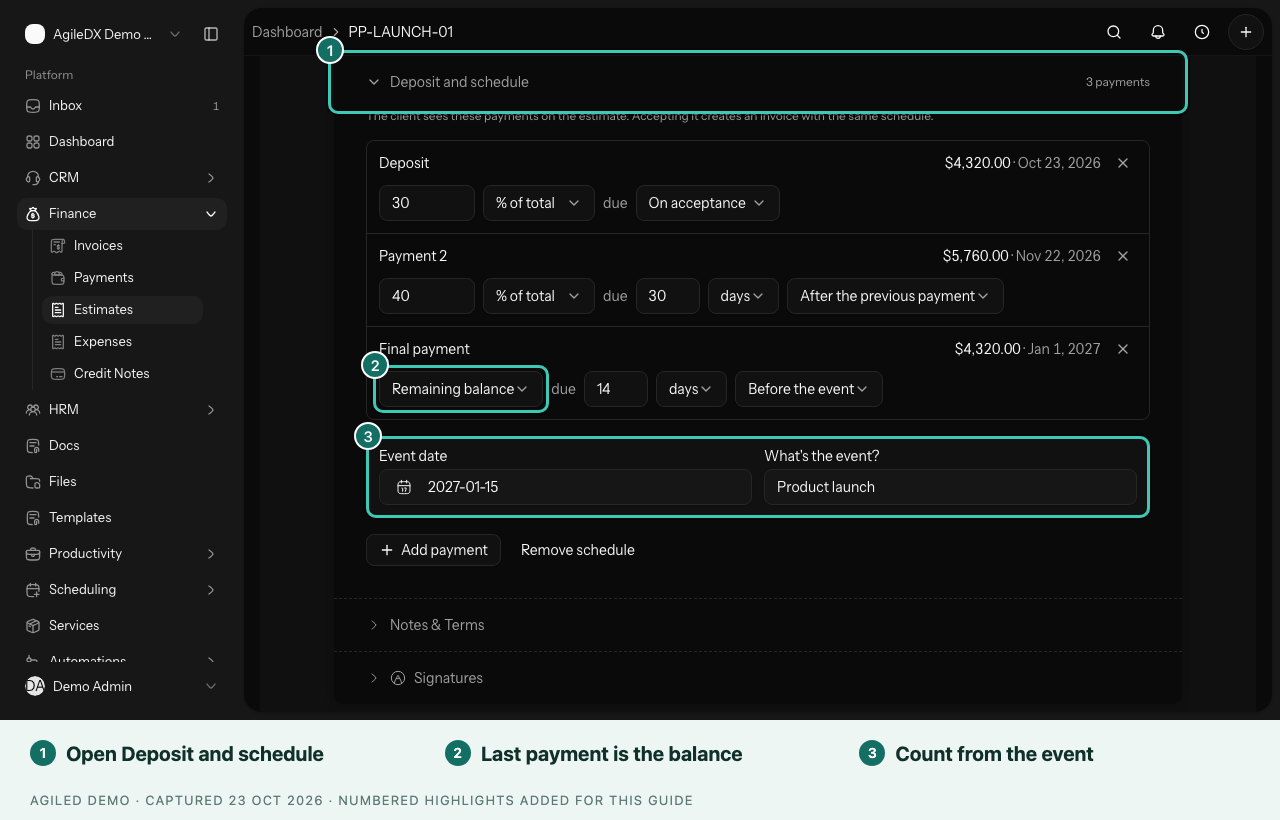
Each payment shows its amount and due date as you edit, so you can check the schedule before your client sees it.
Choose When Each Payment Is Due
| Option | What it means |
|---|---|
| On acceptance | Due the day the client accepts the estimate. |
| After acceptance | Due a number of days, weeks or months after acceptance. |
| After the previous payment | Due a set time after the payment before it. |
| Before the event | Due a set time before the client's event date. |
| After the event | Due a set time after the client's event date. |
| On a date | Due on a fixed calendar date. |
The Last Payment Is Always the Balance
The last payment is the Remaining balance. It is whatever is left after the deposit and the other payments, so the schedule always adds up to the total. If you change a price later, the last payment changes with it.
Only the last payment can be the remaining balance. Percentage payments must add up to 100%, or end with the remaining balance.
Time Payments From an Event Date
Weddings, launches, conferences and shoots often have a fixed date. Instead of working out each due date yourself, you can count payments from that date.
- Choose Before the event or After the event for a payment.
- Enter how long before or after, for example 14 days.
- In Event date, pick the date.
- In What's the event?, give it a name your client recognises, such as "Wedding" or "Product launch".
For example, with an event on 15 January, "14 days before the event" makes the final payment due on 1 January. If the date moves, change the event date and the due dates move with it.
You can save the estimate before you know the date. Payments that count from the event get their dates once you add it.
If you collect payments through a Smart Flow, the flow can ask your client for their event date and time payments from their answer. See Smart Flow pages and blocks and industry templates.
What Your Client Sees on the Estimate
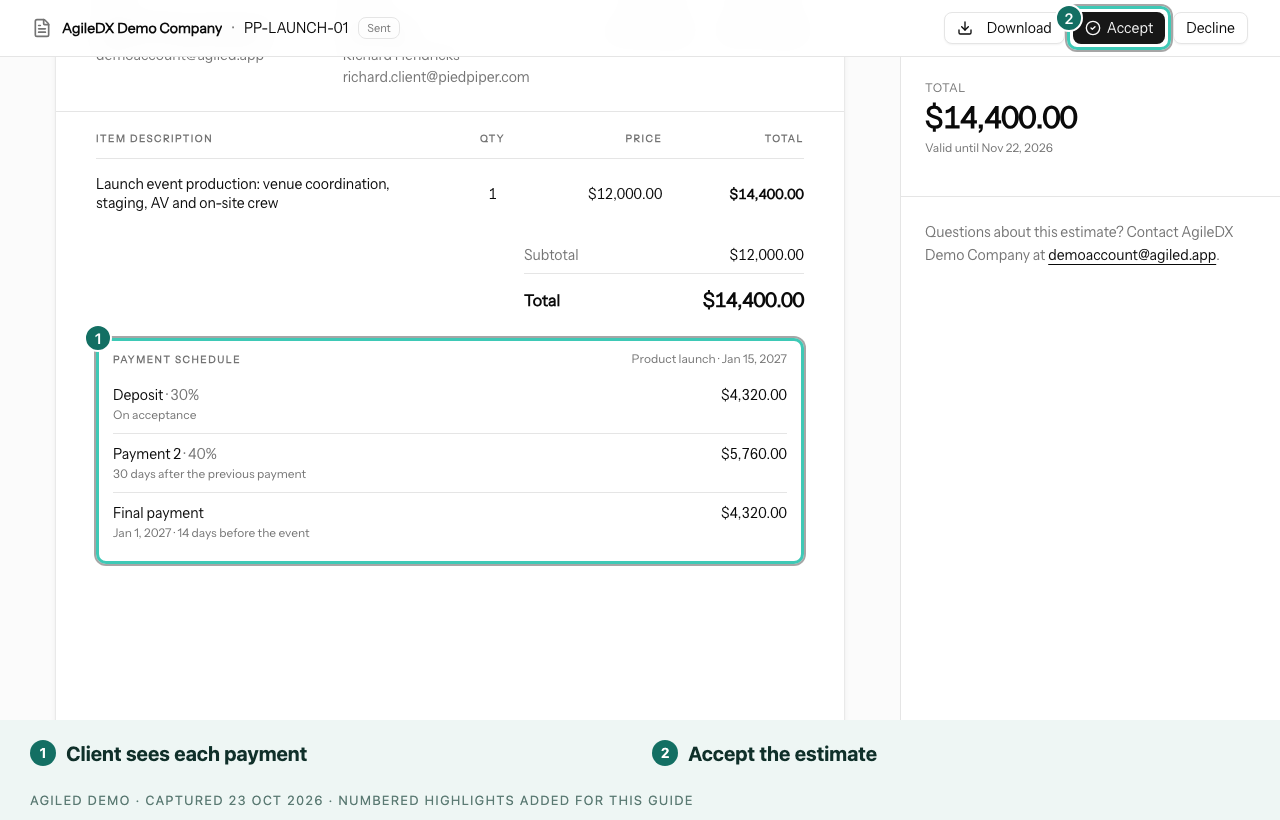
The public estimate shows a Payment schedule block under the totals, with each payment, its share of the total and when it is due. When the client accepts, the dates that depend on acceptance are filled in.
Add a Payment Schedule to an Invoice
- Open Finance > Invoices and create or edit an invoice.
- Open Payment schedule and select Add a deposit.
- Set the deposit amount and its due date.
- Select Add payment for each extra payment.
- Leave the last payment as the Remaining balance and pick its due date.
- Save or send the invoice.
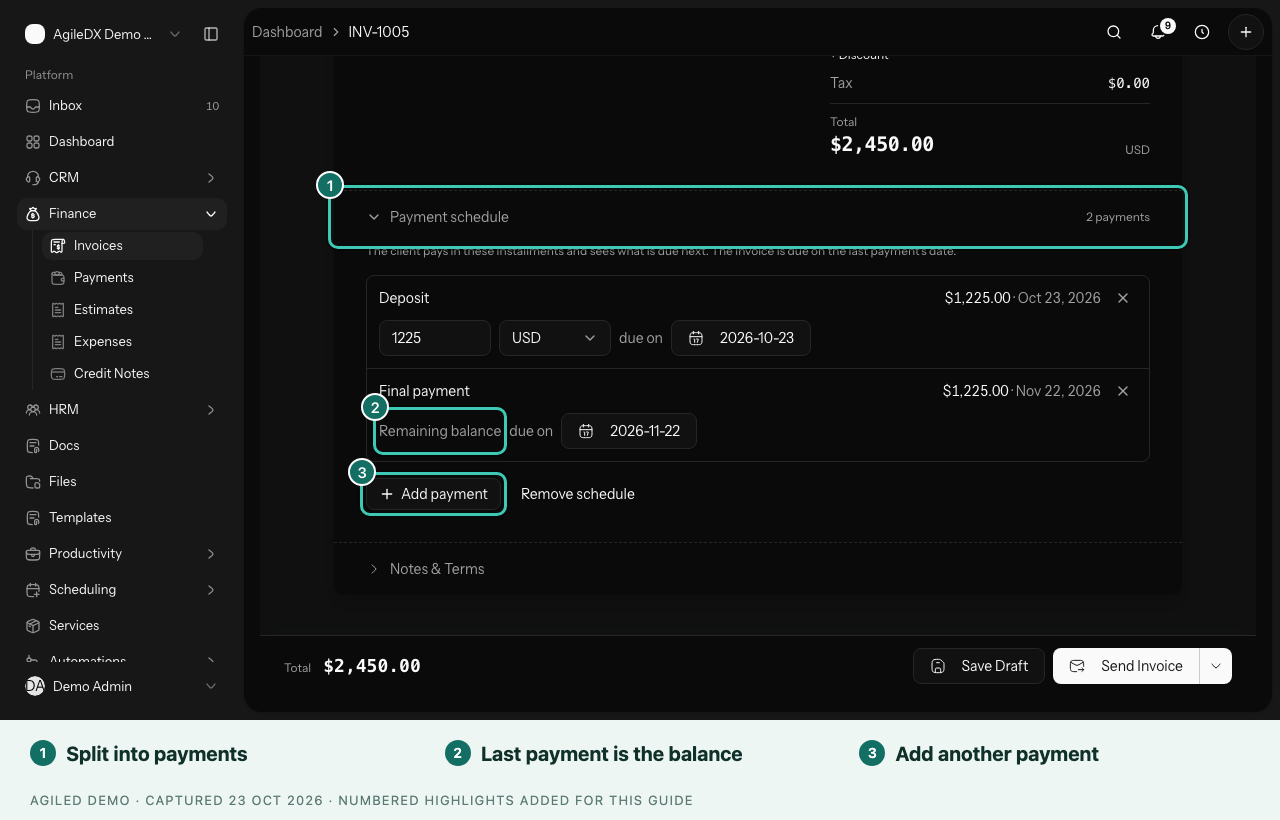
Invoice payments use fixed dates. A scheduled invoice is due on the date of its last payment, so its due date updates when you change the schedule.
Editing other parts of the invoice keeps the schedule as it is. To take the schedule off, select Remove schedule.
What Your Client Sees on the Invoice
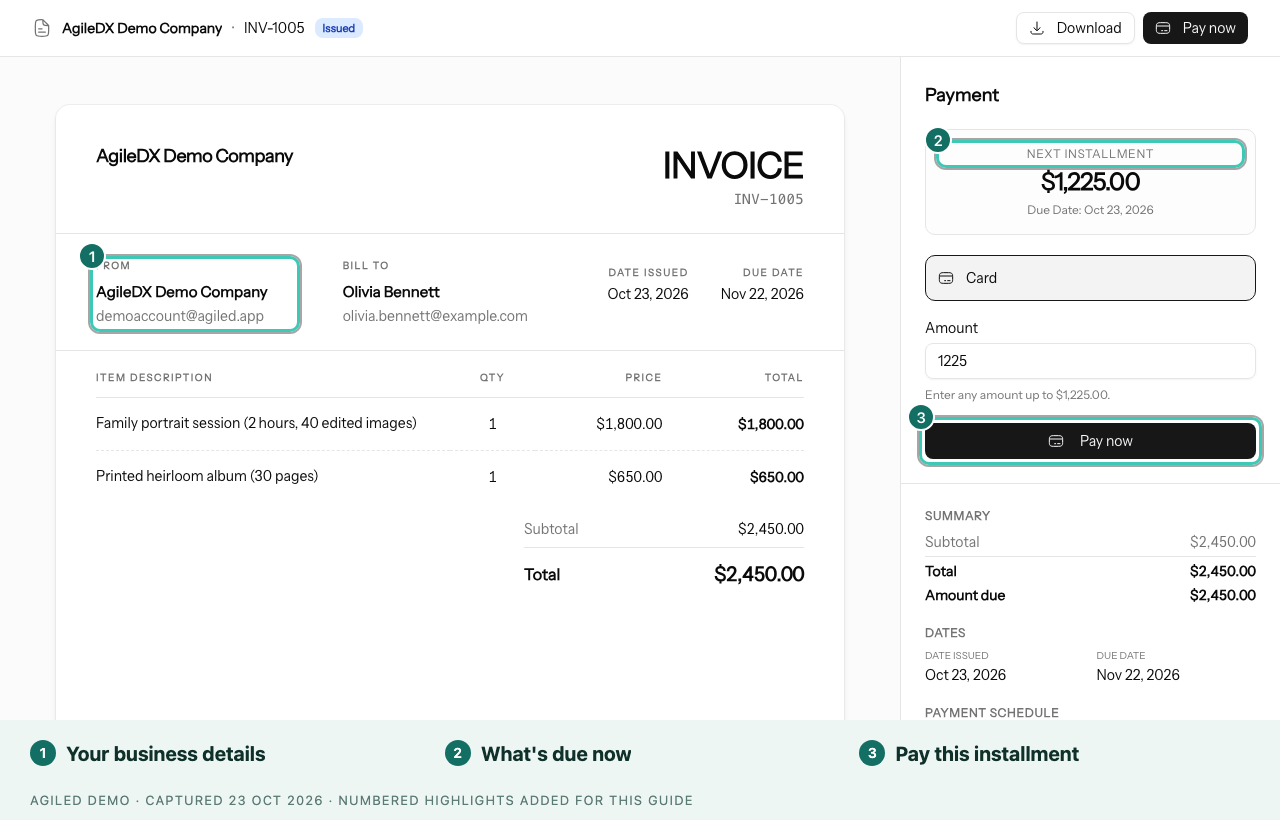
The public invoice shows the Next installment and its due date in the payment panel, and lists every payment under Payment schedule. The client pays the next installment, and the panel moves on to the following one.
Bill an Accepted Estimate One Payment at a Time
Once a client accepts an estimate with a schedule, you can choose how to bill it:
- Convert to invoice creates one invoice that follows the whole schedule. The client pays each installment from the same invoice.
- Invoice each payment creates a separate invoice for each payment when it is due. This is often called progress billing or milestone billing.
To invoice one payment at a time:
- Open the accepted estimate from Finance > Estimates.
- In the side panel, find Payment schedule. The next payment to bill is marked Next to invoice.
- Select Invoice Deposit (the button names the payment and amount).
- Agiled creates a draft invoice for that payment. Review it and send it.
- When the next payment is due, come back and select the next button.
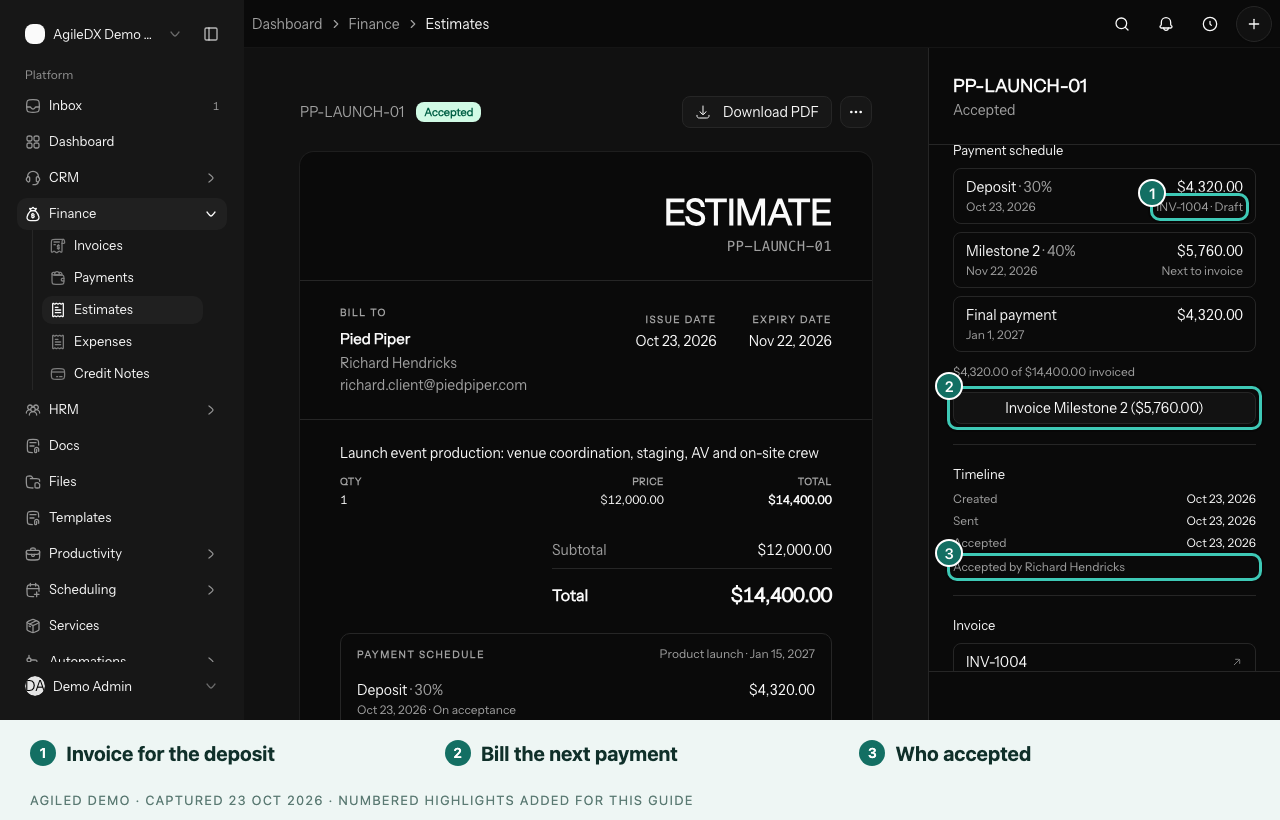
The panel shows how much of the estimate has been invoiced, for example "$4,320.00 of $14,400.00 invoiced", and links each payment to its invoice.
Good to know:
- Each payment invoice carries its fair share of the estimate's tax.
- Payment invoices stay in the estimate's currency.
- You can't lower an estimate below the amount you have already invoiced.