Guides
Run monthly retainer clients
For retainers, bookkeepers, virtual assistants and anyone paid a regular fee for ongoing work.
This guide is for you if clients pay you the same fee every month (or week, or quarter) for ongoing work. That covers marketing and design retainers, bookkeepers, virtual assistants, IT support and maintenance plans.
By the end, Agiled sends each client's invoice on schedule, you can see how much of their retainer you've used, and their regular work has a home.
What guided setup already made
If you chose Recurring or retainer work in guided setup, you already have your services and project stages that suit ongoing work.
Steps
- Choose how clients pay you. Connect an online payment provider such as Stripe, or add your bank details, in Settings › Finance. See Get paid.
- Add the client. Open CRM › Accounts and add the client's company, then add the person you deal with in CRM › Contacts.
- Set up the monthly invoice. Open Finance › Invoices, select the Recurring invoices tab, then Create Recurring Invoice. Add your retainer service, choose how often it repeats, and turn on Auto Send. See Recurring billing.
- Track what the retainer covers. On the client's account, open the Retainers tab and add the hours or tasks the fee includes, so you can see what's used and what's left.
- Give the regular work a home. Open Productivity › Projects, create one project for the client, and add their repeating tasks, such as Monthly report.
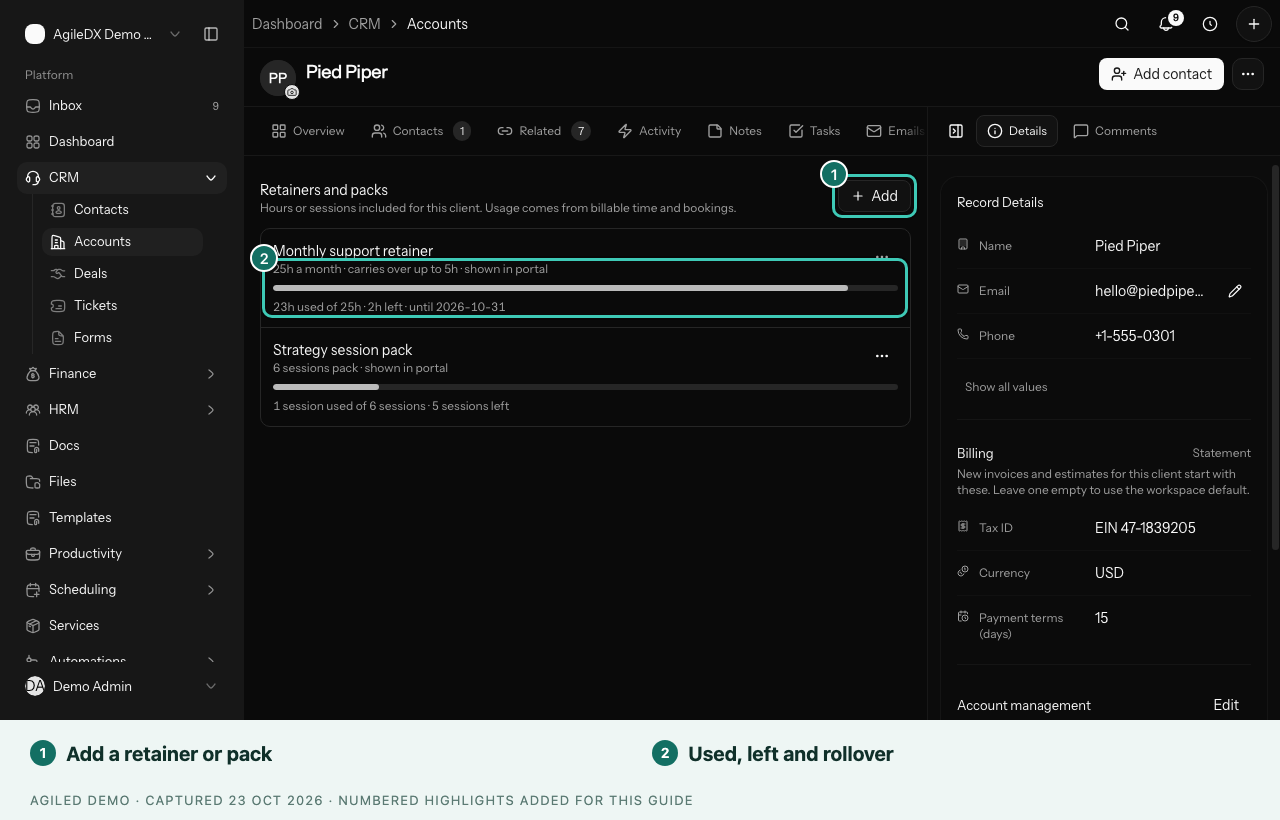
You're done when the recurring invoice shows its next send date, and the client's account shows their retainer with hours used and left.
Good to know
- Check the first one. Send the first invoice to yourself, or leave Auto Send off for the first month and send it by hand.
- Changing a price? Edit the recurring invoice. Invoices already sent don't change.
- Track time against the retainer with the timer on each task, so you know when a client is running over. See Time tracking.
When this is working
- Remind clients automatically when an invoice is overdue.
- Send a monthly status update drafted by Agiled AI.
- Win more retainer clients with a call and a proposal.