Services
Sell a service online
Share a checkout link for one of your services so clients can buy and pay without an invoice.
Every service has its own checkout link. Share it on your website, in an email or a message, and clients can buy the service, answer your questions and pay in one go.
Before you start
- Set up a way to get paid: an online payment provider such as Stripe, or bank transfer.
Set up and share the link
- Open Services › All Services and select the service.
- Check Pricing and Media, so the price and pictures are right.
- Open Settings. Optionally choose a Checkout intake form for the questions you ask before they buy, a Success Message, a Redirect URL and a Maximum Quantity.
- Turn on Create project on payment if each sale should start a project.
- Select Save.
- Select Copy checkout link in the service header.
- Open the link in a private browser window and check it, then share it.
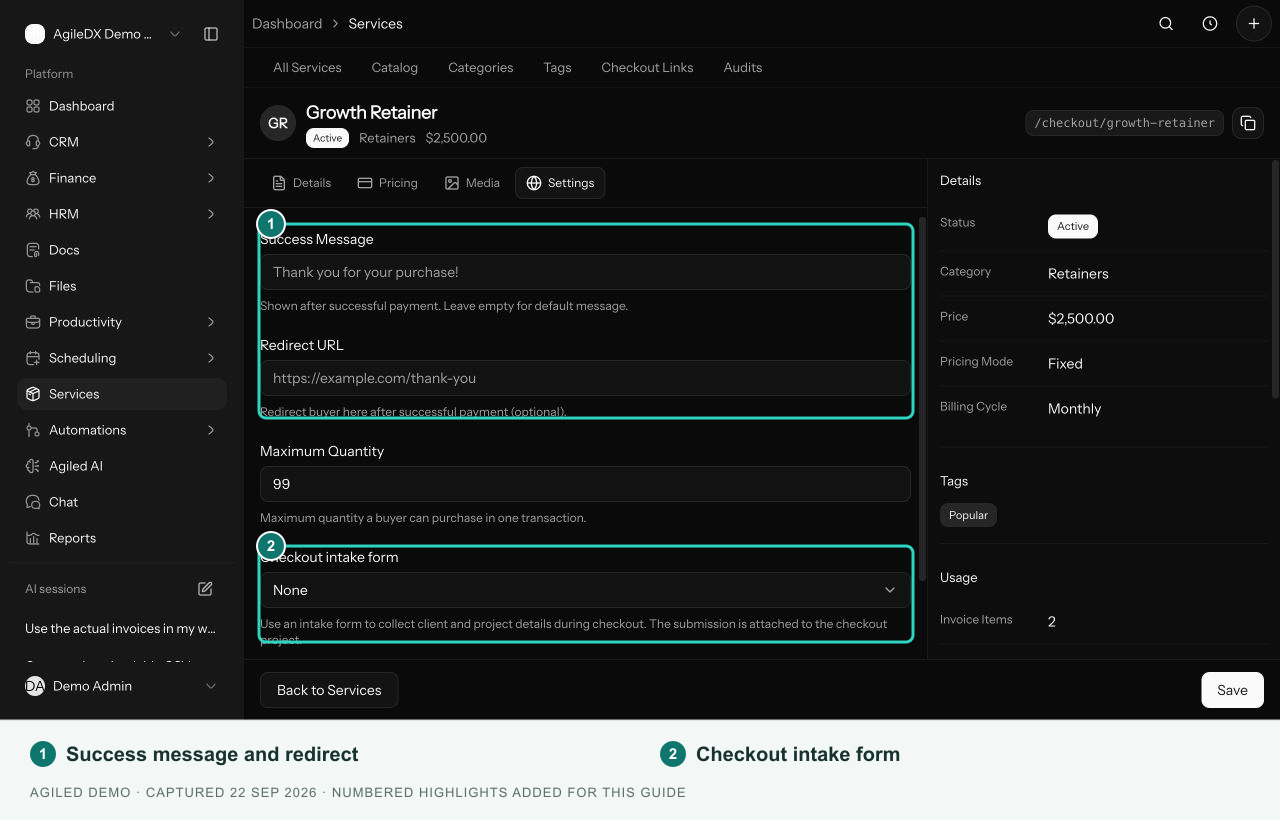
You're done when the link opens a checkout page showing your service, price and payment options.
What your client sees
Your client reviews the service, chooses a quantity, enters their name and email, answers your questions and picks a payment method. Online payments go through your provider. If they choose bank transfer, they get your payment instructions.
After someone buys
- The payment is with your online payment provider. For bank transfer, check your bank before you treat it as paid.
- The buyer is in CRM › Contacts.
- Their answers are in the intake form's submissions under CRM › Forms.
- The project, if you turned it on, is in Productivity › Projects. It starts once payment is confirmed. For bank transfer, it waits for payment.
A checkout doesn't create an invoice. If the client needs one, create it in Finance and record the payment against it.
Good to know
- If the link doesn't open, check that the service is active and that you copied the link from the right service.
- If a payment option is missing, check your payment settings.
- Before asking a client to pay again, check your provider to see whether the first payment went through.