Utilization Report
See how much of each person's available time went to billable work.
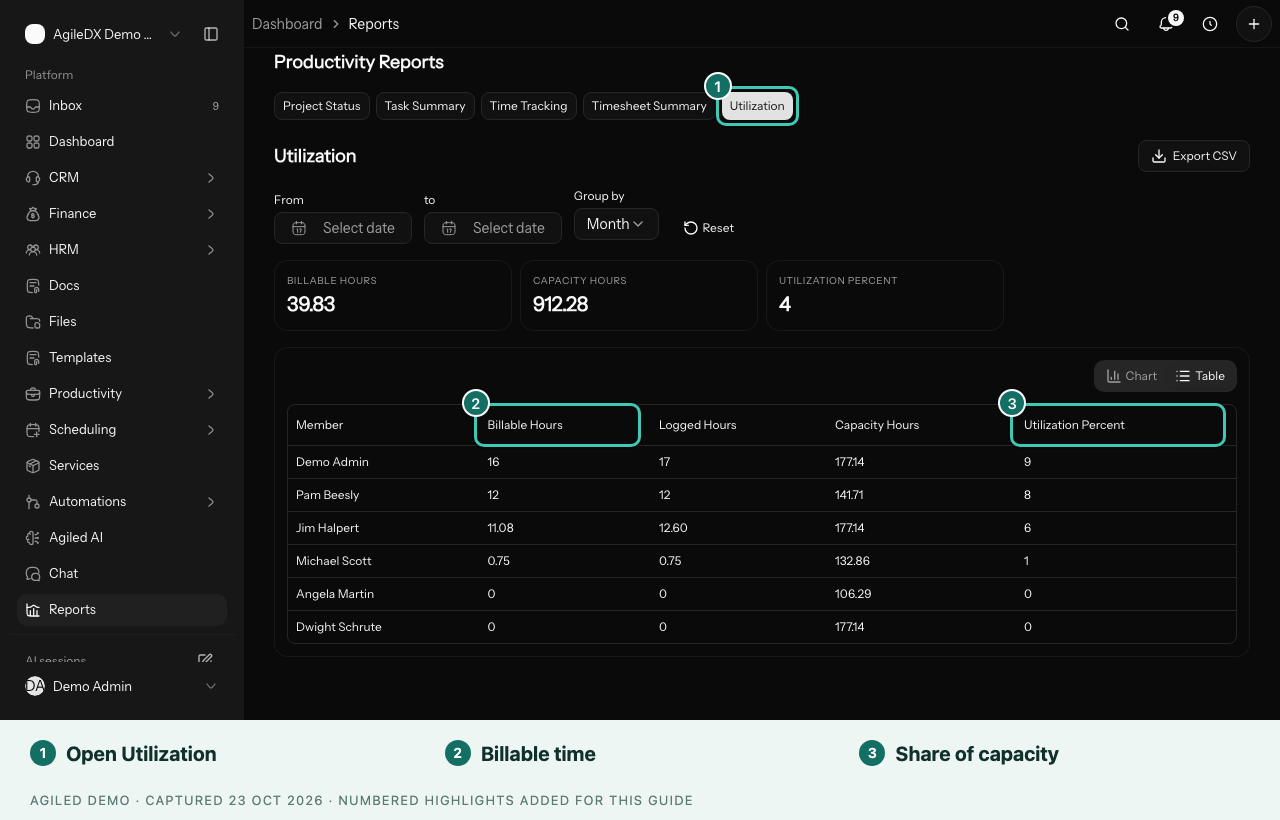
Utilization shows, for each person, how many billable hours they logged compared with the hours they have available. Use it to spot people who are stretched thin and people who have room for more client work.
Before You Start
Utilization uses each person's hours per week. Set them in Settings > Productivity, under Team costs and capacity. Everyone starts at 40 hours a week. See Profit, Utilization and Capacity.
Open the Report
- Open Reports > Productivity.
- Select Utilization.
- Set From and To. The report starts with the last month.
Read the Report
| Column | What it shows |
|---|---|
| Member | The teammate |
| Billable Hours | Billable time they logged in the period |
| Logged Hours | All time they logged, billable or not |
| Capacity Hours | Their hours per week, multiplied by the weeks in the period |
| Utilization Percent | Billable hours as a share of capacity hours |
People with the highest utilization are listed first. The summary at the top shows the team's total billable hours, total capacity and overall utilization. If someone has 0 hours per week, their utilization shows as -.
Use It Well
- Very high utilization can mean someone is overbooked. Check the Capacity view before giving them more work.
- A big gap between logged and billable hours can mean a lot of internal work, or billable time logged as non-billable by mistake.
- Low utilization for a week can simply be leave or a quiet period. Compare a few weeks before acting.
Who Can See It
The report is for people who manage time tracking. If you don't see it, ask a workspace admin for access.