Profit, Utilization and Capacity
See what projects earn after labor and expenses, how busy each person is, and who has room for more work.
Agiled works out profit from the time your team logs. Each person has a cost per hour (what an hour of their time costs the business) and a number of hours per week they can take on.
Set Cost Rates and Weekly Hours
- Open Settings and select Productivity under Modules.
- Under Team costs and capacity, enter each person's Cost per hour and Hours per week. Each field saves when you leave it.
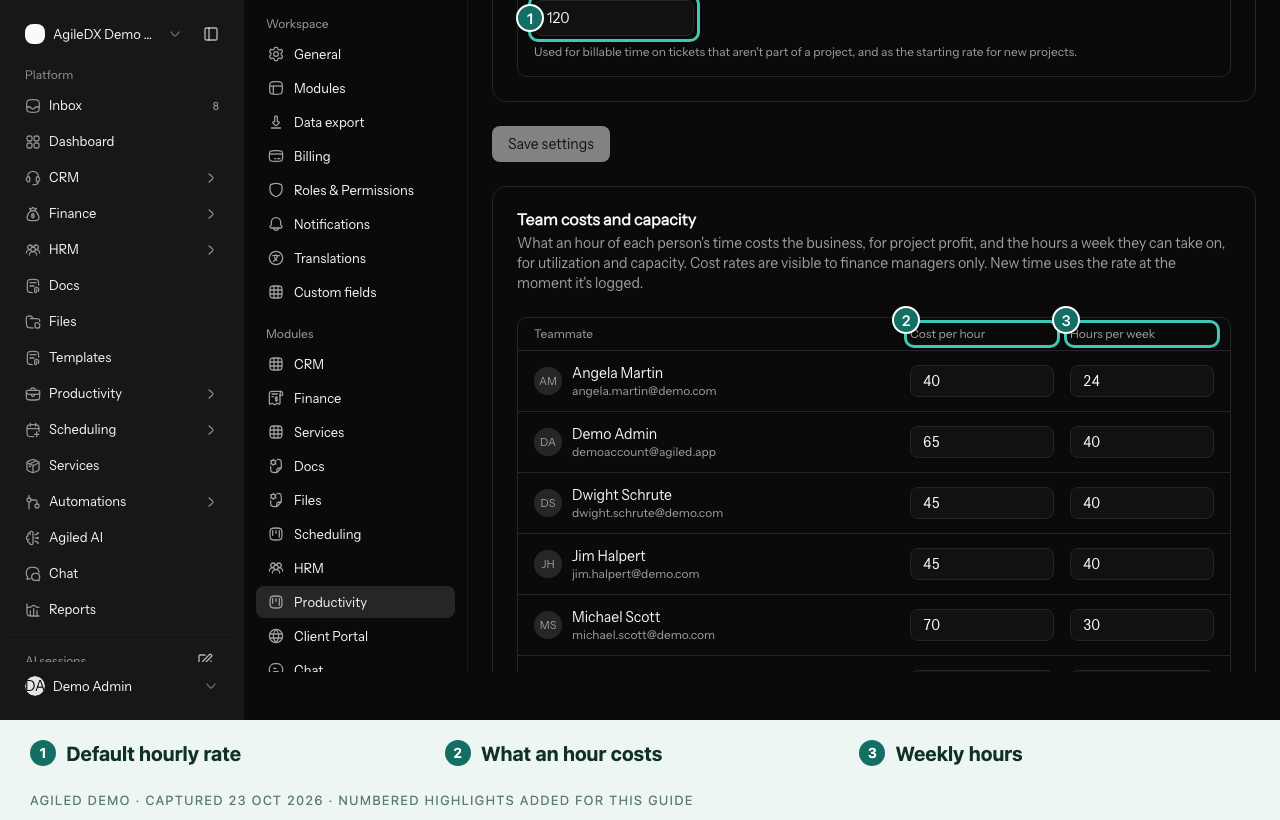
Only people who manage finance see and edit cost rates. People who manage tasks can edit weekly hours. Clients are not listed.
New time entries keep the cost rate in force when the time is logged, so changing a rate later does not rewrite past profit. Time logged before a person had a cost rate is costed at their current rate and marked as an estimate.
The same page has the workspace Default hourly rate. It is used for billable time on tickets that aren't part of a project, and as the starting rate for new projects.
Project Profit
Open a project and choose the Money tab (see Track Time and Billing on a Project). Finance managers see a Profit section under time and billing:
- Revenue: billable time at its billable rates.
- Labor cost: all logged time, billable or not, at each person's cost rate.
- Expenses: the project's approved and pending expenses.
- Profit: revenue minus labor cost and expenses, with the margin.
Notes under the figures tell you when some time was costed at today's rates, when time was logged by people with no cost rate (it counts as free until you set one), and when expenses in another currency were left out.
Reports
- Reports > Finance > Project Profitability lists revenue, labor cost, expenses and margin for each project, and per client. It needs finance management. See Project Profitability.
- Reports > Productivity > Utilization compares each person's billable hours with their weekly hours over the period. It needs time tracking management. See Utilization.
Capacity
Productivity > Capacity shows, week by week, each person's planned hours against their weekly hours, so you can see who has room before you assign more work:
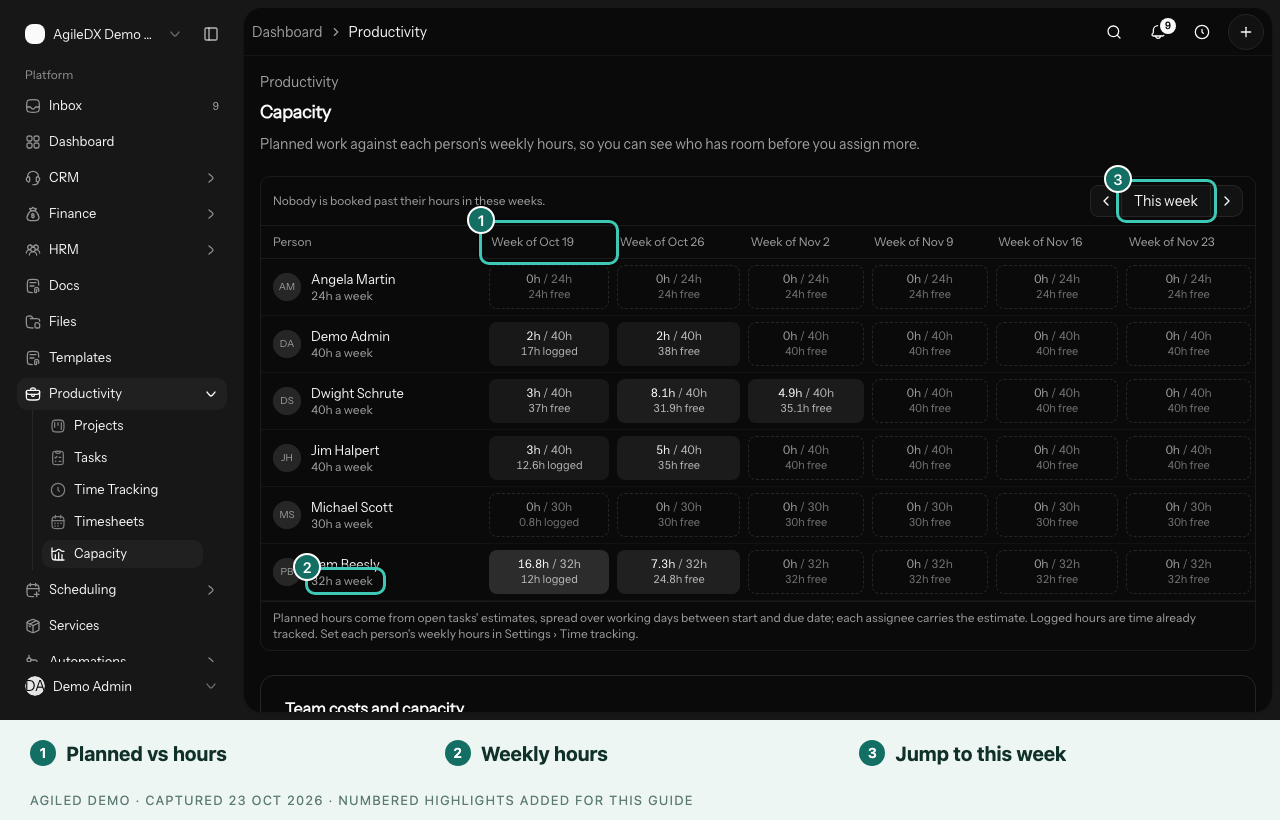
- Planned hours come from open tasks with an estimate, spread over the working days between their start and due dates. Every assignee carries the estimate.
- Weeks booked past a person's hours are marked in red.
- Logged hours show time already tracked that week.
- A line above the grid tells you whether anyone is booked past their hours in the weeks shown.
Use the arrows to move six weeks at a time, or This week to come back. Capacity needs task management. The Workload view on each project's Team tab uses the same weekly hours.