Mark appointments completed or no-show
Record whether each meeting happened, so your show-up rate and follow-ups stay accurate.
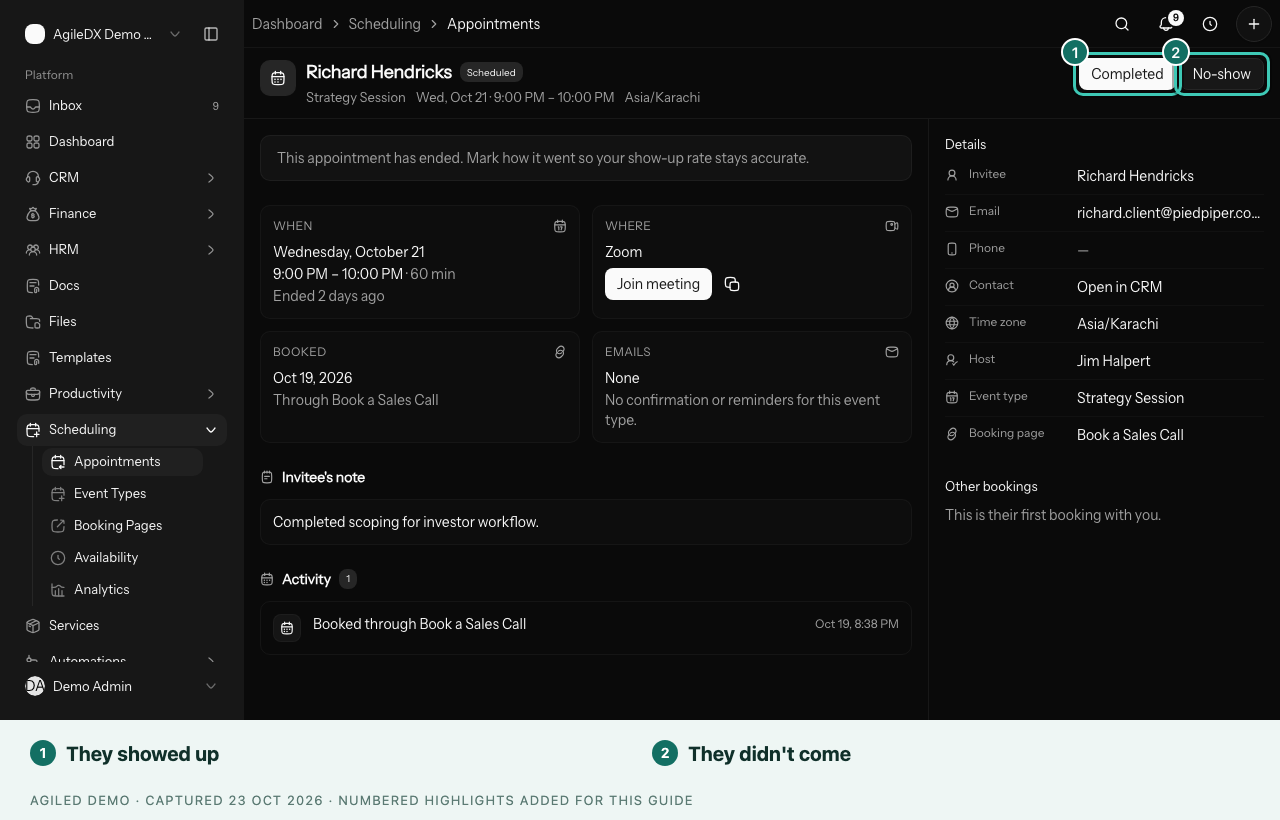
After a meeting ends, record how it went. Marking an appointment Completed or No-show keeps your show-up rate in Scheduling Analytics accurate, and tells your team who needs a follow-up.
Mark an appointment
- Open Scheduling › Appointments and choose Past.
- Open the appointment. A note says the appointment has ended.
- Select Completed if the meeting happened, or No-show if the client didn't come.
You're done when the appointment's status shows Completed or No Show, and the outcome is added to its activity.
Change your mind
If you picked the wrong outcome, select Undo outcome (the arrow button in the header). The appointment goes back to Scheduled, and you can choose again.
Find appointments without an outcome
Scheduling › Analytics tells you when past appointments in the period don't have an outcome yet, for example "1 past appointment doesn't have an outcome yet." Select Review past appointments to go to them.
In the Outcomes card, these appear as No outcome yet.
What clients see
If the client opens their confirmation link after you mark the appointment:
- Completed: the page says the appointment has been completed.
- No-show: the page says it was marked as a no-show and asks them to contact you if that's wrong.
They can't reschedule or cancel a meeting that has already happened.
Follow up on no-shows
When someone doesn't come:
- For sales calls, add a note to the contact or deal and send them your booking link to pick a new time.
- For paid appointments, decide whether to refund, credit or rebook.
- If no-shows are common for one event type, add a reminder an hour before on its Notifications tab.