Scheduling
Share bookings across your team
Let clients book any free team member, with bookings shared out evenly.
Round robin lets one event type be booked with anyone on your team. Clients see everyone's open times on one page, and each booking goes to a member who is free, so work spreads out evenly.
Before you start
- Team scheduling is part of the Business and Scale plans. On other plans the option shows as locked.
- Each member connects their own calendar and checks their own availability.
Set up round robin
- Open Scheduling › Event Types and open the event type.
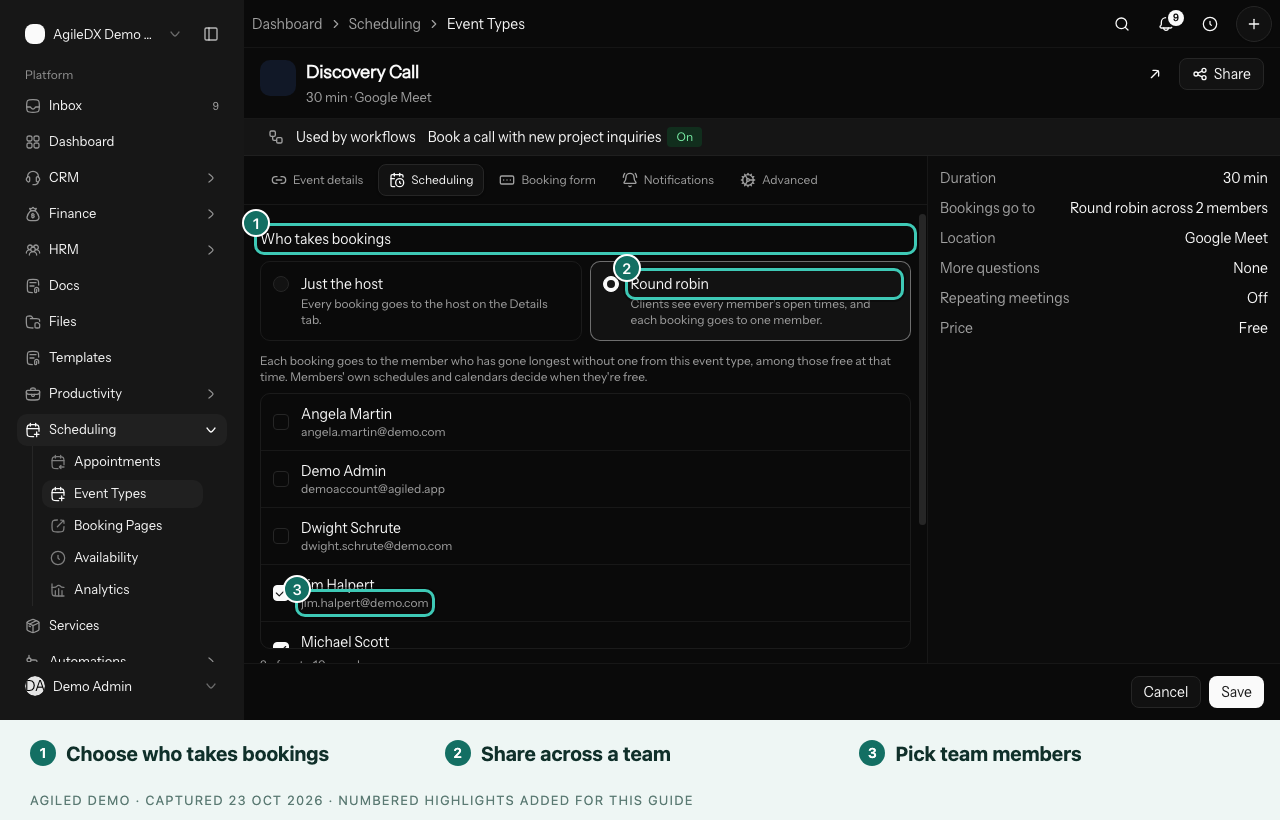
- Go to the Scheduling tab.
- Under Who takes bookings, choose Round robin.
- Tick the team members who take these bookings, up to 10.
- Select Save.
- Book two test appointments at a time when everyone is free.
You're done when your two test bookings show different members as the Host in Scheduling › Appointments. Cancel the tests afterwards.
How bookings are shared
- Clients see a time if at least one chosen member is free then.
- Each booking goes to the free member who has gone longest without a booking of this event type.
- The confirmation page and emails name who the client is meeting, such as "With Jim Halpert".
Good to know
- A member with no schedule can be booked on weekdays from 9 to 5. A member with no calendar connected may be offered when they're busy.
- Google Meet needs members with Google Calendar connected. The event type tells you when no chosen member can create a Meet link.
- Choose Just the host to send every booking to one person again.