Scheduling
Set booking times and limits
Choose when an event type can be booked, with space between meetings and limits per day.
Timing settings turn your availability into the exact times clients can pick, and keep space around meetings so your day doesn't fill up back to back.
Set the timing
- Open Scheduling › Event Types and open the event type.
- Select the Scheduling tab.
- Under When people can book, choose the Schedule, the Timezone and Start times, such as Every 30 minutes.
- Under Buffer time, add time before or after each meeting.
- Under Booking limits, set Minimum notice, the Booking window, and a Daily limit, Weekly limit or Monthly limit if you need one.
- Select Save.
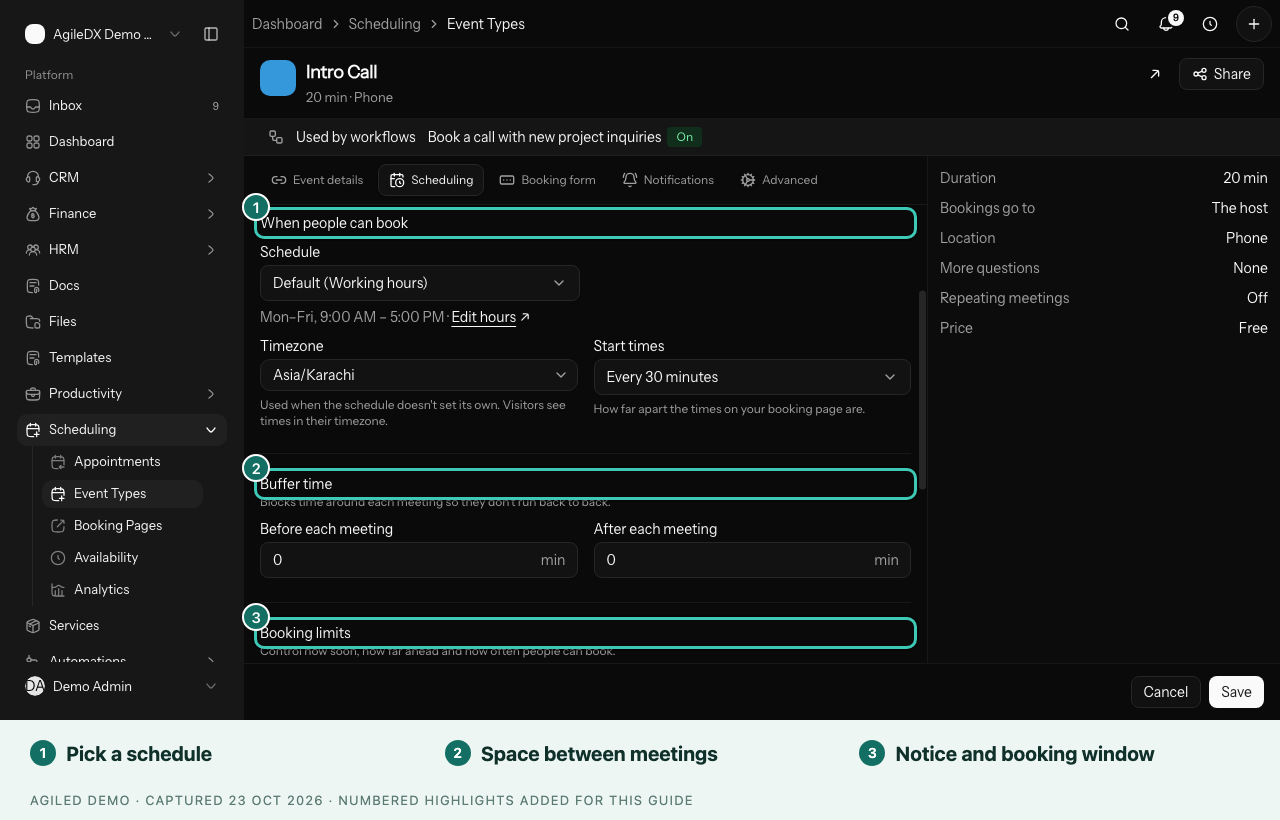
You're done when your booking page, opened in a private browser window, shows the times you expect on a day that should be open, and none on a day that should be closed.
What each setting does
- Schedule: the availability schedule to use. Default follows your default schedule.
- Timezone: used when the schedule doesn't set one. Clients see times in their own timezone, unless you turn on Show times in this timezone only. Use that for in-person meetings, so visitors see the local time.
- Start times: how far apart the times are, such as 9:00, 9:30, 10:00.
- Buffer time: time to prepare before, or write notes after.
- Minimum notice: stops last-minute bookings.
- Booking window: how far ahead people can book. Choose A number of days ahead, Between two dates (for a launch or a season), or Any time in the future.
- Daily limit, Weekly limit and Monthly limit: the most bookings of this type in a day, week or month. When a limit is reached, the rest of that period shows no times.
- Offer one time per day: shows only the earliest open time each day, so bookings stack up instead of scattering.
- Show spots left: shows clients how many bookings are left each day.
- Book a series at once: one booking creates a set of repeating meetings, such as weekly coaching.
Good to know
- Changes apply to new bookings straight away. Existing appointments keep their time.
- If no times appear, select Why these times? (the question-mark button in the event type's header) to see what's blocking them. See Fix missing booking times.
- If times are in the wrong timezone, check the schedule's timezone first, then the event type's.