Scheduling analytics
See how many people book, how many show up, and which meetings are most popular.
See whether your booking pages are working: how many bookings you get, how many people show up and cancel, and which meetings are booked most.
Open Scheduling › Analytics and choose a period in the top right, such as Last 30 days, or pick your own dates.
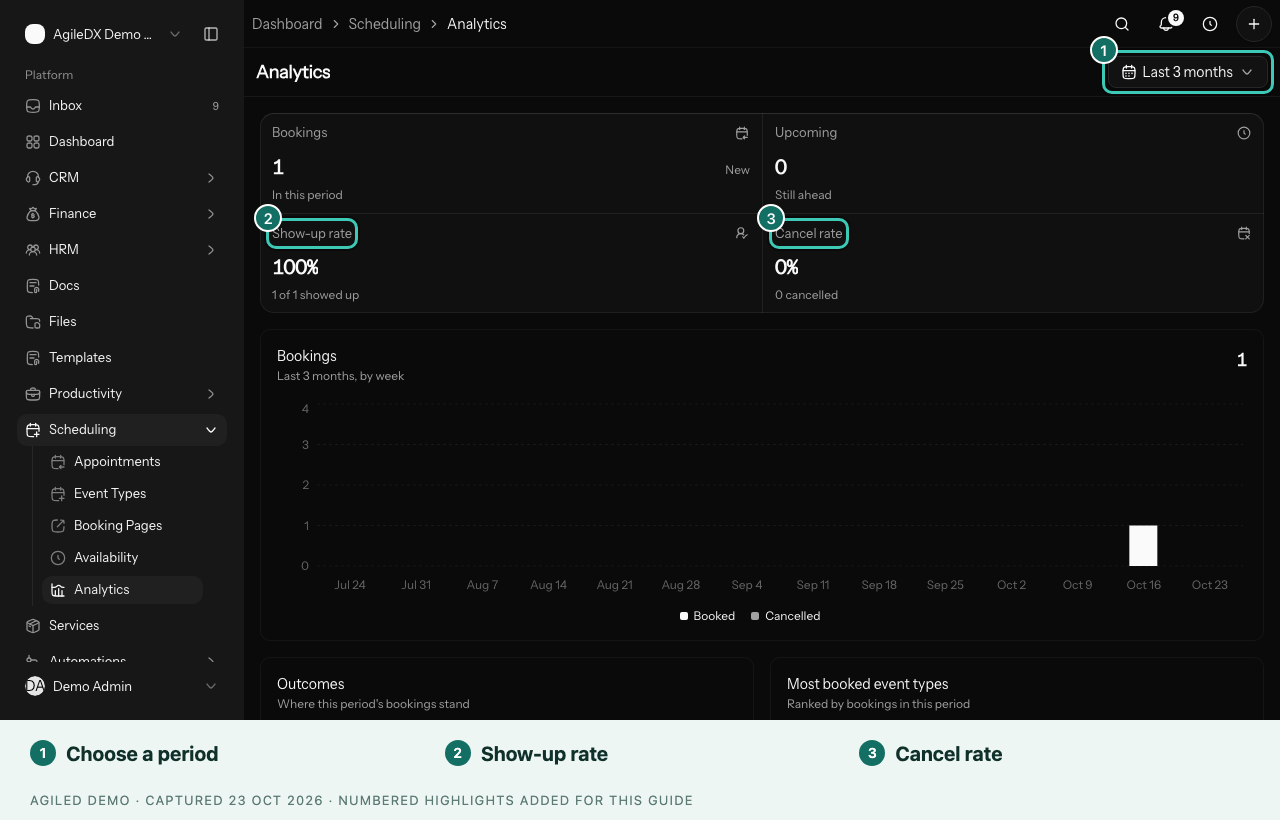
The numbers
- Bookings: appointments in the period, with the change from the period before.
- Upcoming: how many of those are still ahead.
- Show-up rate: of the meetings with an outcome, how many people came.
- Cancel rate: how many bookings were cancelled.
- Bookings chart: booked and cancelled appointments over time.
- Outcomes: Completed, Upcoming, No outcome yet, No-show and Cancelled.
- Most booked event types: your event types ranked by bookings.
Bookings count in the period when the meeting happens, not when it was booked.
Dig deeper
- Hosts: each person's bookings, how many showed up and cancelled, and their share of team bookings.
- Where bookings came from: bookings by the campaign tag in the booking link. See Track where bookings come from.
- How far ahead people book: the time between booking and the meeting, from same day onwards.
- Busy times: when meetings happen across the week. Darker is busier.
- Bookings that became deals: the deals these bookings are linked to, how many were won, and their value. Bookings link to deals when Create lead is on for the event type.
Check your team is ready
People who manage scheduling also see Team readiness. It lists each member who hosts, with their Calendar status, whether their Hours are set, the Event types they host, and their Next open time. A note at the top says how many need attention.
You see each member's calendar status only, never their events. If someone's calendar needs reconnecting, ask them to open Settings › Apps and select Reconnect.
Keep the show-up rate accurate
If past appointments have no outcome, a note at the top says so. Select Review past appointments and mark each one. Until then, the show-up rate counts only the meetings you have marked.
Act on what you see
- Few bookings: check the page is accepting bookings, has enough open times, and is shared where clients look.
- Low show-up rate: add a reminder an hour before, and make the location clear.
- High cancel rate: check the event description sets the right expectations, and the booking window isn't too long.
- One event type is booked most: give it more open time, or share it across your team.
- One host takes most team bookings: check Team readiness for missing hours or calendars, then review each member's share on the event type.