Share or embed a booking page
Copy your booking link, or add booking to your website as a section or a button.
Put your booking link wherever clients find you: emails, your signature, social profiles, or right on your website.
Open the Share dialog from the share button on a row in Scheduling › Booking Pages or Scheduling › Event Types, or from Share in the header of a booking page or event type. Sharing an event type links straight to that meeting, so visitors skip choosing one.
Share the link
- Open the Share dialog and stay on Link.
- Select Copy link, or Open to see the page yourself.
- Paste the link into your email, signature or profile.
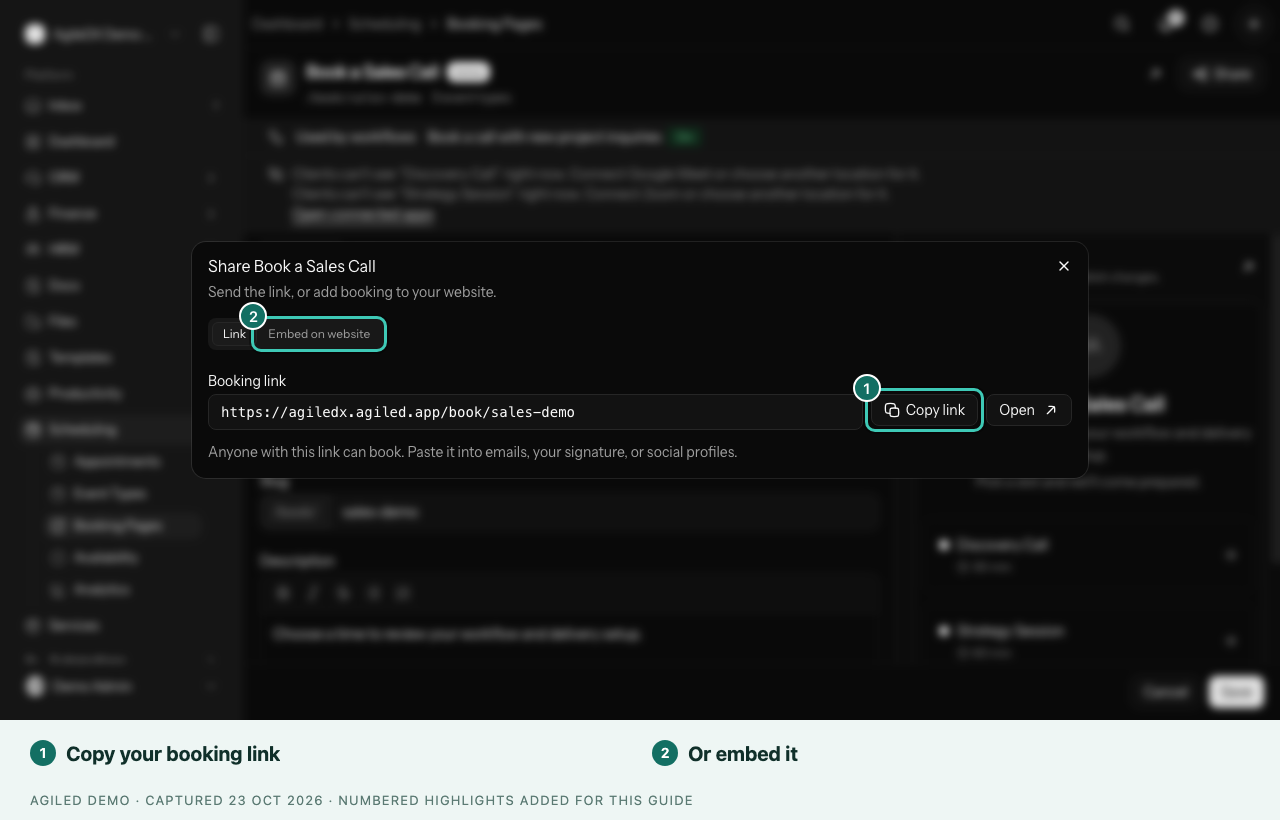
You're done when the link opens your booking page in a private browser window. If the page or event type is turned off, the dialog warns you.
Add booking to your website
- Open the Share dialog and choose Embed on website.
- Under How it appears, choose Inline (inside a section of your page), Floating button (a button in the corner) or Your own button (opens from a link you already have).
- Choose the Calendar layout: Month, Week or Column.
- Check the Preview, then select Copy code.
- Paste the code into your website, following the short note under the code. Your web person can do this step.
- Open your website on a phone and a computer, and book a test appointment.
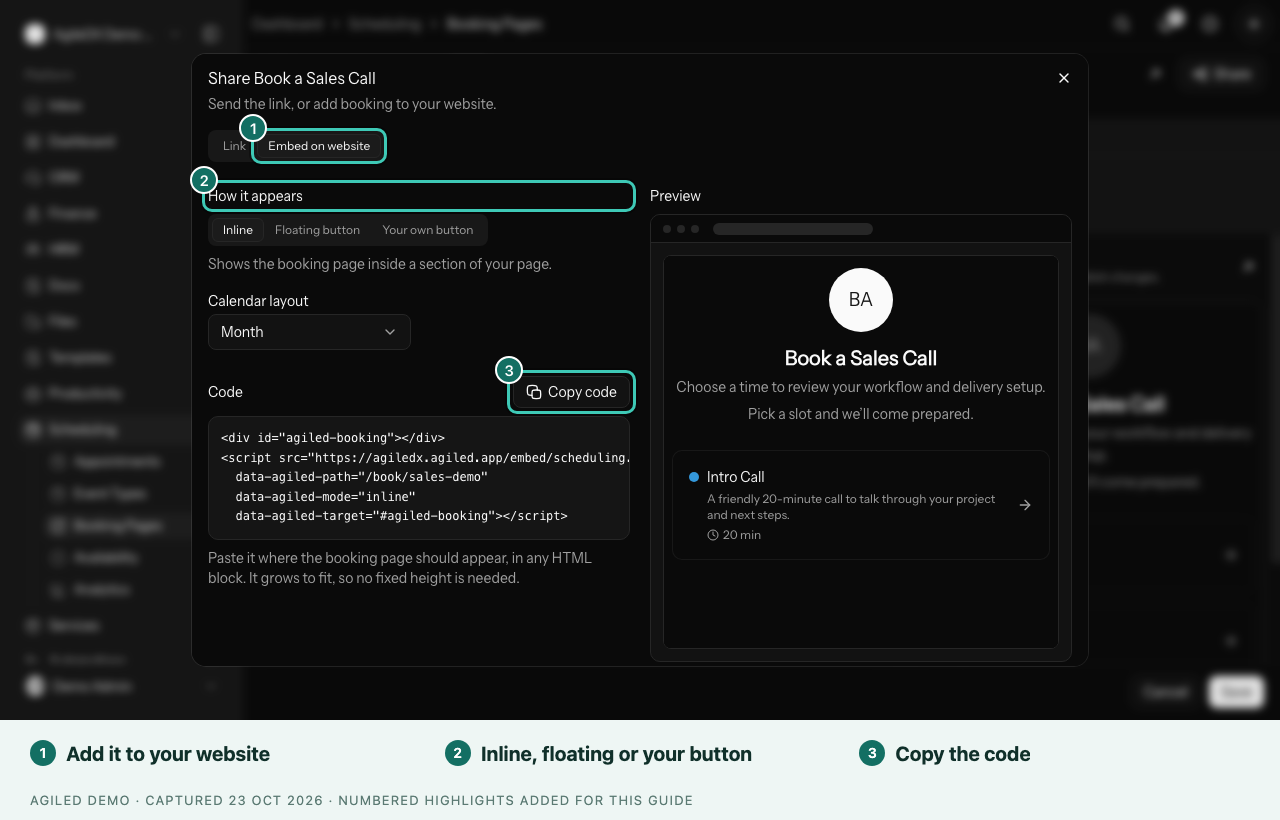
You're done when your test booking from the website shows in Scheduling › Appointments.
Fill in the form for clients
When you already know who you're sending the link to, add their details to the end of an event type's link, and the booking form is filled in for them:
?name=Pam%20Beesly&[email protected]¬es=Website%20redesign
Use name, email and notes, and join them with &. Use %20 for a
space. Clients can still change what's filled in.
Track where bookings come from
Add campaign tags to an event type's link, such as
?utm_source=newsletter&utm_campaign=spring, to see which email, ad or post
brings bookings. Tags such as utm_source, utm_medium, utm_campaign,
utm_term and utm_content are saved with the booking.
You're done when a test booking from the tagged link shows Came from on the appointment. Scheduling › Analytics totals them under Where bookings came from.
Good to know
- Inline grows to fit, so it doesn't need a fixed height. Paste the button code once per page, near the end or in your site builder's custom code settings.
- If the link works but the embed doesn't, check the code was pasted in full and clear your website's cache.
- Keep the direct link near the embed for visitors whose browser blocks embedded content.