Manage appointments
See your bookings, prepare for each meeting, and reschedule or cancel when plans change.
Every booking becomes an appointment with everything you need for the meeting: who booked, when, where, their answers, payment and emails. Change bookings here, not only in your calendar, so the client gets the right emails.
Find an appointment
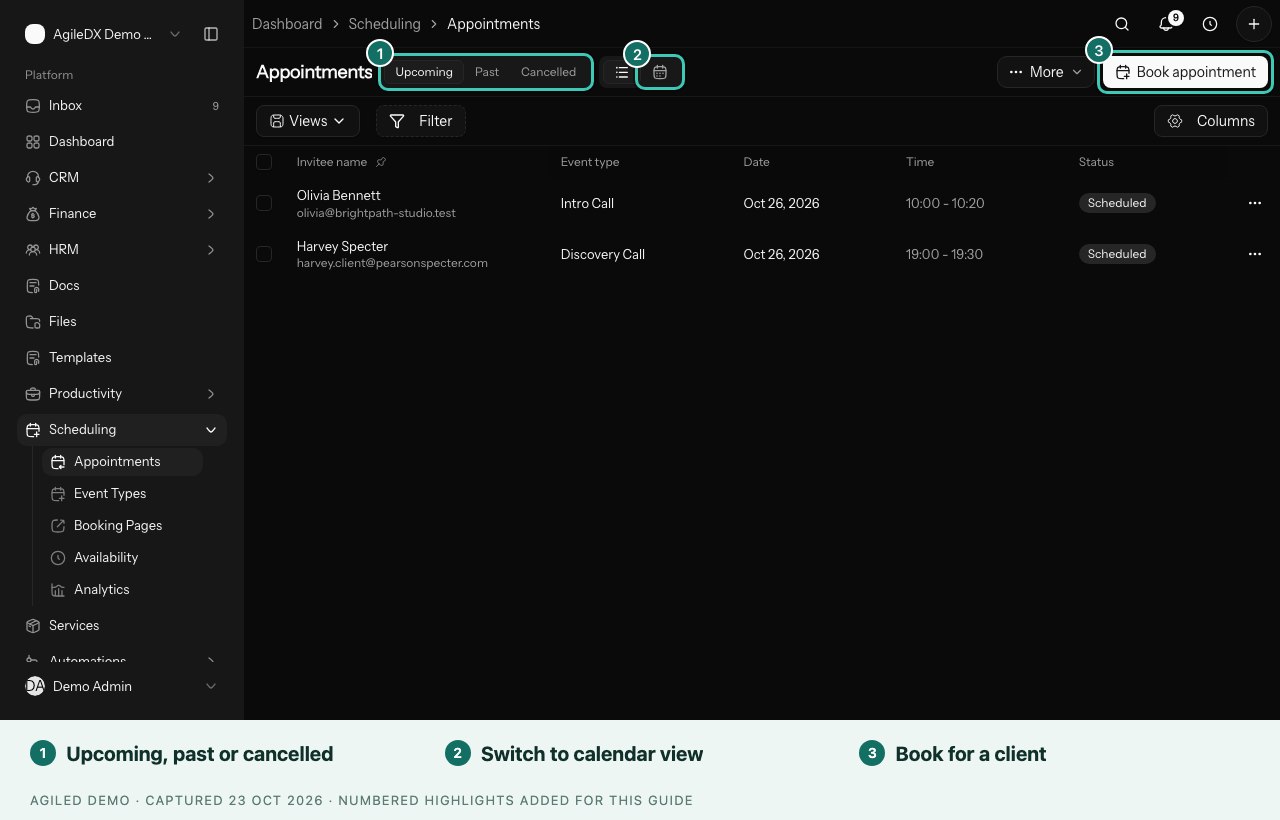
Open Scheduling › Appointments. Use Upcoming, Past and Cancelled, or switch to the Calendar view for a week or month. Select a name to open the appointment.
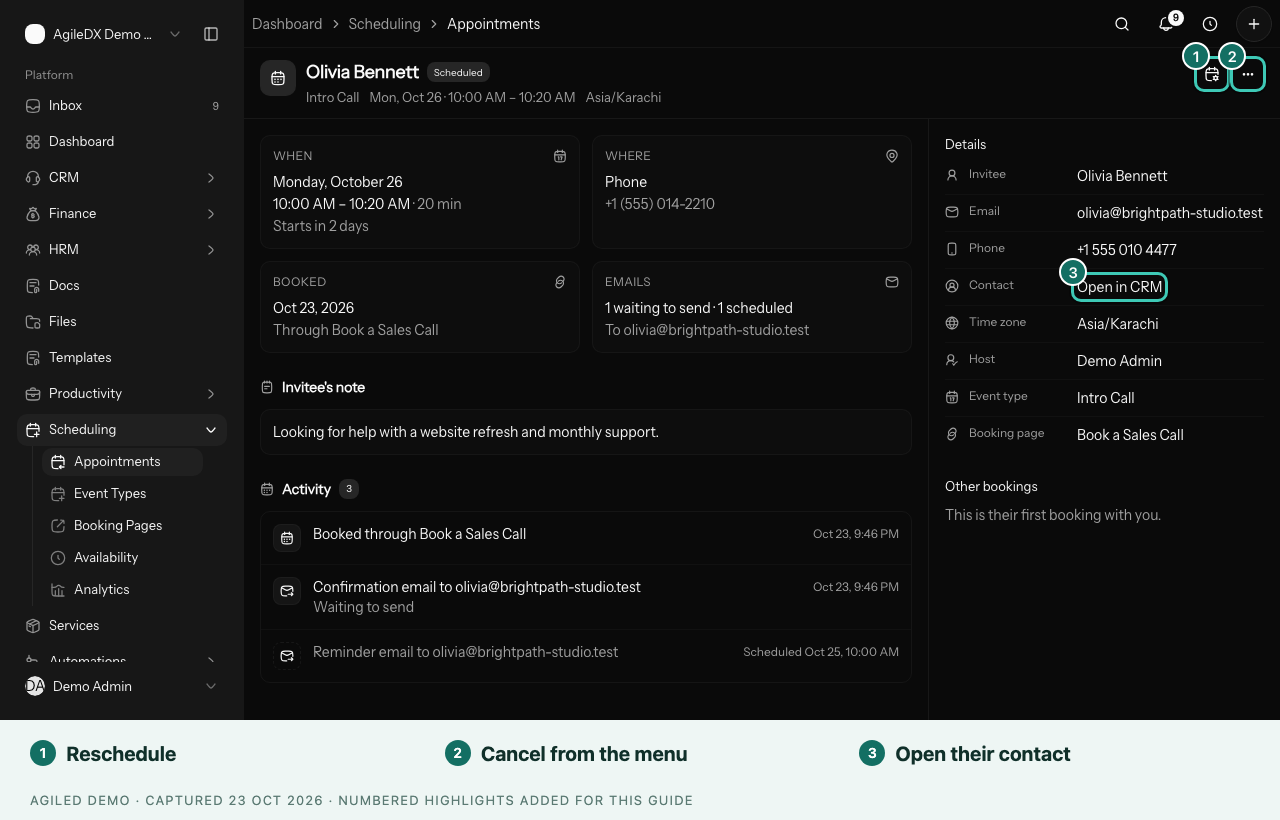
The appointment shows When, Where (with Join meeting for video calls), Booked, and Emails, which lists the confirmation and reminder emails. Below are the client's note, their answers, and History: who approved, moved, reassigned, cancelled or refunded the booking, and when. The panel on the right shows the contact, with Open in CRM, the Host, and when they apply:
- Also attending: other team members on the meeting.
- Guests: people the client added when booking.
- Came from: the campaign in the booking link, such as a newsletter or an ad. See Track where bookings come from.
Reschedule an appointment
- Open the appointment.
- Select Reschedule, the calendar button in the header.
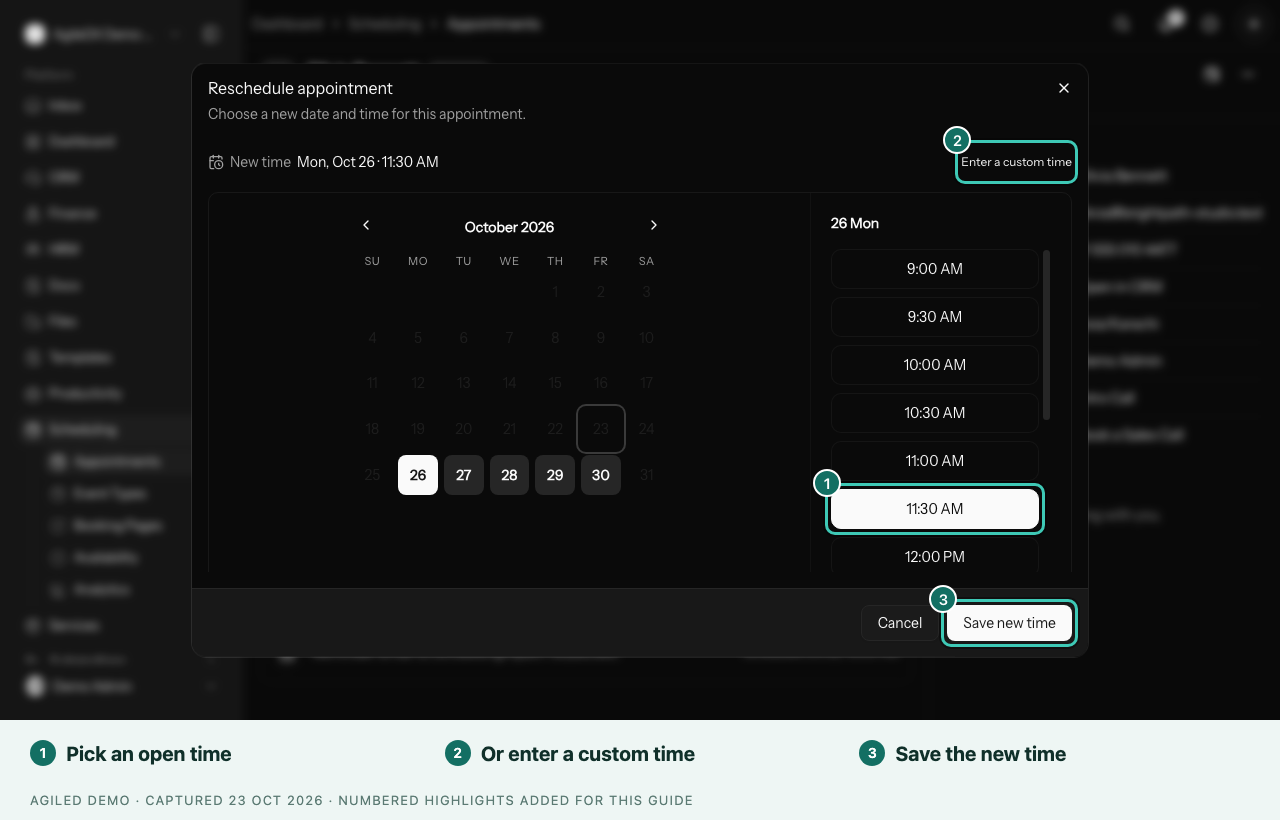
- Pick a day, then one of your open times.
- Select Save new time.
You're done when the appointment shows the new time. The client gets an email with it, and your calendar event moves.
To book outside your open times, select Enter a custom time. Custom times skip your availability and buffers, so check you're free.
Cancel an appointment
- Open the appointment.
- Open More appointment actions (the three dots).
- Select Cancel appointment.
- For a paid booking, tick Refund the client's payment in full if you want to refund it. The refund goes back to the card they paid with.
- Select Cancel appointment to confirm.
You're done when the appointment is listed under Cancelled. The client gets an email with a link to book a new time, and the event is removed from your calendar.
For a paid series, refund from the first session: cancel it with a refund to refund the whole series.
If a cancelled booking was paid but not refunded, the appointment says so. Select Refund payment to refund it, or settle it with the client another way. A refund your payment provider is still processing shows a notice until it goes through.
Need a decision instead? To approve or decline a request, hand a booking to a teammate, ask the client to pick a new time, or report spam, see Approve, reassign and report bookings.
Statuses
Scheduled, Awaiting approval, Awaiting payment, Payment failed, Completed, No Show and Cancelled. After a meeting, mark it completed or no-show.
Good to know
- Book appointment opens your booking page, so you can book for a client.
- You're notified of new bookings and when clients reschedule or cancel. Choose who gets which alerts in Settings › Notifications.
- If Allow cancelling or Allow rescheduling is off on the event type, those actions are off here too.
- More › Import brings in bookings from another scheduler, and More › Export downloads them.