Get Client Approvals on Deliverables
Ask a client to approve a deliverable or request changes from their portal, and track each round on the task.
When a piece of work is ready for the client, such as a design, a draft or a report, ask them to approve it. The client approves or asks for changes in their portal, your team is told, and every round is kept on the task.
Before You Start
The client must be able to see the task:
- The client is on the project's Team tab, under Clients.
- The project is shared: Visible to clients is on in the project's Details panel.
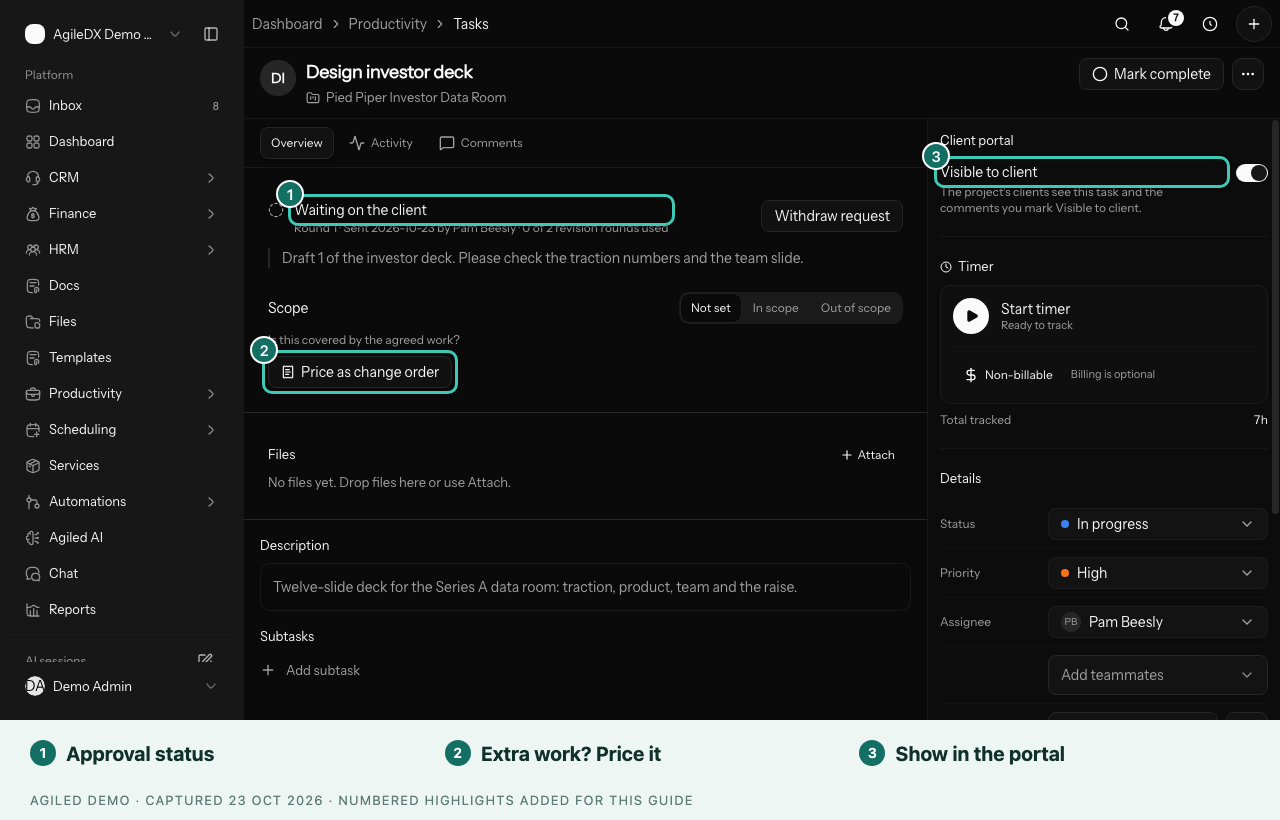
- The task is shared: Visible to client is on in the task's Client portal panel.
See Share Project Work with Clients. If something is missing, the task tells you: "Share this task and its project with the client to ask for approval."
Ask for Approval
- Open the task's full page. From a drawer, select Open full view.
- Select Ask client to approve.
- Add a Note for the client about what to look at, for example "Please check the traction numbers and the team slide."
- Select Send to client.
The client is emailed a link to review and approve. The task now shows Waiting on the client, with the round number, who sent it and when.
To take the request back, select Withdraw request.
Task managers and the task's assignees can ask for approval.
What the Client Sees
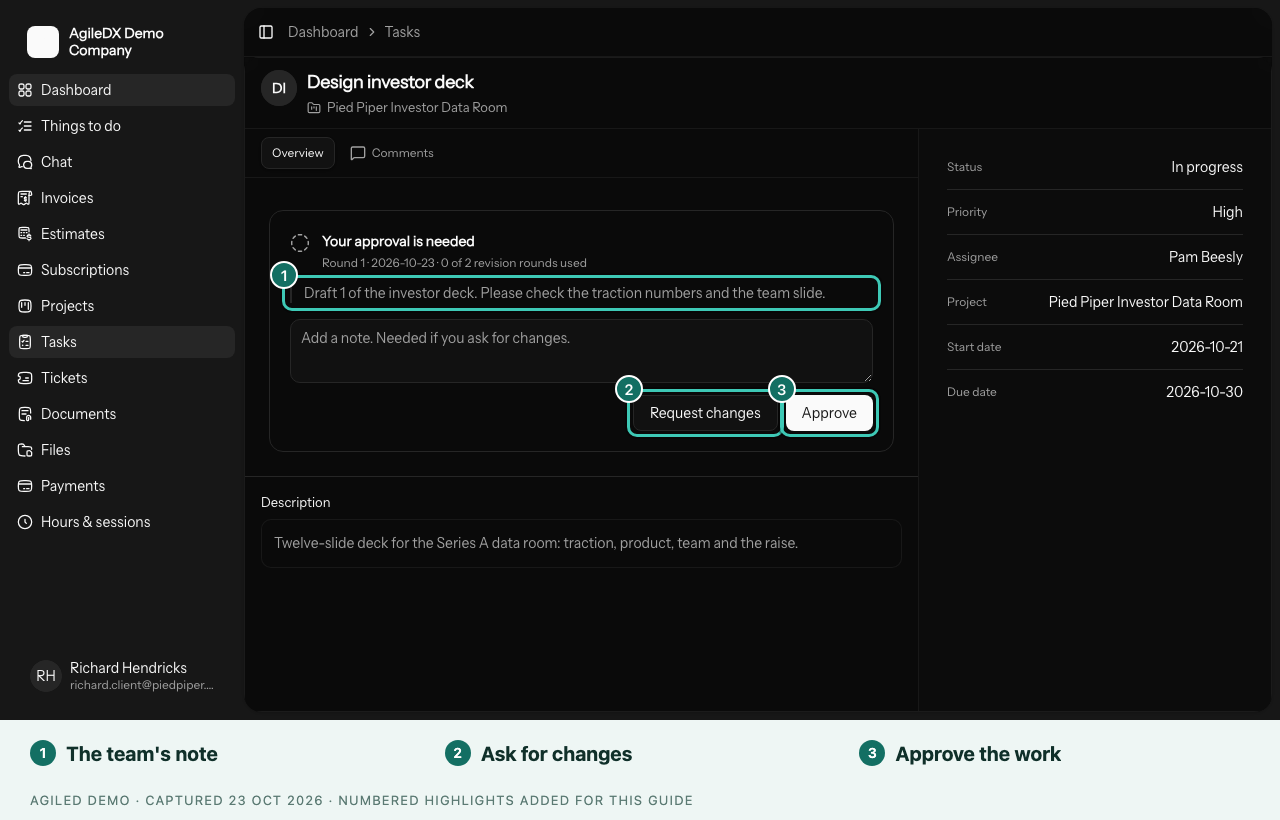
In their portal, the task shows Your approval is needed with your note. The client can:
- select Approve, or
- write what should change and select Request changes. A note is required so your team knows what to fix.
After the Client Decides
- The task shows Approved by or Changes requested by, with the client's name.
- The decision and the client's note are added to the task as a comment the client can see.
- The task's assignees and the project owner are notified.
When you have made the changes, select Ask for approval again to start the next round. Earlier rounds stay listed on the task.
Limit Revision Rounds
If your agreement includes a set number of revisions, enter it in Revision rounds included in the project's Details panel. Leave it empty for no limit.
The task shows how many rounds are used, for example "1 of 2 revision rounds used". Only rounds where the client asked for changes count. When all rounds are used, the client can still approve, but Request changes is replaced by a message asking them to talk to your team. Extra changes can then be priced as a change order.