Share Project Work with Clients
Choose exactly which projects, tasks, comments and files your clients see in their portal.
You decide what a client sees of your work. A client only sees a project in their portal when you share it, and inside that project they only see the tasks, comments and files you choose. Everything else stays with your team.
Before You Start
The client needs portal access, and they need to be on the project:
- Open the project and select the Team tab.
- Select Add member.
- Under Clients, choose the client contact and add them.
Clients are listed in their own Clients group, separate from Teammates. They always have the client role and never have a billing rate. Adding a client shares the project with them, but in their portal they only see the tasks you share.
Share the Project
- Open the project's Overview tab.
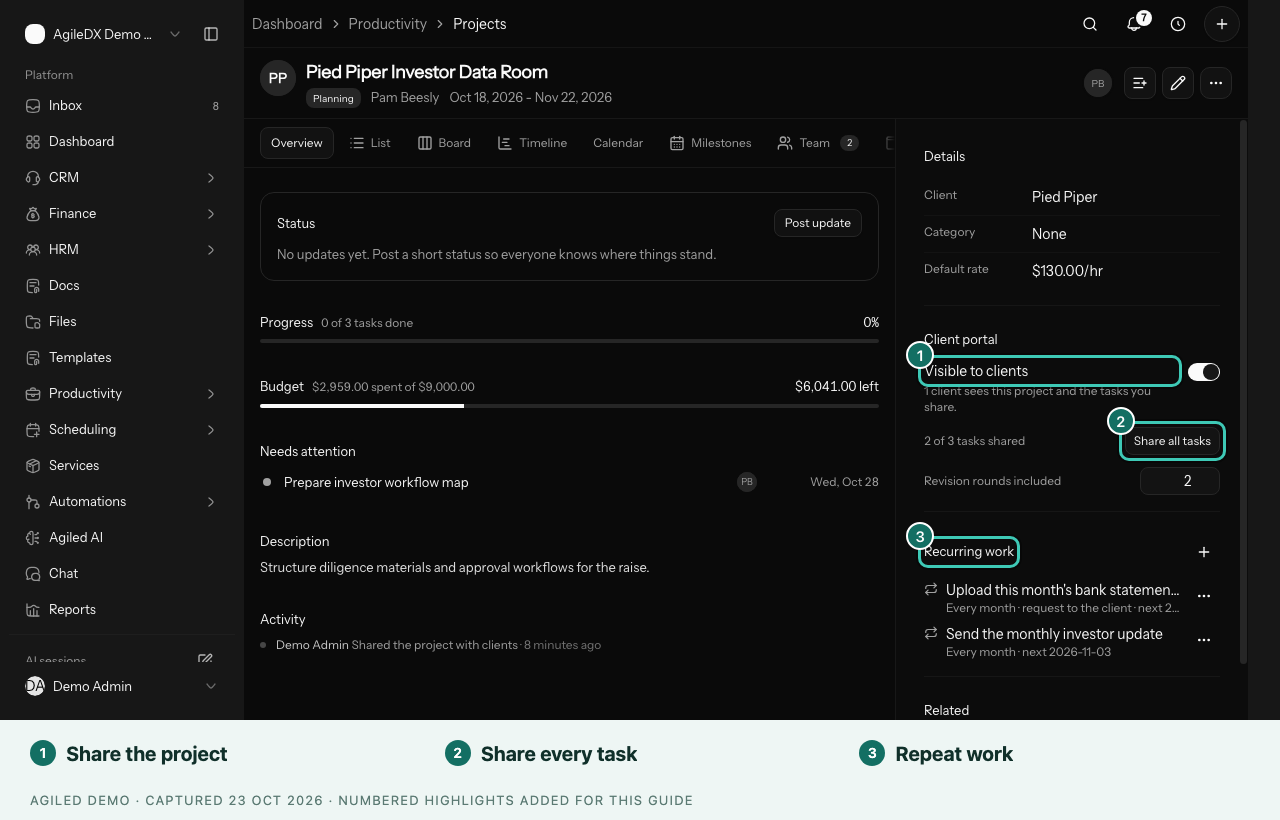
- In the Details panel, find Client portal.
- Turn on Visible to clients.
The panel then shows how many tasks are shared, for example "2 of 3 tasks shared". Select Share all tasks to share every task in one go.
Turn Visible to clients off to hide the whole project from the portal again.
Share Individual Tasks
New tasks start as internal, so nothing reaches a client by accident.
- Open the task's full page. From a task drawer, select Open full view.
- In the Client portal panel, turn on Visible to client.
Turning a task off also hides all its subtasks.
Comments: Visible to Client or Internal
On a task the client can see, the comment box has a switch between Visible to client and Internal only. Choose before you post:
- Visible to client comments appear in the client's portal and are marked Client can see for your team.
- Internal only comments stay with your team.
Comments the client writes in the portal are always visible to both sides.
Choose Which Project Files Clients See
While a project is shared, each file in the project's Files & notes tab has a button that shows who can see it:
- Clients see this: the client can open and download the file in their portal.
- Team only: the file is hidden from the portal and can't be downloaded there.
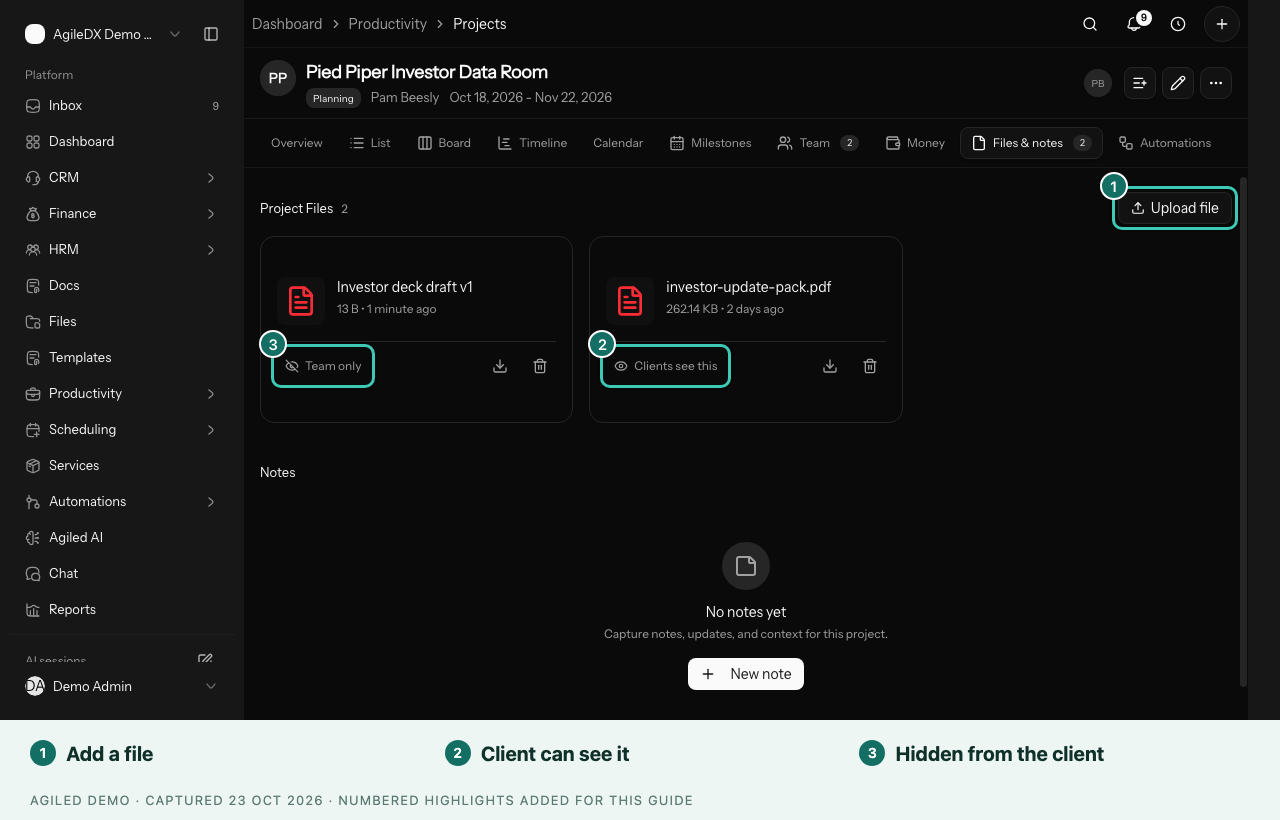
Select the button to switch. Files start as Clients see this, so existing projects keep showing what clients already saw. Files attached to a single task aren't covered by this switch.
Keep Money Details Private
Project budgets, spend and billing rates are only shown to people with finance access in your team. Clients never see them, and neither do teammates without finance access.
Every Change Is Recorded
Sharing changes appear in the project's activity, for example "Shared the project with clients", "Shared 3 tasks with clients" or "Hid Brand guide.pdf from clients". You can always see who changed what.
Good to Know
- Projects that clients could already see before sharing controls were added stayed shared, along with their tasks, so nothing changed for your clients until you decide.
- Client contacts don't appear in assignee, timesheet, HR, chat, file or workload pickers, so client work can't be mistaken for team work.