Track Time and Billing on a Project
Use a project's Money tab to see time logged, what is ready to bill, invoices, expenses, budget and profit.
Every project has a Money tab, titled Time and billing. It answers the questions you ask before invoicing a client: how much time went in, how much of it hasn't been billed yet, what has been invoiced, and whether the project is still making money.
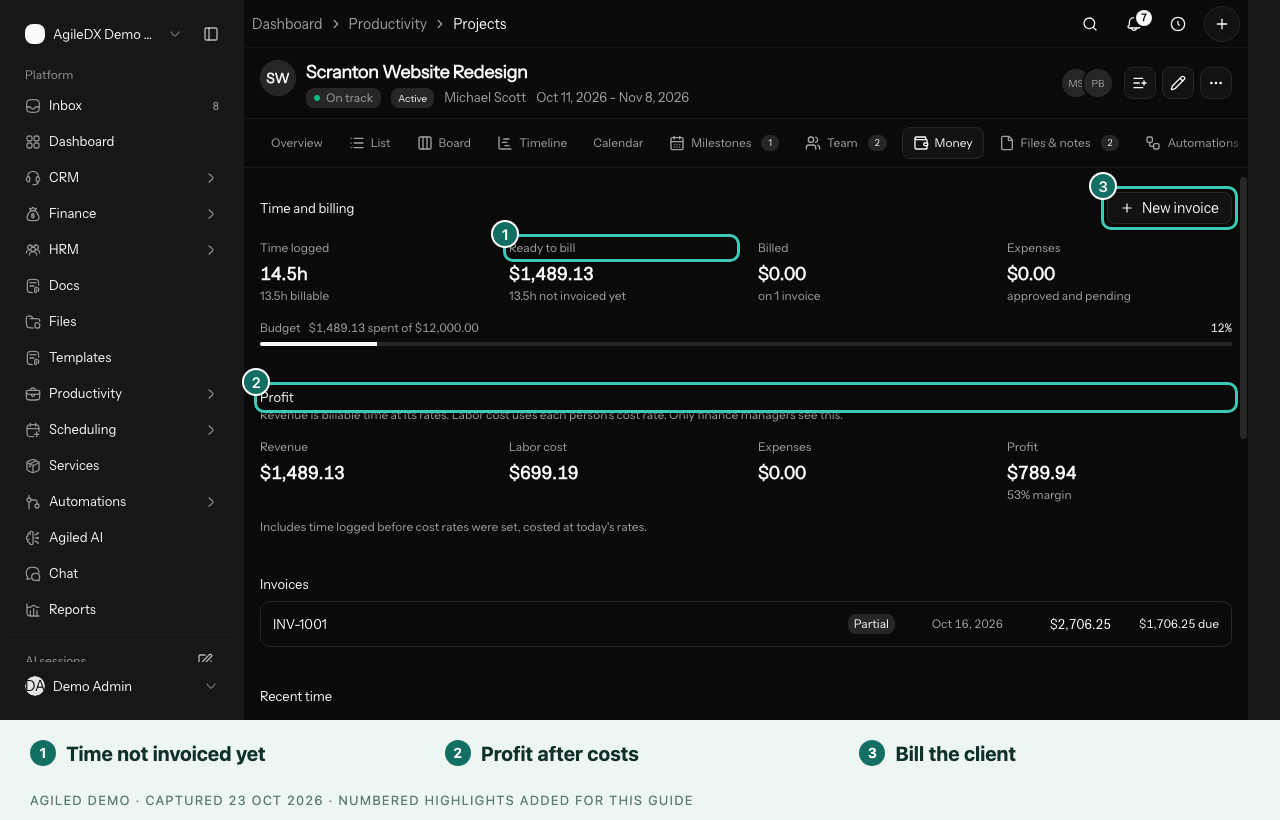
Open the Money Tab
- Open Productivity > Projects and select a project.
- Select the Money tab.
The tab is for people with finance access. If you don't see it, ask a workspace admin.
What the Tab Shows
- Time logged: all time on the project, with how much of it is billable.
- Ready to bill: the value of billable time that hasn't been put on an invoice yet.
- Billed: the value of time that is already on an invoice.
- Expenses: the project's approved and pending expenses.
- Budget: if the project has a budget, a bar shows how much has been spent and what is left.
- Invoices: the project's invoices, with status, date, total and what is still due.
- Recent time: the latest time entries, showing which are billable and invoiced.
People who can only see their own finance records see only their own invoices and expenses here.
Bill the Time
- Select New invoice.
- On the invoice, use Import to bring in the project's unbilled time.
- Review the lines and send the invoice as usual.
Each invoice line remembers the time it covers. That time then moves from Ready to bill to Billed. If you remove the line from the invoice, the time becomes unbilled again and returns to Ready to bill. Copies of an invoice don't take the time with them, so the same hours are never billed twice.
Profit
Finance managers also see a Profit section:
- Revenue: billable time at its billable rates.
- Labor cost: all time logged, billable or not, at each person's cost rate.
- Expenses: the project's expenses.
- Profit: what is left, with the margin.
A note under the figures tells you when some time was costed at today's rates or logged by someone with no cost rate. Set cost rates in Settings > Productivity. See Profit, Utilization and Capacity.
Good to Know
- Budgets, spend and billing rates are only shown to people with finance access. Everyone else doesn't see budget columns or rates on projects.
- Billable time needs a rate. Set the project's Default rate in its Details panel, or a rate for a person on the Team tab. The workspace Default hourly rate in Settings > Productivity is the starting rate for new projects.