What Clients See in the Portal
How clients open what you send, and how it appears under Things to do in your client portal.
Clients never need to know what a Smart Flow is. They see what you sent them, named by what it is: "Your onboarding", "Your proposal & agreement", "Book your kickoff call".
How the emailed link opens
Every Smart Flow you send arrives by email. What the link does depends on the Smart Flow's Who can open it setting:
- Anyone with the email link: the link opens without a password, on any device, whether or not the client has portal access.
- Signed-in client only: the link signs the client in to your client portal and opens the Smart Flow there. If the link was already used, they can ask for a 6-digit sign-in code by email. Your business name and logo appear on the sign-in and portal setup pages.
Either way, the link stays open until the deadline, if you set one.
If the client opens an email link while signed in to your client portal, a slim bar at the top says This is also in your client portal with Open your portal. Nothing else changes; they can carry on right there.
Things to do on the portal home
When a client with portal access signs in, the top of their portal home welcomes them back by name and says that everything your business has sent them is there. Below that:
Things to do lists what is still open, newest activity first. Each card shows:
- a label for what it is, such as Your onboarding or Your proposal & agreement;
- the Smart Flow's name and when it was sent;
- progress, such as "2 of 5 done · Next: Share your brand files", or "Not started";
- Continue when they have started, or Start when they haven't.
If you pause one, the card says it is paused and that you'll let them know when to continue.
The home page shows up to five items, then See all.
Done lists what they have finished, such as "Signed and paid" or "Booked for" a date, with the results: the signed agreement PDF, the payment receipt or the booking. Select View to open one.
If you haven't sent the client anything yet, this section doesn't appear and the rest of the portal home shows as usual.
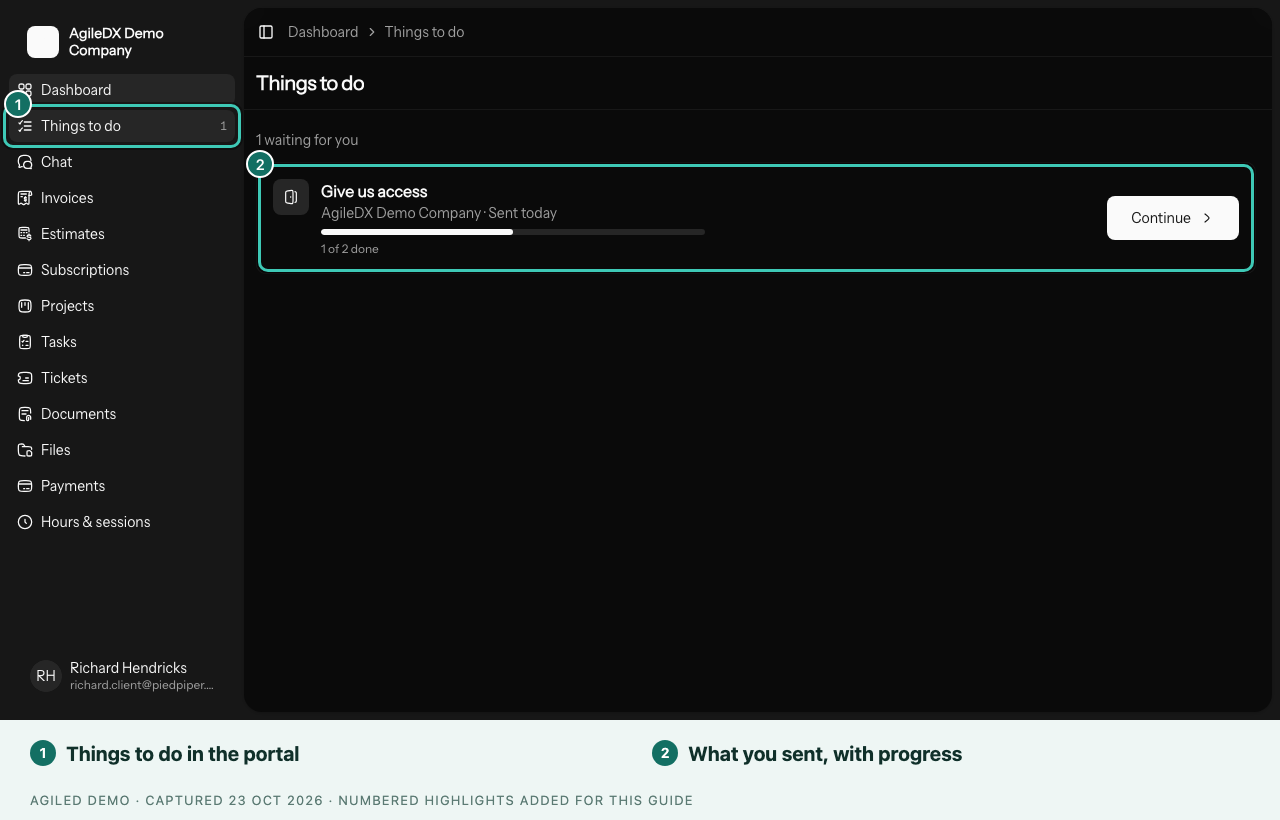
The Things to do page
The portal menu has a Things to do item with a count of open items. The page has the same Things to do and Done sections, with everything listed.
Opening an item shows the same pages the client would see from the email link, inside the portal, with a Things to do back link. Progress is shared: a step finished in the portal is finished on the link too, and the other way round.
Copies started from a public link
When someone starts a Smart Flow from your public link, Agiled can't be sure who they are, even if they type an email that matches a client. So that copy isn't added to anyone's portal automatically. Otherwise, anyone could add items to someone else's portal.
If it really is your client, open it from the Sent tab and select Show in Jane's portal (with your client's name). It then appears under their Things to do, and any pages that were skipped, such as Task checklist and Resource library, open for them. See Review sent Smart Flows.
When access ends
If you remove a client's portal access, for example after offboarding, they see a calm page saying their access to your business has ended, instead of an error. If your workspace's own access is paused, the portal shows a notice that it's temporarily unavailable and that their information is safe. Payment links you've already sent keep working.
Turn the section on or off
Open Settings > Client portal. The module is labelled Things to do: proposals, contracts, payments, bookings and onboarding you send clients. Smart Flows set to Signed-in client only need it on. In the same place you can write a welcome message for the client's portal home and turn other portal modules on or off.
Clients without portal access still get every Smart Flow by email. To give a client access, tick Also give Jane access to your client portal when you send a Smart Flow, or turn on Give the client portal access under When the client finishes.