Pages and Blocks
Choose the right page or block and connect the record that completes it.
A Smart Flow is a series of pages. Each page holds content and, often, an action block such as a proposal, contract or invoice. Some pages finish when the client continues; others wait for a signature, payment, booking, form, upload or task.
Add a page
Select Add a page. The menu is grouped by what you want from the client. For an Onboard a client Smart Flow, the onboarding group comes first.
| Group | Pages and blocks |
|---|---|
| Sell and get paid | Services, Proposal, Contract, Invoice & Pay |
| Collect and schedule | Questionnaire, Scheduler, File upload |
| Onboard your client | Welcome, Task checklist, Resource library, Grant access, Account access |
| Content | Blank page, Info / video |
Services, Proposal, Contract, Invoice & Pay, Questionnaire and Scheduler are blocks. You can add any of them to any page with Add block or the slash menu, so one page can hold, for example, a proposal and the contract that goes with it.
What completes each one
| Page or block | What to configure | What completes it |
|---|---|---|
| Welcome, Info / video, Blank page | Text, images, video and layout | The client continues |
| Services | Packages and add-ons from your catalog | The client's choice |
| Proposal | A proposal document template | The client accepts the proposal |
| Contract | A contract document template and signer settings | The required signatures |
| Invoice & Pay | What to bill, including any deposit or payment schedule | The payment |
| Questionnaire | A form from CRM > Forms | The form is submitted |
| Scheduler | A booking page | A booking |
| File upload | Requested files, limits and destination folder | The required files are uploaded |
| Task checklist | Tasks and a completion rule | The client's required tasks are ticked off |
| Resource library | Files and links to share | The client opens the page |
| Grant access | The files or folders to share | The client continues |
| Account access | The accounts you need access to | The client invites you or shares each required login |
Linked records must belong to your workspace. Resolve missing or deleted records before publishing.
Records linked by templates
When a Smart Flow is created from a template, its blocks are already linked:
- The Services block offers the template's packages and add-ons, with photos and a What's included list. See Packages and add-ons.
- The Proposal and Contract blocks use the proposal and agreement templates it created.
- The Questionnaire block uses its form. Name, email and phone fill in automatically when the client is already known.
- The Invoice & Pay block carries the chosen services forward, in your workspace currency, and may include a deposit or payment schedule.
- File upload pages save to its upload folder.
- Scheduler blocks use your first active booking page. If you have none, the Get it ready to send checklist asks you to choose one.
You can replace any linked record with another one from your workspace.
Client answers fill in your documents
Proposals and contracts in a Smart Flow can show what the client told you earlier. A wedding contract, for example, reads the real wedding date and venue from the client's questionnaire instead of a blank line.
To use an answer, insert a merge field from the Client's answers group in the document template, such as Event date or Event venue. The Client's choices group adds what they picked on a Services block, such as Chosen package and Payment schedule. If a field has no answer yet, clients see "To be confirmed", so place the questionnaire before the document.
When a client types their company name in a questionnaire, Agiled also renames the company record it created for them automatically, so your CRM shows the real name.
Task checklist
Add each task and choose whether it belongs to the client or your team. Then set the Completion rule.
Required tasks must be ones your client can tick off. If a required task belongs to your team, publishing asks you to make it optional or assign it to the client.
Resource library and Grant access
Resource library shows the client a curated list of files and links, such as a welcome pack or brand guidelines. Grant access shares the chosen files or folders with the client as part of the Smart Flow. Check each link and file before publishing.
Use files uploaded to Agiled for anything private. If publishing asks you to upload a file again, replace it and try again.
Account access
Account access asks the client to give you access to the tools you need, such as Google Analytics or their website. For each account, they either invite you as a user or share a login, which Agiled stores encrypted. See Collect client logins with Account access.
Pages that need a known client
Task checklist, Resource library, Grant access and Account access need to know who the client is. People who start from a public link haven't told you who they are, so these pages are skipped for them. They work as normal when you send the Smart Flow to a client.
When a Smart Flow has an active public link, the builder reminds you:
- On the page: People who start from your public link won't see this page. It shows up when you send this Smart Flow to a client.
- In the Add a page menu, next to these pages: Not shown on your public link.
This never blocks publishing.
File uploads
Describe what the client should provide. Add the requested files and mark the required ones, then set the allowed file types, size limit, maximum number of files and the destination folder. Make the maximum large enough for every required file.
The page completes when the required files are uploaded, not when it is opened. Review the uploads in Files before treating the request as done.
If the client already sent you a file in an earlier Smart Flow, a follow-up request shows it as Already received instead of asking again.
Payment schedules
The Invoice & Pay block can take the whole amount at once (Pay in full) or split it into Preset installments. Turn on Client chooses how to pay to let the client pick either.
For each installment, set the amount (a percentage or a fixed amount) and when it is due:
- After flow completion, for example a deposit due now.
- After previous installment, for example 30 days after the deposit.
- Before the event date or After the event date, counted from a date the client gave you.
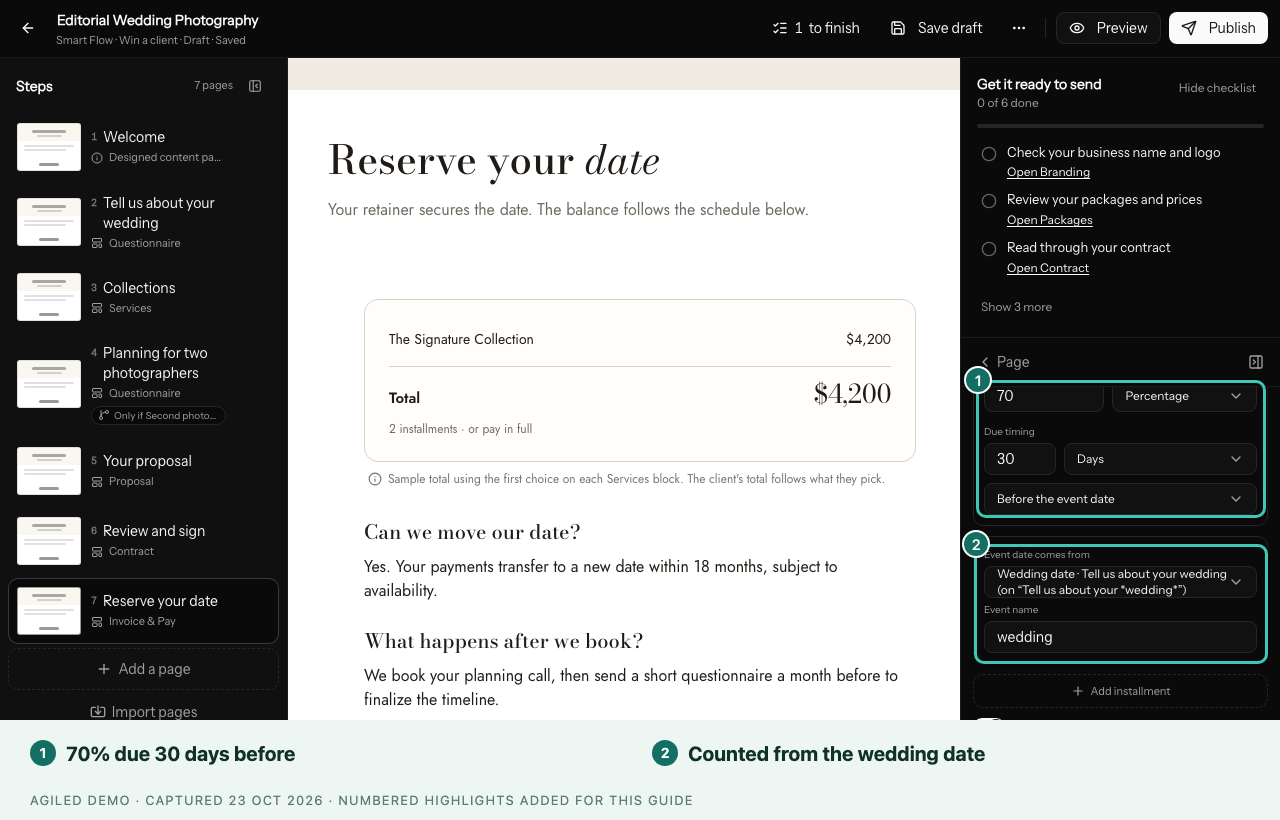
When an installment counts from the event date, choose the question under Event date comes from and give the event a name, such as wedding. The client then sees, for example, "30 days before your wedding". The date question must be required and sit on an earlier page; publishing tells you if it isn't. If the date is close enough that an installment would fall in the past, it is due straight away.
The wedding templates use this: 30% to reserve the date, and the remaining 70% 30 days before the wedding.
Use percentages when the client's choices change the total. Percentage installments must add up to 100%.
Content and progression
Turn on Distraction-free page when a step should fill the screen on its own, without your header and progress bar. Required decides whether the client must finish the step or can skip it. Check the button label so the client knows what to do next.
After the first step, choose When this step opens:
- Right after the previous step: it opens as soon as the client finishes the step before it.
- When you or an automation releases it: it stays locked until a teammate selects Make available on the client's sent Smart Flow, or a Workflow releases it with Make next Flow step available. Use this when your team has work to do first. See Connect Workflows and Smart Flows.
To show a step or block only to some clients, such as an hourly agreement only when hourly work is chosen, add a Show only if… condition. See Show steps and blocks conditionally.
Review the result
Preview the pages before sending. When a client completes a sent Smart Flow, also check the record behind each step: the form answers, booking, document, upload or invoice. A page preview doesn't show that a client signed or paid.