Create a Smart Flow
Start from a purpose and a template, get it ready to send, and publish.
Open Automations > Smart Flows and select New Smart Flow.
Start from a purpose
The first screen asks What do you want your client to do? Pick one of two cards:
| Card | Choose it to |
|---|---|
| Win a client | Send a proposal, get the contract signed and take a deposit, or let new people book a call. |
| Onboard a client | Welcome a new client, collect what you need, share files and set up their first tasks and kickoff. It also holds the Client Offboarding template for wrapping up. |
Each card shows how many templates it has. Not sure? Most businesses start with Win a client.
Below the cards you can also create with AI or start blank.
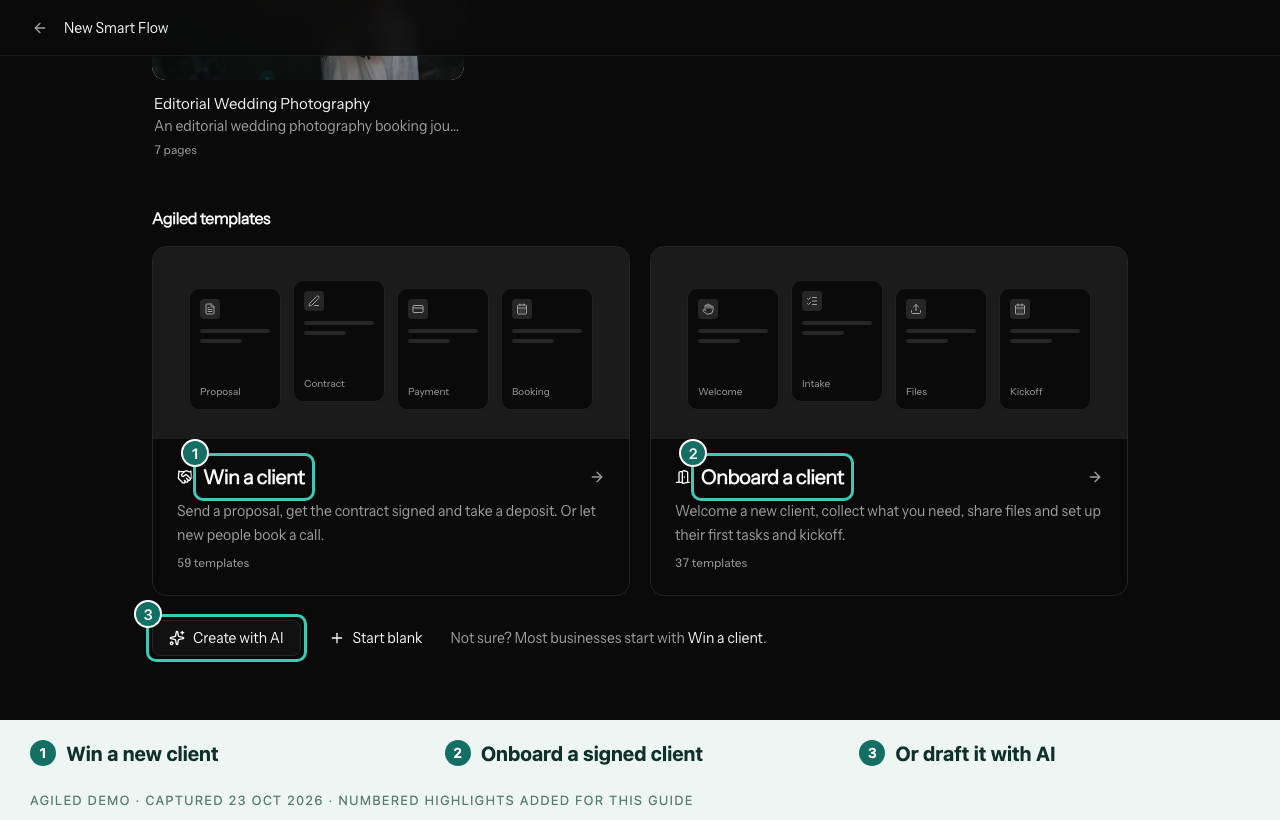
If you have saved your own templates, they appear first, under Your templates, above Agiled templates.
Use a template
Choosing a card opens the templates for that purpose: Templates to win a client or Templates to onboard a client. To switch, select Want to onboard a client instead? or Want to win a client instead? under the title.
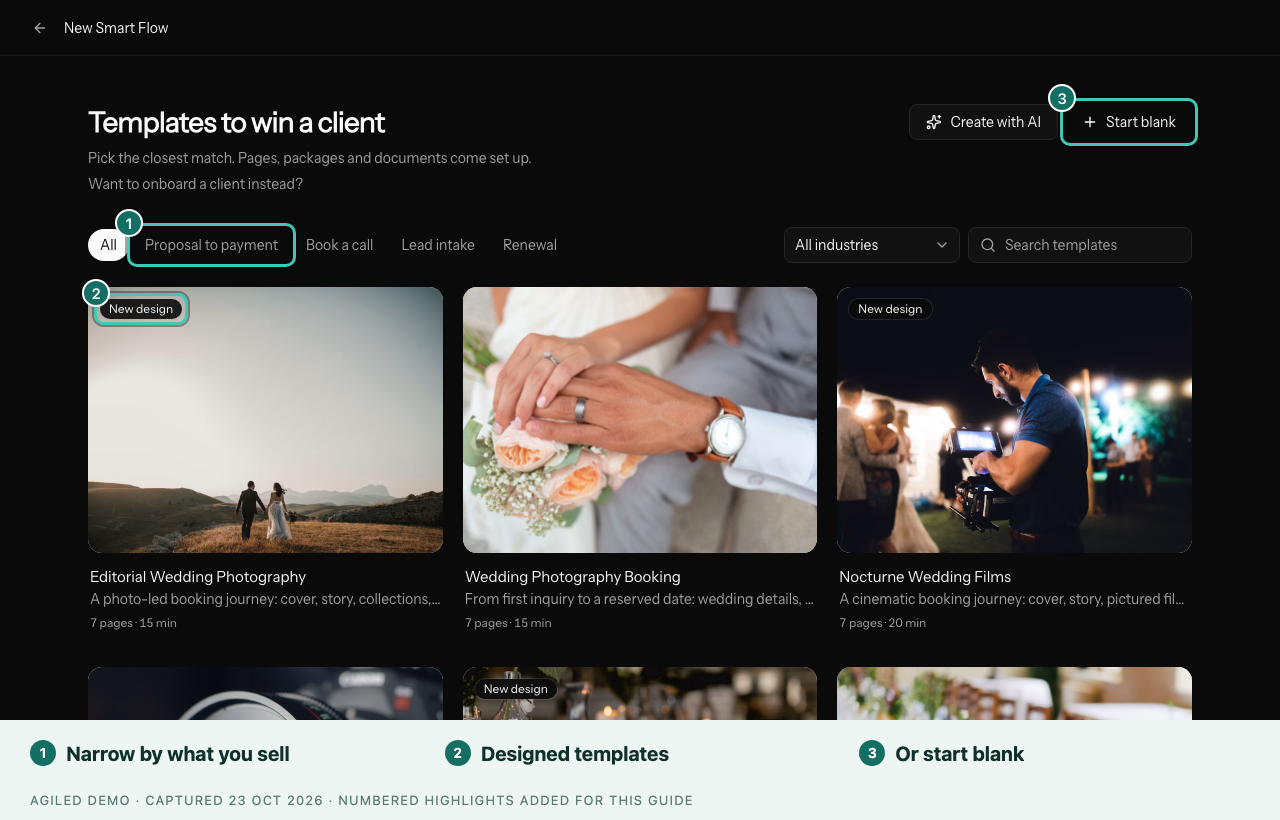
- Search, or filter by industry.
- For Win a client, the chips narrow the list further: Proposal to payment, Book a call, Lead intake and Renewal.
- Templates marked New design are photo-led editions with full-width photo bands, editorial headings, font pairings and colour themes. They keep the same questions, documents and payment schedule as the original template beside them.
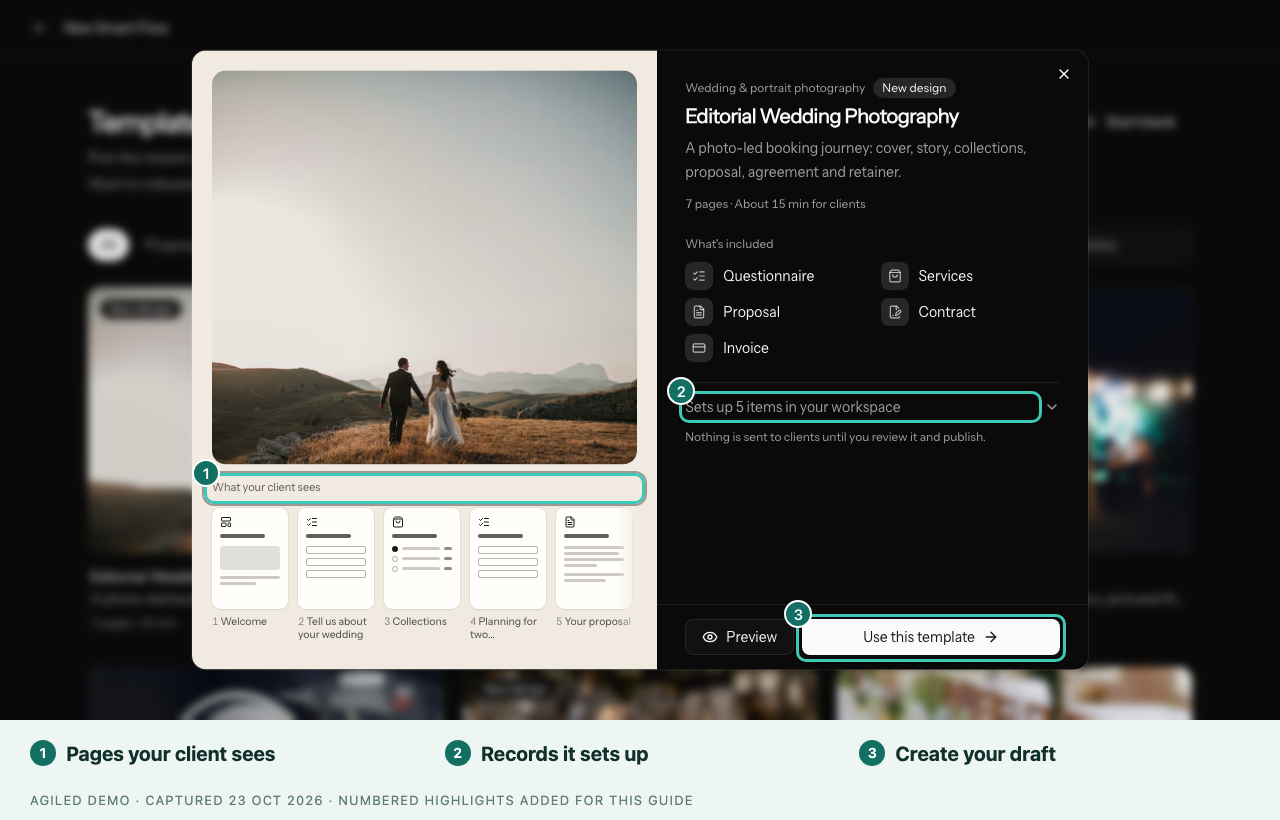
- Select a template to see What your client sees, what's included and the items it sets up in your workspace. Select Preview to page through it. Nothing is sent to clients until you review it and publish.
- Select Use this template to create a draft.
Templates exist for many service businesses, such as wedding photography, web design, legal services, bookkeeping, marketing agencies, coaching and construction. See Templates by industry.
What a template sets up
When you use a template, Agiled creates the draft and, in the same step, the records it needs:
| Record | Where it appears | What to review |
|---|---|---|
| Services | Services catalog, priced in your workspace currency | Package names, descriptions, photos and prices |
| Proposal template | Docs templates, named after the template | Approach, timeline and wording |
| Agreement template | Docs templates, ready for e-signature | Terms, with your own lawyer |
| Questionnaire | CRM > Forms, active and linked to the Smart Flow | Questions you want to add or remove |
| Upload folder | Files, receives client uploads | Folder name and sharing |
| Booking page | Your first active booking page is linked | Choose a different page if needed |
Which records are created depends on the template. Onboarding templates usually create an intake form and an upload folder, and link a booking page for the kickoff call. They prefer a booking page with "kickoff" or "onboarding" in its name.
Records are named after the template, for example Wedding Photography — Services Agreement, so you can find them later. Using the same template again reuses the records it created instead of duplicating them. Editing a service, document template or form changes it everywhere it is used.
The agreements are plain-English starting points. Review them with your own lawyer and adjust them to your jurisdiction and policies before sending them to clients.
Get it ready to send
After you use a template, the builder shows a Get it ready to send checklist. On wide screens it sits on the right; on smaller screens it is a bar under the header, such as "Get it ready to send · 3 of 7 done". Each item says what is left and links straight to the page or setting.
Items appear only when they apply:
| Item | Shown when |
|---|---|
| Check your business name and logo | Always |
| Review your packages and prices | The Smart Flow has a Services or Proposal block |
| Read through your contract | The Smart Flow has a Contract block |
| Turn on online payments | It takes a payment and no payment provider is connected |
| Choose your booking page | A Scheduler has no booking page yet |
| Choose where uploaded files go | A file upload has no folder yet |
| Add your client's first tasks | A task checklist has no tasks yet |
| Start onboarding when they pay | A Win a client Smart Flow takes a payment and has no next Smart Flow |
| Preview it as your client | Always |
| Publish | Always |
When everything is done, the checklist reads Ready to send and offers Send to a client and, for Win a client, Copy public link. Select Hide checklist to collapse it to the progress chip in the header; select the chip to open it again.
Create with AI
Select Create with AI and describe what you want your client to do. AI picks the purpose and drafts the pages. It also uses what you told Agiled about your business when you signed up, such as your industry and services, so the first draft already suits your business. Review every page before publishing, and change the purpose in the settings if needed.
Start blank
Select Start blank and answer What's this Smart Flow for?:
- Win a client starts with a simple first page and a Continue button.
- Onboard a client starts with a Welcome page and a "Let's begin" button.
The thank-you message at the end also defaults to suit the purpose. A blank Smart Flow is saved as a draft shortly after your first edit.
Build the pages
- Give the Smart Flow a clear name.
- Add pages with Add a page, in the order the client should complete them.
- Select each page or block to edit its content, button label and settings.
- Connect the form, booking page, document template or invoice each linked block needs.
- Select Save draft.
Use the Steps list to reorder, duplicate or remove pages. On a narrow screen, switch between Steps, Page and Settings. See Pages and blocks for what each one does, and Packages and add-ons for the Services block.
Coming from a proposal in Docs? Make it a Smart Flow in the proposal's Document settings opens the Win a client templates, so the proposal, contract and payment run as one Smart Flow.
Settings
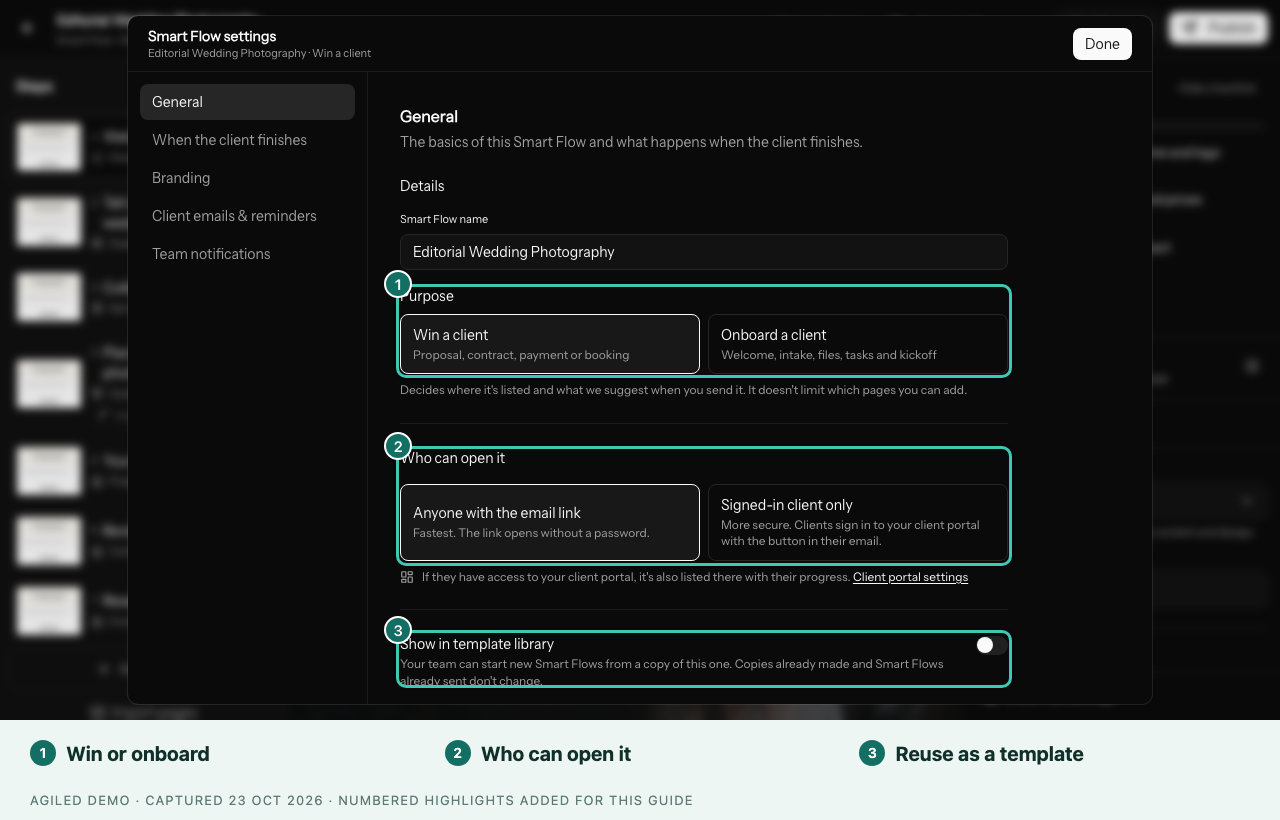
Open Smart Flow settings at the bottom of the right panel, or from the ⋯ menu in the header:
- General: the name, the Purpose (Win a client or Onboard a client), Who can open it (see Choose who can open a Smart Flow) and Show in template library (see Save a Smart Flow as a template). Final page sets the closing message or a website to send the client to. Under Advanced, Tag groups Smart Flows for your own use and for Workflow filters, and Internal note is for your team.
- When the client finishes: for example Give the client portal access, Send the next Smart Flow, create a project, add tasks or update the client. See Onboard clients.
- Branding: background, width and header details.
- Client emails & reminders: the invitation email, reminders, the completion email and the Deadline. See Send and share.
- Team notifications: whether your team hears when a client finishes, completes a step or stops partway.
Preview and test
Select Preview to see the Smart Flow as your client will. Use the arrows to move between pages, the frame switch to see it as an Email link page or inside the Client portal, and the device switch to check a phone. Preview as fills in a sample client, and All paths shows pages that only some clients see. Previewing doesn't submit anything or create client records. Check the instructions, required fields, linked records and the final page.
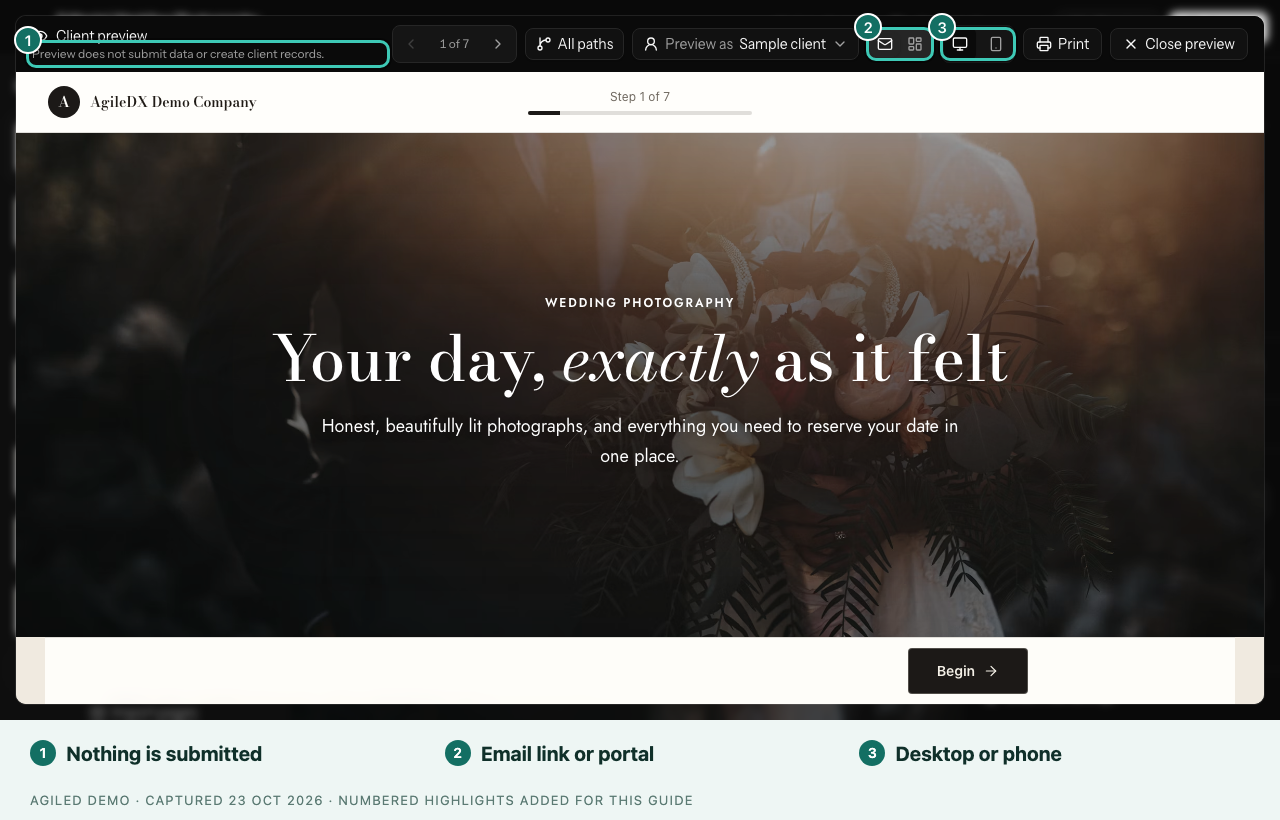
To test delivery, use Send yourself a test in the settings. It emails you the same link a client gets, so you can complete the pages for real. Save your edits first.
Publish
Select Publish when the checklist is done. If something must be fixed first, a Finish 1 thing before publishing window lists each page with what to fix and a Go to step button. Nothing is published until it's fixed, and your changes are kept.
Common reasons:
- A linked record is missing or no longer available.
- A page still has the sample testimonial from a designed template. Replace it with a real quote from one of your clients, or remove it.
- A payment schedule counts from an event date but no date question is chosen.
The same window also reminds you when pages still show stock photos from the template. That's a reminder only: you can publish, but your own photos show clients your real work.
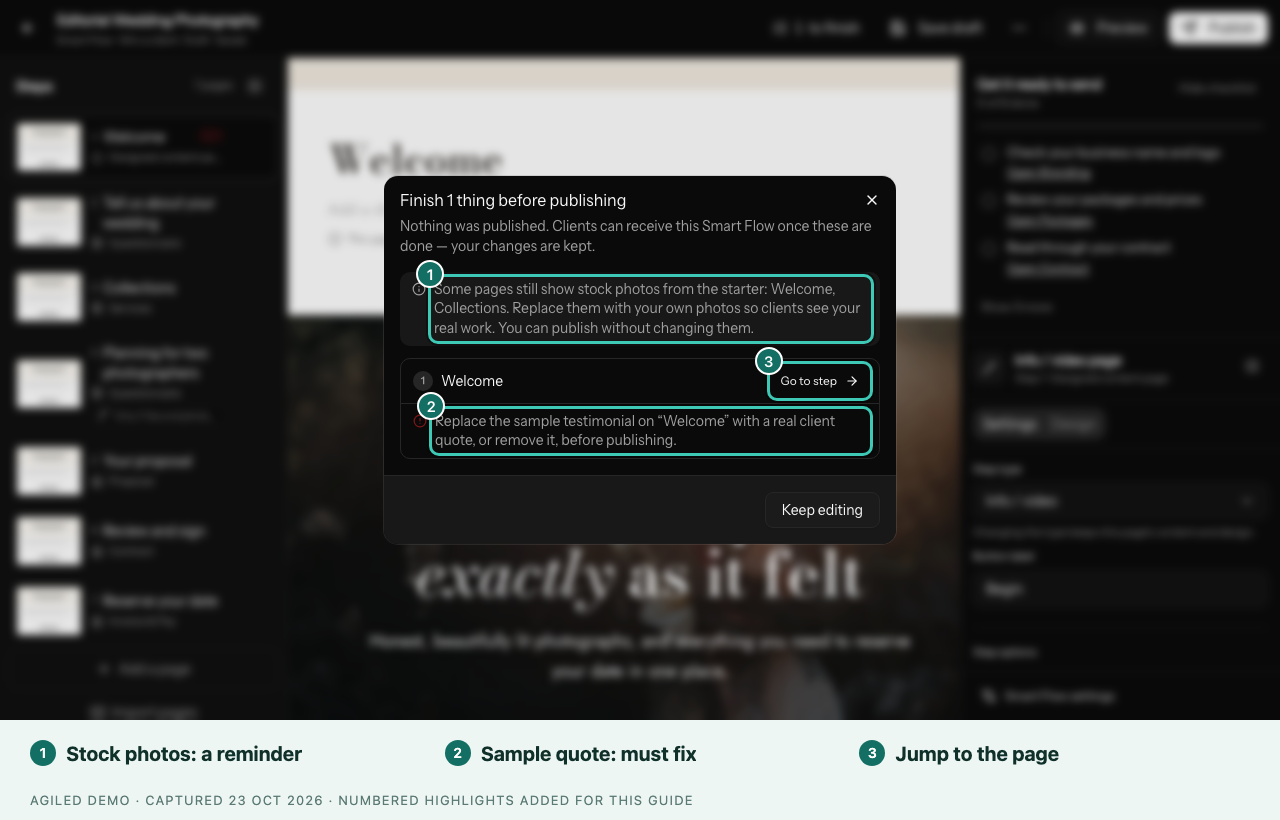
After publishing, a window offers Send to a client and, where it applies, Share a public link instead. Edits you make to a published Smart Flow don't reach clients until you select Publish changes. Clients who already received it keep the version they started with.
Next: Send and share a Smart Flow.