Choose Who Can Open a Smart Flow
Let anyone with the email link open a Smart Flow, or ask clients to sign in to your client portal first.
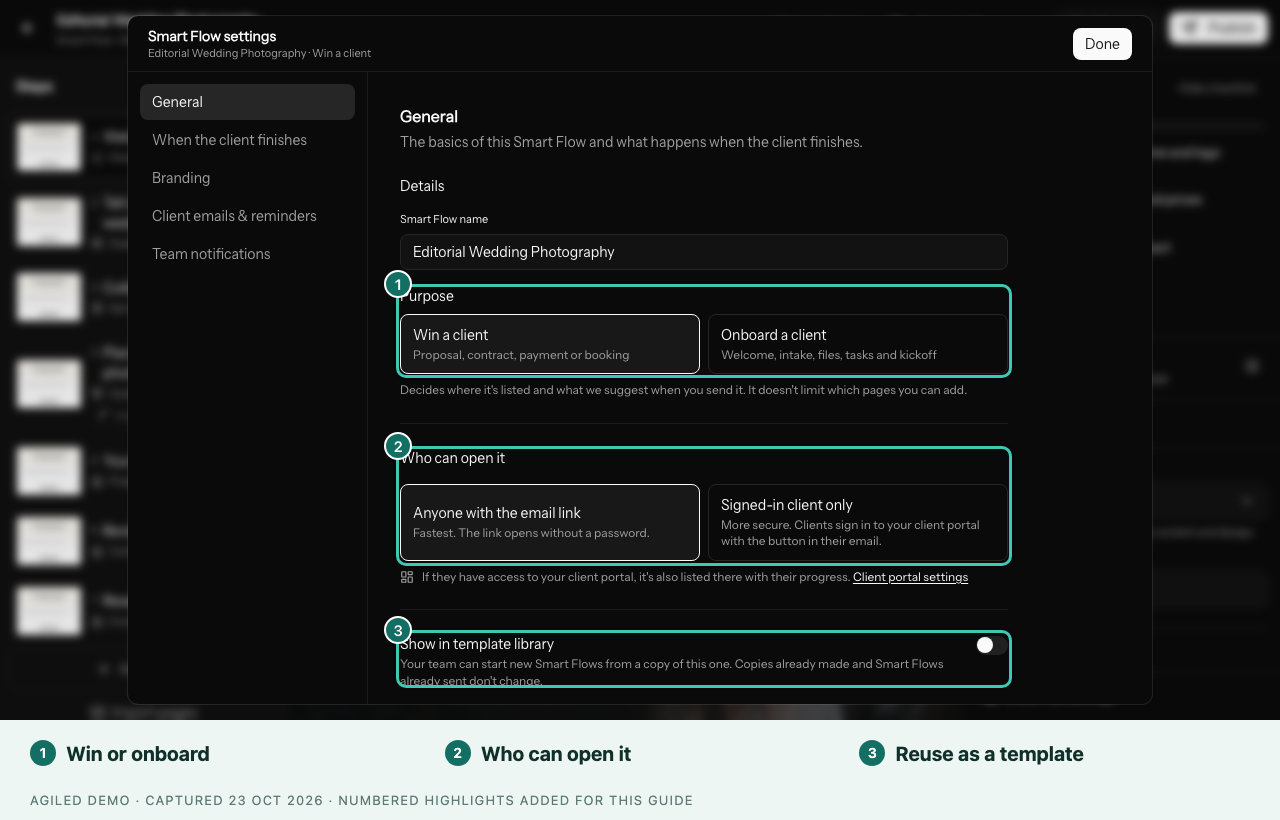
Every Smart Flow has a Who can open it setting. It decides what happens when someone opens the link in your email.
| Option | What happens | Best for |
|---|---|---|
| Anyone with the email link | The link opens straight away, without a password. Fastest for the client. | Proposals, quotes and bookings for new leads |
| Signed-in client only | The client signs in to your client portal first, then the Smart Flow opens there with their progress. Only that client can open it. | Onboarding, where clients share files, logins and business details |
New Smart Flows follow their purpose: Win a client starts as Anyone with the email link, and Onboard a client starts as Signed-in client only. You can change it at any time.
Change the setting
- Open the Smart Flow and select Smart Flow settings.
- In General, under Who can open it, choose Anyone with the email link or Signed-in client only.
- Select Done, then Publish changes if the Smart Flow is already published.
How clients sign in
With Signed-in client only, your email has a sign-in button instead of an open link. When you send it, the send window says, for example, "We'll email Jane a sign-in link. Only Jane can open it."
- The button in the email signs the client in and opens the Smart Flow. If that link was already used or has expired, the page offers Email me a code: we email a 6-digit code that works for 15 minutes, so there's no password to remember. Clients can also choose Sign in with a password instead.
- A client who doesn't have portal access yet gets it with the same email: Also give Jane access to your client portal is ticked and marked as needed, and the email includes a Set up your portal button.
Once signed in, the Smart Flow opens in your client portal under Things to do. See What clients see in the portal.
What you need first
Signed-in client only needs two things:
- Things to do must be on in Settings > Client portal. If it's off, publishing and sending tell you to turn it on, or to let anyone with the email link open it.
- The client needs an email address on their contact.
What changes with Signed-in client only
- No public link. A public link lets anyone start, so it isn't available while the Smart Flow is set to Signed-in client only. Each client gets their own sign-in link when you send it.
- File pages stay private. With Anyone with the email link, anyone who has the link can see and add files on its upload pages. The builder reminds you of this; choose Signed-in client only when files should stay private.
See who has signed in
On the Sent tab, open a client's row. The Where Jane finds it line (with your client's name) shows how they open it, such as Client portal · Signed-in client only, and whether they have Signed in or Hasn't signed in yet.
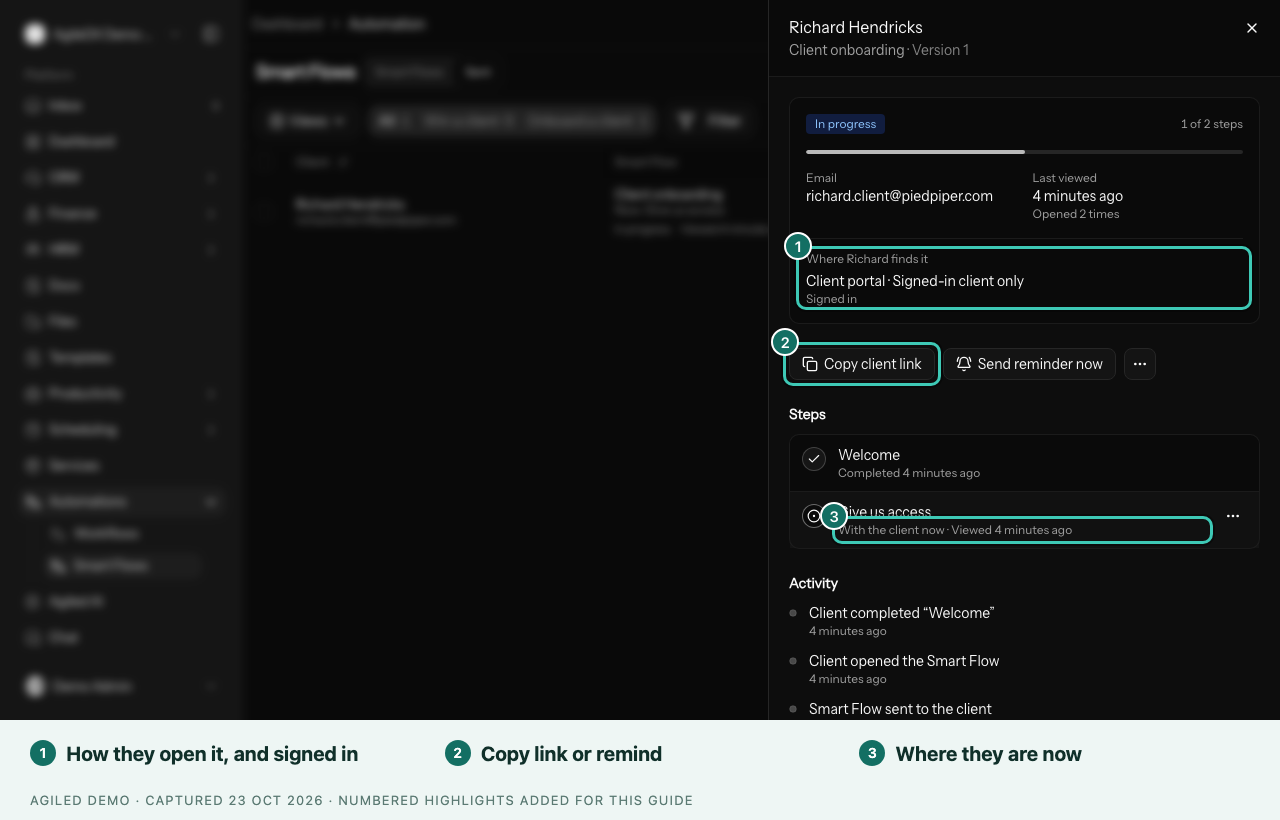
If a client hasn't signed in after a few days, select Send reminder now, or Copy client link and send it in a message. The link still asks them to sign in.