Offer Packages and Add-ons
Show your packages as cards with photos and what's included, let clients add extras, and bill only what they chose.
The Services block lets your client choose what they're buying: one package, such as a wedding collection or a website tier, plus any optional add-ons. Their choice carries through to the proposal, contract and Invoice & Pay block, so they only pay for what they picked.
Templates that win clients come with a Services block already filled in. To add one yourself, select Add a page > Services, or add the Services block to any page.
What your client sees
- Packages appear as cards with a photo, a short tagline, a large price and a What's included checklist. One package can carry a badge, such as Most popular. The client picks one with its Choose button.
- Add-ons appear as a simple list under the packages, each with Add. Some let the client change the quantity, such as extra hours or guests.
- Your selection keeps a running total, like a receipt, so the client always knows what they'll pay.
Set up the block
Select the Services block on the page. Its settings open on the right.
- Under How the client chooses, pick One package + add-ons, or Choose any when clients can pick as many options as they like. The line under it shows what the client sees, such as "Choose 1 package, plus any add-ons".
- Under Layout, choose how the options look:
- Automatic: cards for up to four options, a list for more.
- Cards: side by side, best for comparing a few packages.
- List: one per row, best for many options with details.
- Menu: a grid of small photo tiles, best for menus and à la carte items, such as catering or hair and makeup.
- Add options with Add a service or product, or Create a new service or product.
- Open each option's Options to set the details below.
Package and add-on details
For each option you can set:
- Package or Add-on. Mark at least one option as a package.
- Qty, Always included, and Client can change quantity, with the lowest and highest amount the client can pick.
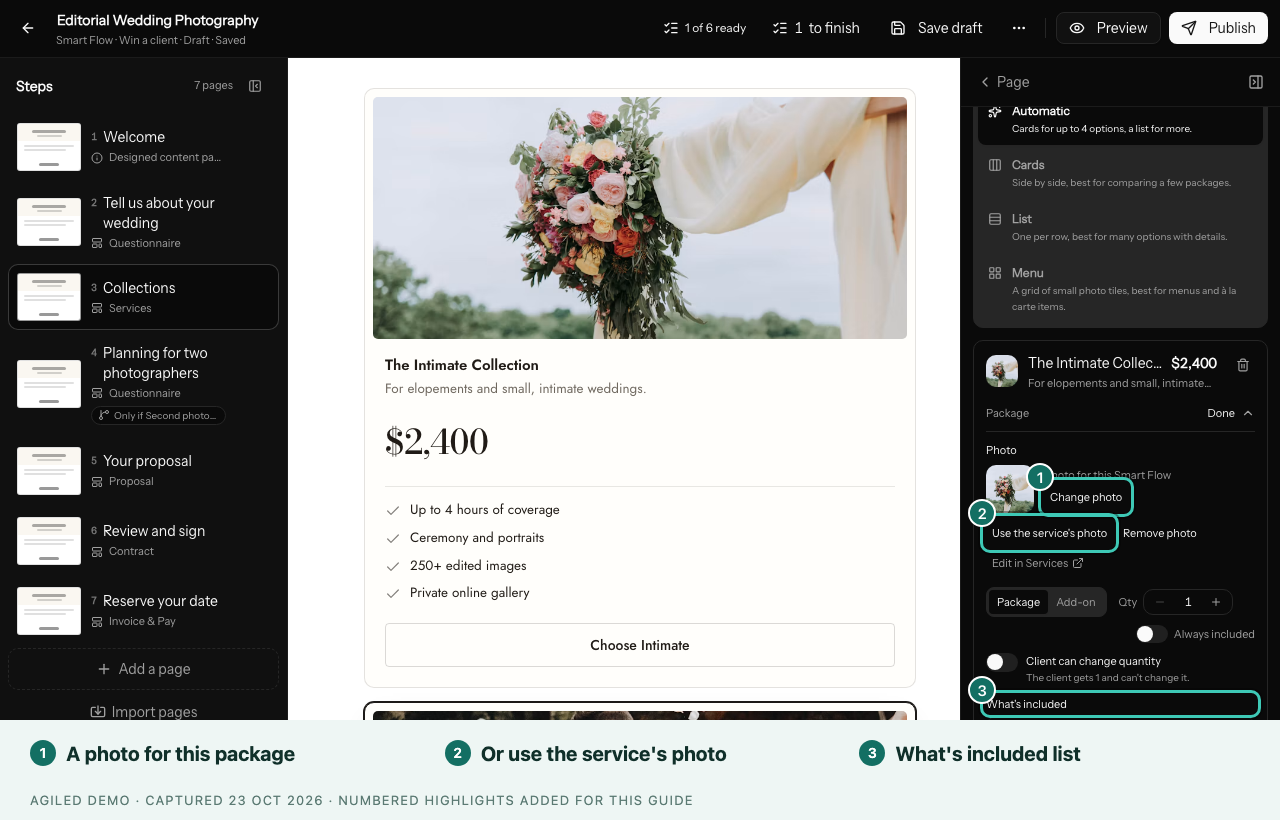
- What's included: one item per line, shown to the client as a checklist.
- Highlight: a badge for a package, such as Most popular, Best value or Recommended.
Give each package a photo
Photos help clients picture what they're buying. In a package's Options, the Photo row offers:
- Change photo: upload a photo for this Smart Flow only.
- Use the service's photo: show the photo saved on the service in your Services catalog.
- Remove photo: show no photo in this Smart Flow.
- Edit in Services: change the service itself, everywhere it's used.
You can also select a package photo on the page to change it. Cards and lists show photos only when every option has one; a short note in the settings tells you when that's why a photo is hidden.
Add-ons a package already includes
Some packages already cover an add-on. For example, a top wedding collection may already include a second photographer and an album. Set this on the add-on under Already included in these packages.
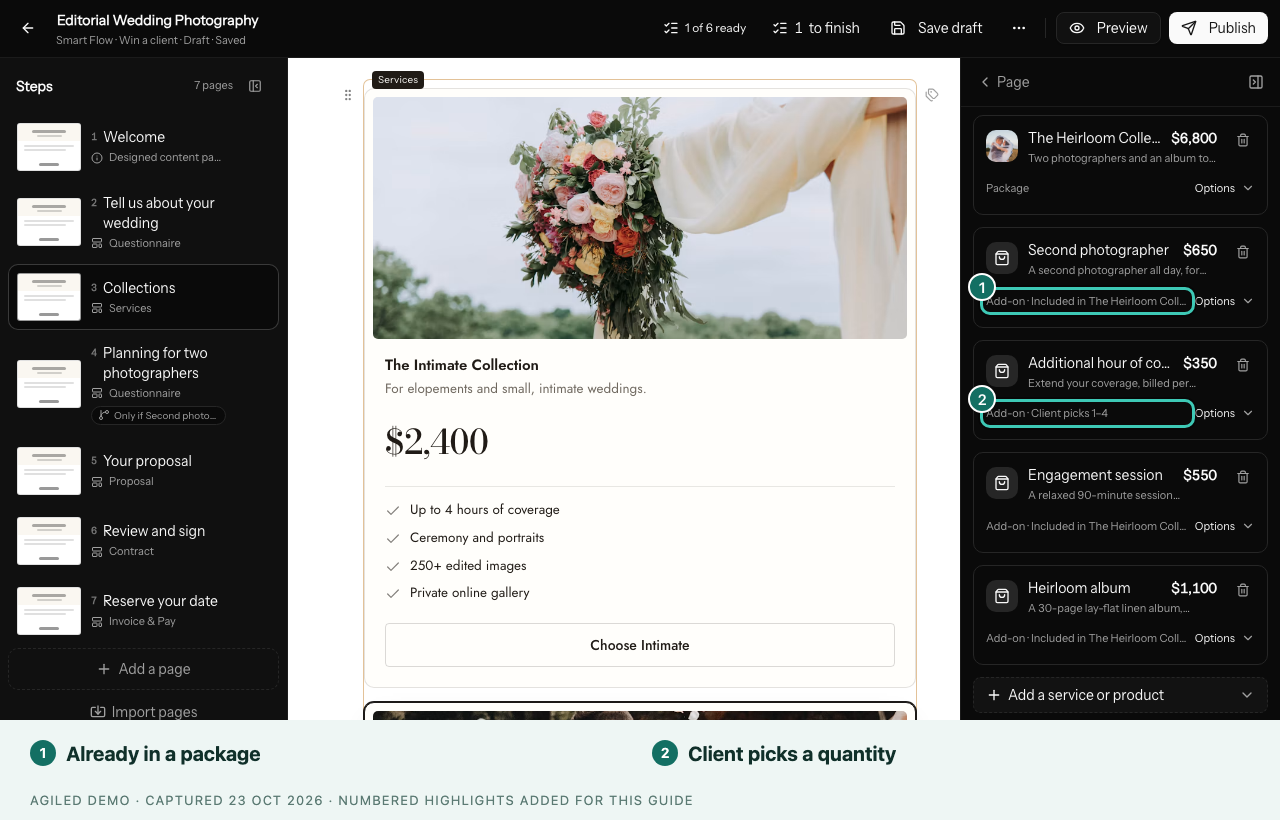
When a client chooses one of those packages:
- The add-on reads Included in and the package name, and can't be added again.
- It's never charged twice. If the client had already added it and then switches to a package that includes it, it's removed from their selection.
How the choice is billed
The Invoice & Pay block uses Carry forward by default, which bills everything the client chose on earlier Services blocks. Leave Include proposal pricing off when clients also pick services, so nothing is billed twice. See Payment schedules to split the total into a deposit and later payments.
Add-ons and packages hidden by a condition are never billed.
Before you publish
Publishing tells you if no option is marked as a package, or if the minimum the client must choose is more than you offer. Preview the page on a phone too: long package names and long What's included lists are easier to read when they're short.