Collect Client Logins with Account Access
Ask clients to invite you to their tools or share a login safely, then check each one works.
Most client work starts with access: their analytics, ad accounts, website or social profiles. The Account access page asks for it inside a Smart Flow, so you don't chase passwords over email.
For each account you ask for, the client either:
- invites you as a user, which is the safest way: they stay in control and you never see a password; or
- shares a login, which Agiled stores encrypted.
Add an Account access page
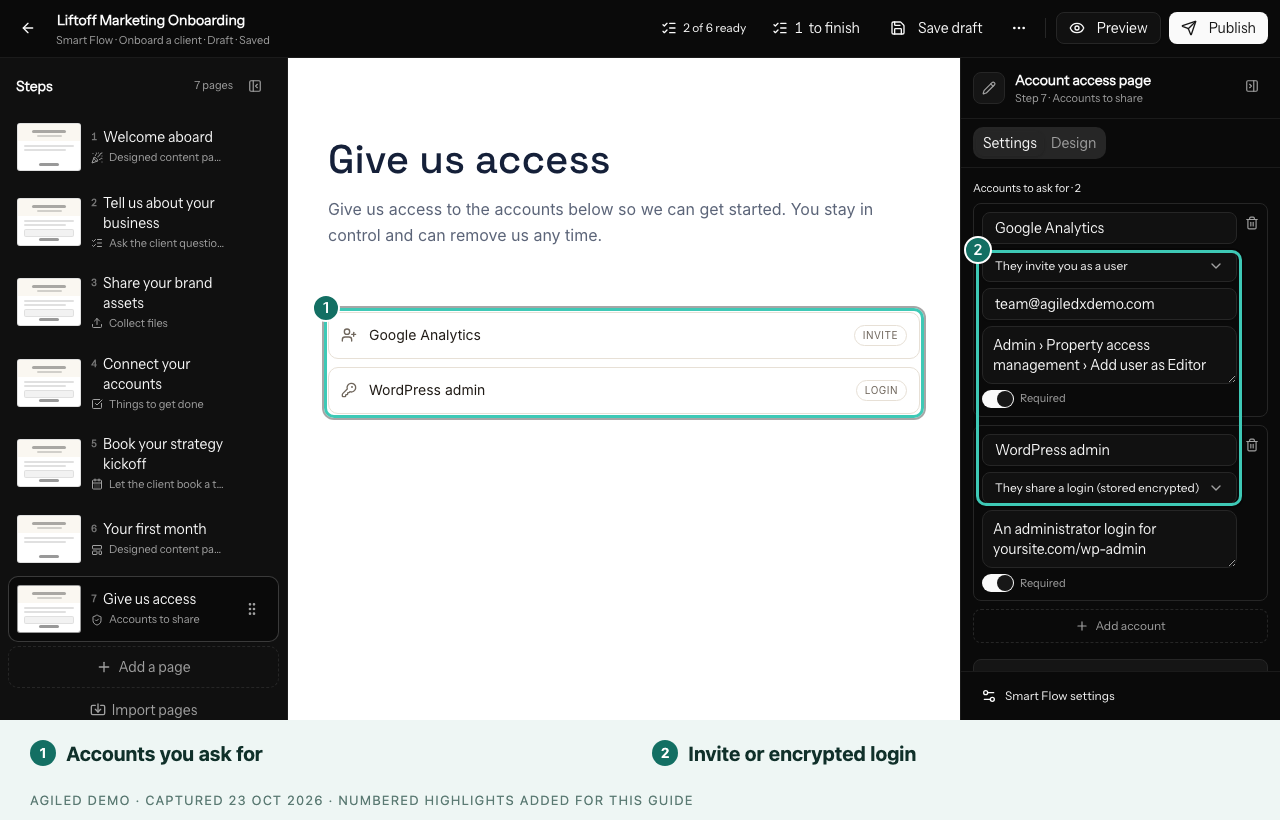
- Open an onboarding Smart Flow and select Add a page > Account access (in Onboard your client).
- For each account, enter its name, such as Google Analytics.
- Under How account 1 is shared, choose They invite you as a user or They share a login (stored encrypted).
- For an invite, enter the email they should add, such as your team address.
- Add Instructions, such as Admin › Property access management › Add user as Editor, so the client knows where to click.
- Leave Required on for accounts you can't start without.
- Select Add account for the next one, then Save draft and publish.
Account access needs a known client, so send this Smart Flow to the client rather than sharing a public link. For extra privacy, set it to Signed-in client only.
What your client sees
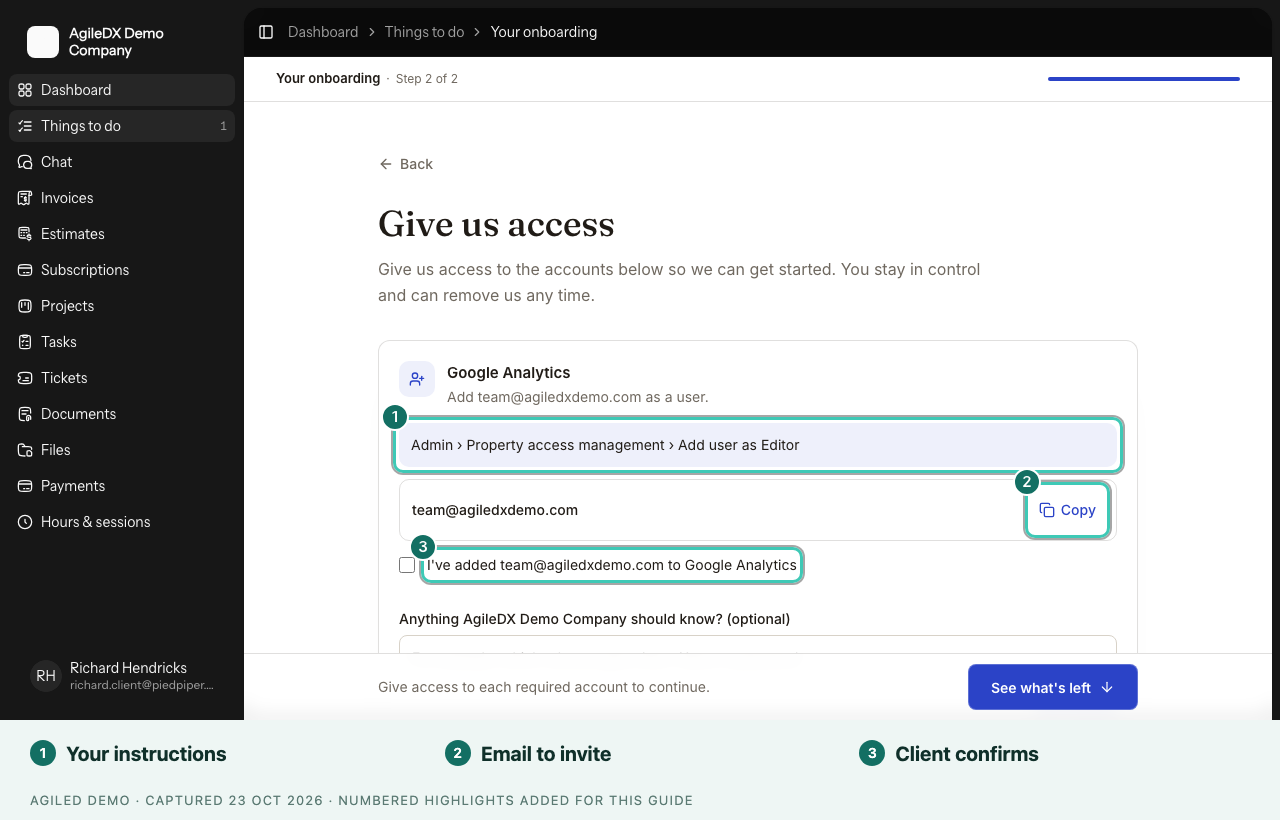
Each account appears as its own card with your instructions:
- Invites show the email to add, with Copy. The client adds you in their tool, ticks I've added … to …, can leave a note, and selects Done.
- Logins ask for Username or email and Password, then Save securely.
The page explains that logins are encrypted, that only people at your business who are allowed to view logins can see them, and that inviting you is safer. The client can continue once every required account is done.
Check what the client shared
Open the client's contact and go to the Smart Flows tab. The Account access section lists every account the client shared with you through Smart Flows, with its status: Not checked yet, Working, Asked the client to fix or Removed.
For each account:
- Show login reveals a shared username and password. It hides again after a minute, and each time someone views a login it is recorded with who and when.
- It works marks the account as Working once you've checked it.
- Ask the client to fix it sends them a note, such as "The password didn't work. Could you check it and share it again?" If their Smart Flow is still open, it takes them back to that page with your note. If it has finished, send them a new Smart Flow to share the account again.
- Remove stored login deletes a saved login for good. Mark as removed records that an invite is no longer used. Remember to remove your own access in the tool itself too.
Who can see logins
Only people with the permission Reveal logins clients share in a Smart Flow can use Show login. Workspace owners always have it. In new workspaces, admins have it too; in existing workspaces, grant it to the roles that need it in Settings > Access control.
Invites are always the better choice when the tool supports them: nothing secret is stored, and the client can remove you whenever they like.
Related
- Onboard clients
- Client devices and logins, for logins your own team keeps on a client's account