Review Sent Smart Flows
Follow each client's progress, manage their link, and see how a Smart Flow performs.
Open Automations > Smart Flows and select the Sent tab. Each row is one client's copy of a Smart Flow, whether you sent it or they started it from a public link.
Find a sent Smart Flow
- Use the status row to switch between In progress, Paused, Link expired, Completed and Cancelled.
- Use All clients to show one client, and Purpose to show Win a client or Onboard a client.
- Search by Smart Flow name or client.
Each row shows the client, the Smart Flow and the step they are on (for example "Now: Sign the agreement"), its purpose, progress, status, and when the client last viewed it. The purpose is the one the Smart Flow had when it was sent.
A contact's Smart Flows tab lists the same rows for that one client.
The details panel
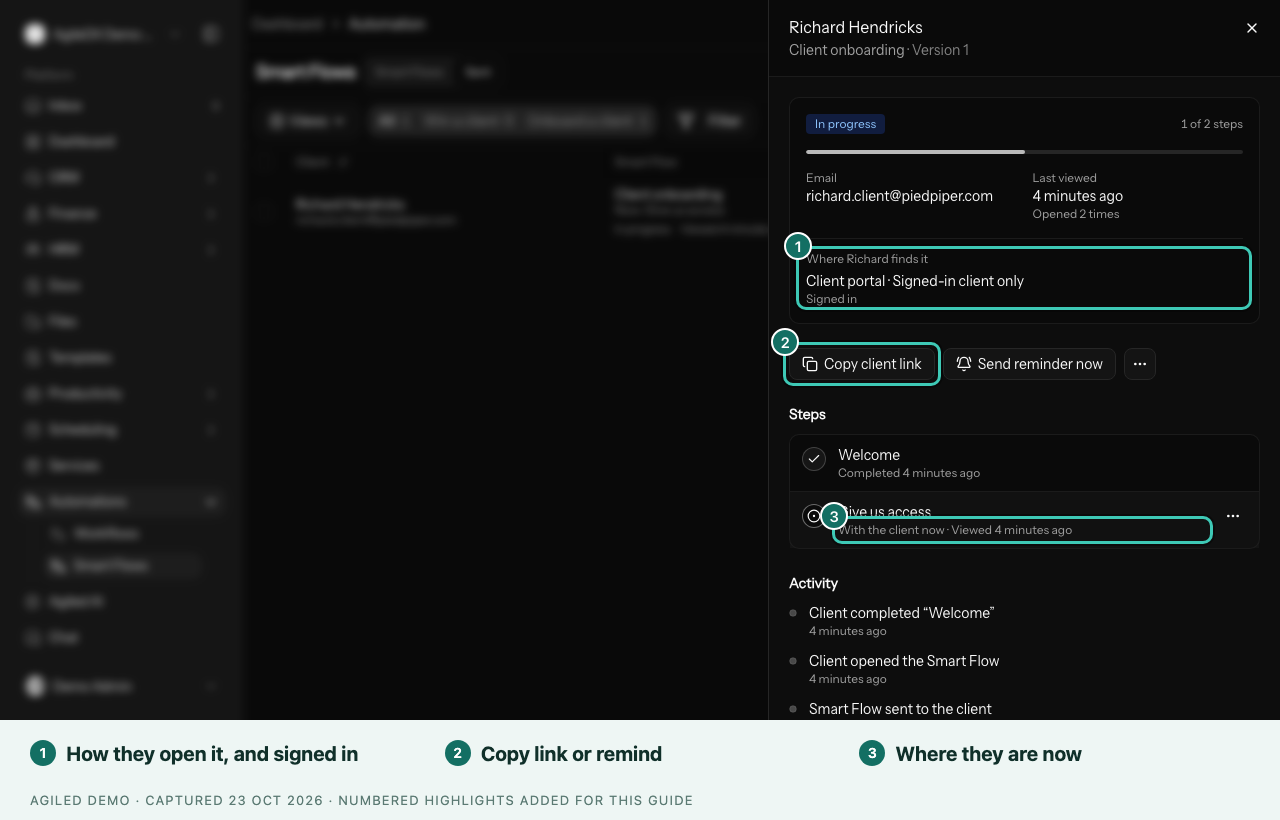
Select a row to open its details: the status, each step, and Activity. What you sent the client, such as the signed agreement or invoice, is shown apart from what the client sent you, such as their answers and uploads. Team notifications about a client finishing a step open the same panel.
Where the client finds it
Near the top, a row named after your client, such as Where Jane finds it, shows how the client can open it:
- Email link · Client portal: both work.
- Client portal · Signed-in client only: the client signs in to open it. Underneath, it says whether they have Signed in or Hasn't signed in yet.
- Email link, with a note that the client doesn't have portal access, and Give access.
- Public link: someone started it from your public link without signing in. See below.
Actions
Every sent Smart Flow has the same actions, whether you sent it or the client started it from a public link:
- Copy client link: copy the client's own link, for example to send it in a message. Share it only with that client.
- Send reminder now: email the client their link again now.
- Extend deadline: give the client more time when the deadline has passed or is close. Their link and portal page open again.
- Pause stops the client from continuing; Resume picks up where they left off.
- Cancel closes it. It doesn't undo a payment, signature, booking, upload or anything else already done.
- Delete removes it from the list.
Sending the same Smart Flow again starts a new copy, so check for an open one first.
Make a held step available
When a step is set to open When you or an automation releases it, it shows as waiting in the steps list. Once your team is ready, open the step's menu and choose Make available. The client can open it straight away instead of waiting for a Workflow.
Started from your public link
When someone starts from your public link, Agiled can't be sure who they are, even if they type an email that matches a client. Their copy isn't added to any client portal, and pages that need a known client, such as Task checklist and Resource library, are skipped.
If it is linked to a client who has portal access, the panel says, for example, Started from your public link as Jane Cooper and offers Show in Jane's portal. Use it only when you are sure it was them. Confirming lists it under Things to do in their portal and opens any pages that were skipped.
Check the outcome
Check both the step status and the record behind it: the submitted form, the booking, the uploaded files, the accepted proposal, the signed contract, the paid invoice, or the tasks completed. The progress count summarizes the client's journey; the record holds the business result.
A Smart Flow can be in progress while it waits for the client. Look at the current step before treating a quiet one as stuck.
Smart Flows also keep your CRM up to date. When a client signs the contract, their contact becomes a customer. The contact's and company's timelines show the milestones: Smart Flow started, forms submitted, documents signed and completed.
If Activity can't load, the step progress may still show. Reload the panel before sending again.
Changes to a published Smart Flow
Each client keeps the version of the Smart Flow they received. Publishing changes affects copies you send afterwards, not ones already sent.
See how a Smart Flow performs
On the Smart Flows tab, choose Analytics from a Smart Flow's row menu. Pick a date range to see:
- how many clients were sent it, opened it and completed it, and how long they usually take to finish;
- Money and outcomes, such as payments collected and amounts outstanding;
- Step by step: how many clients reached and finished each page, and where most clients stop.
The Sent column on the Smart Flows tab gives the short version, such as "Sent 12 times" with the share completed and how many are in progress.
If no one has received it yet, send it to a client or share its public link to start seeing results.
See Troubleshoot Smart Flows for stuck steps and access problems.