Save a Smart Flow as a Template
Turn a Smart Flow you have perfected into a template your team can start from.
Once a Smart Flow works well for your business, save it as a template. Your team can then start new Smart Flows from a copy of it, with your pages, packages, wording and branding already in place, instead of starting from an Agiled template each time.
Templates belong to your workspace. Everyone on your team who can create Smart Flows sees them.
Save a Smart Flow as a template
You can do it from three places:
- In the builder: open the ⋯ menu in the header and choose Save as template.
- In the list: on the Smart Flows tab, open a Smart Flow's row menu and choose Save as template.
- In the settings: open Smart Flow settings > General and turn on Show in template library.
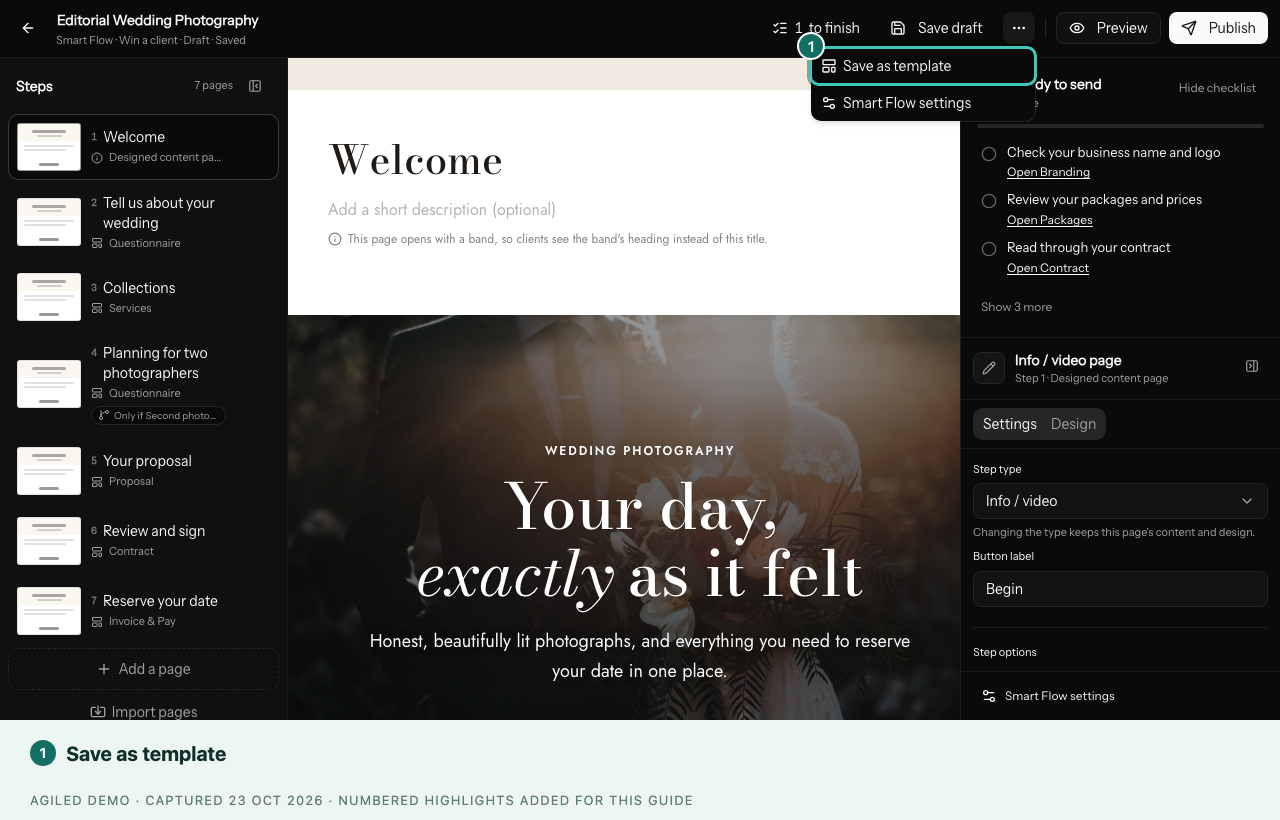
Agiled confirms that the Smart Flow is now a template. In the Smart Flows list it gets a small Template tag.
Saving as a template doesn't change the Smart Flow itself. You can keep sending it to clients as usual.
Start a new Smart Flow from your template
- Open Automations > Smart Flows and select New Smart Flow.
- Your saved templates are listed first, under Your templates, above Agiled templates.
- Select your template to see its pages, then select Use this template.
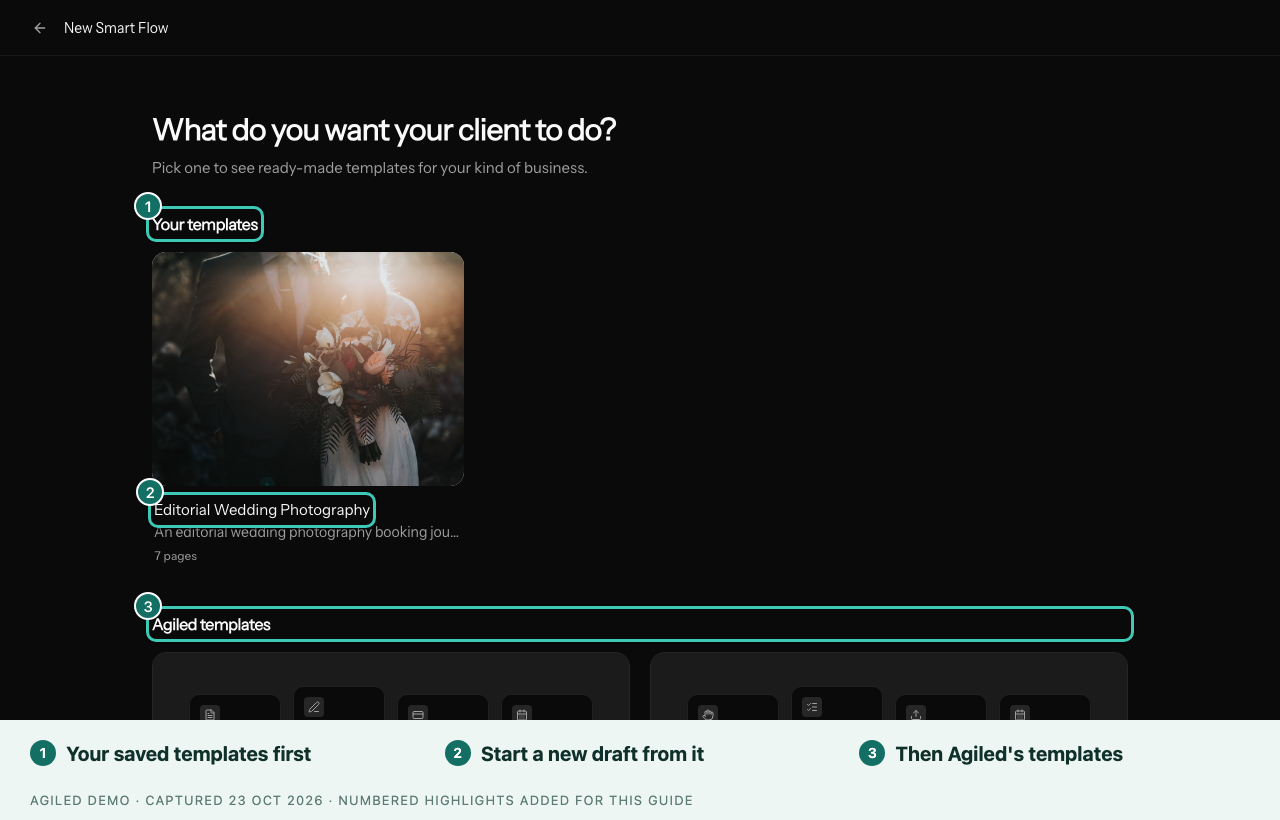
Agiled creates a fresh draft copy named after the template, for example Editorial Wedding Photography (copy), then (copy 2) and so on. Edit and publish the copy like any other Smart Flow. The original template and every Smart Flow already sent stay exactly as they are.
Your templates also appear in the template gallery for their purpose, and in Templates > Smart Flows. That category lists only the Smart Flows your team saved as templates. See Navigate the template library.
Stop using a Smart Flow as a template
Open the ⋯ menu or the row menu and choose Remove from templates, or turn off Show in template library. The Smart Flow itself is unchanged, and copies already made from it keep working.
Good habits
- Remove client names, one-off prices and dates before you save a template.
- Keep the template's name about what it's for, such as Wedding booking — full day, so teammates pick the right one.
- When you improve your process, update the template, not just the latest copy.